Frequently asked questions about switching to a euro inventory account
FromRaya Yankova
Dear clients,
Here are answers to frequently asked questions about switching to the euro in I-CASH Retail and Inventory Software.
How do I calculate change correctly when a customer pays in both euros and leva?
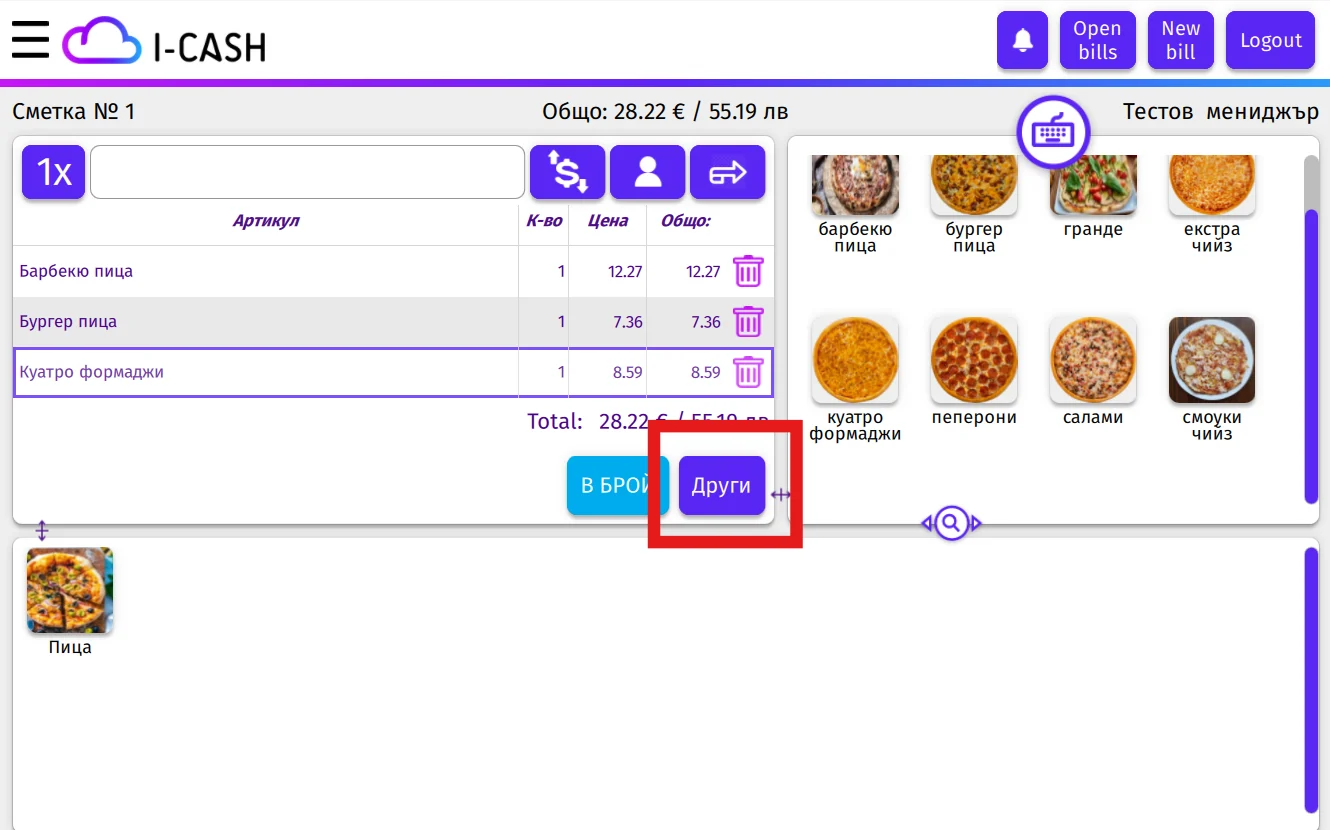
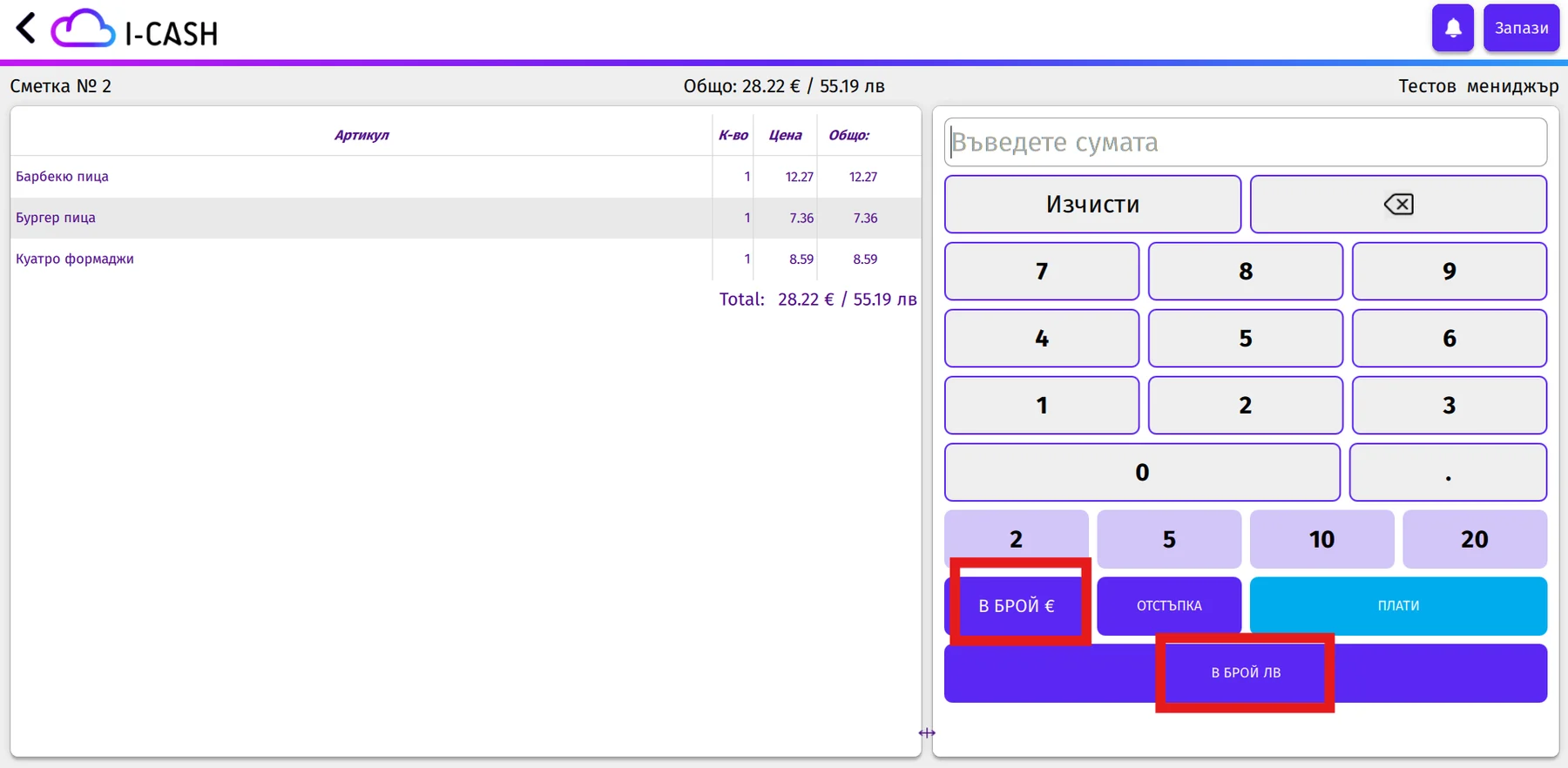
Split payments or payments in another currency can make calculating change difficult. This is addressed by using the 'Other' payment method in the Quick Sales Module (POS).
- The screen displays:
- Amount entry field
- 'CASH €' and 'CASH BGN' buttons
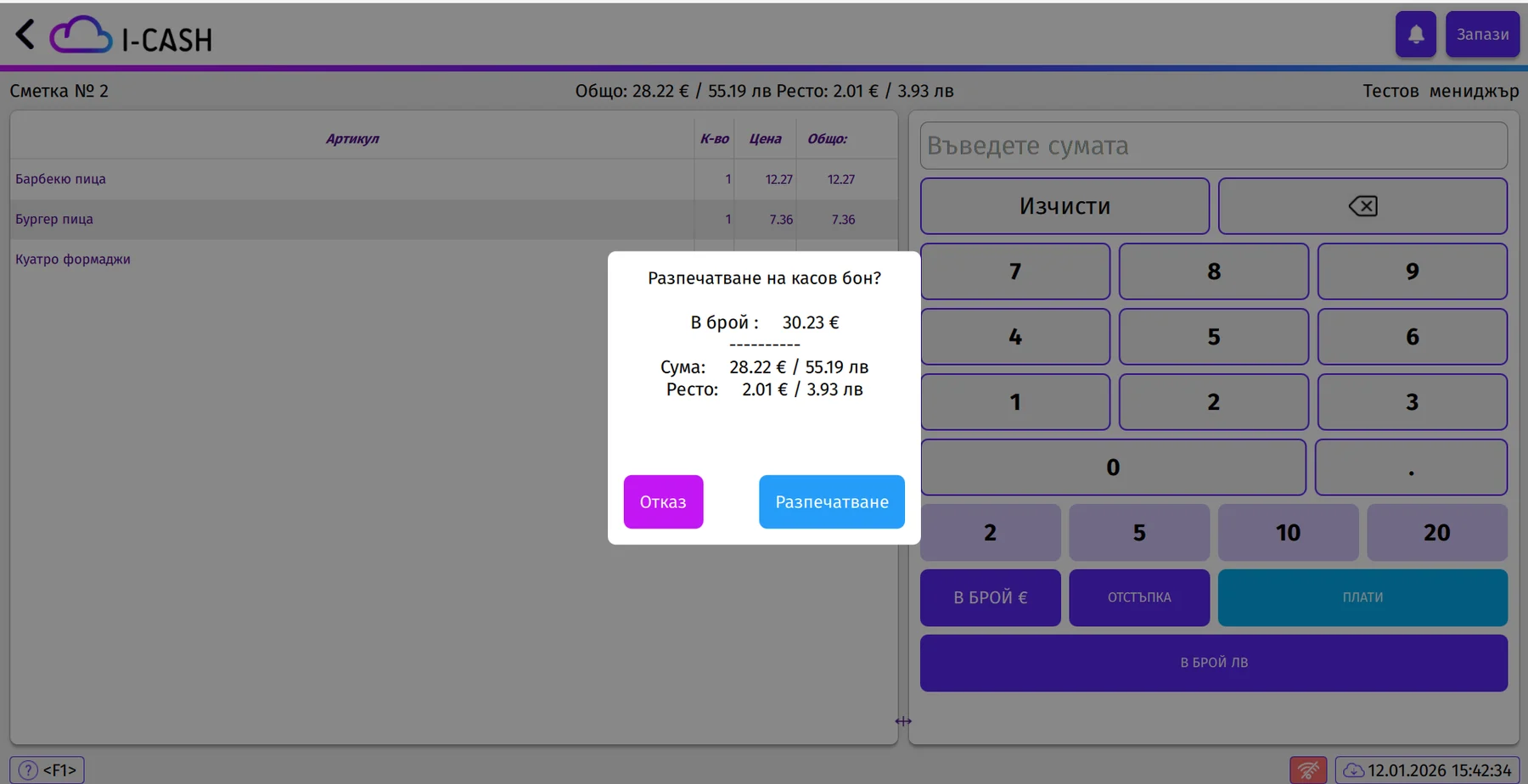
- The system automatically converts the amount and displays:
- the converted paid amount in both euros and leva
- change due in euros (€) and BGN (BGN)
Confirm and print the fiscal receipt.
How can I reverse or issue a credit note for a sale made in the previous year?
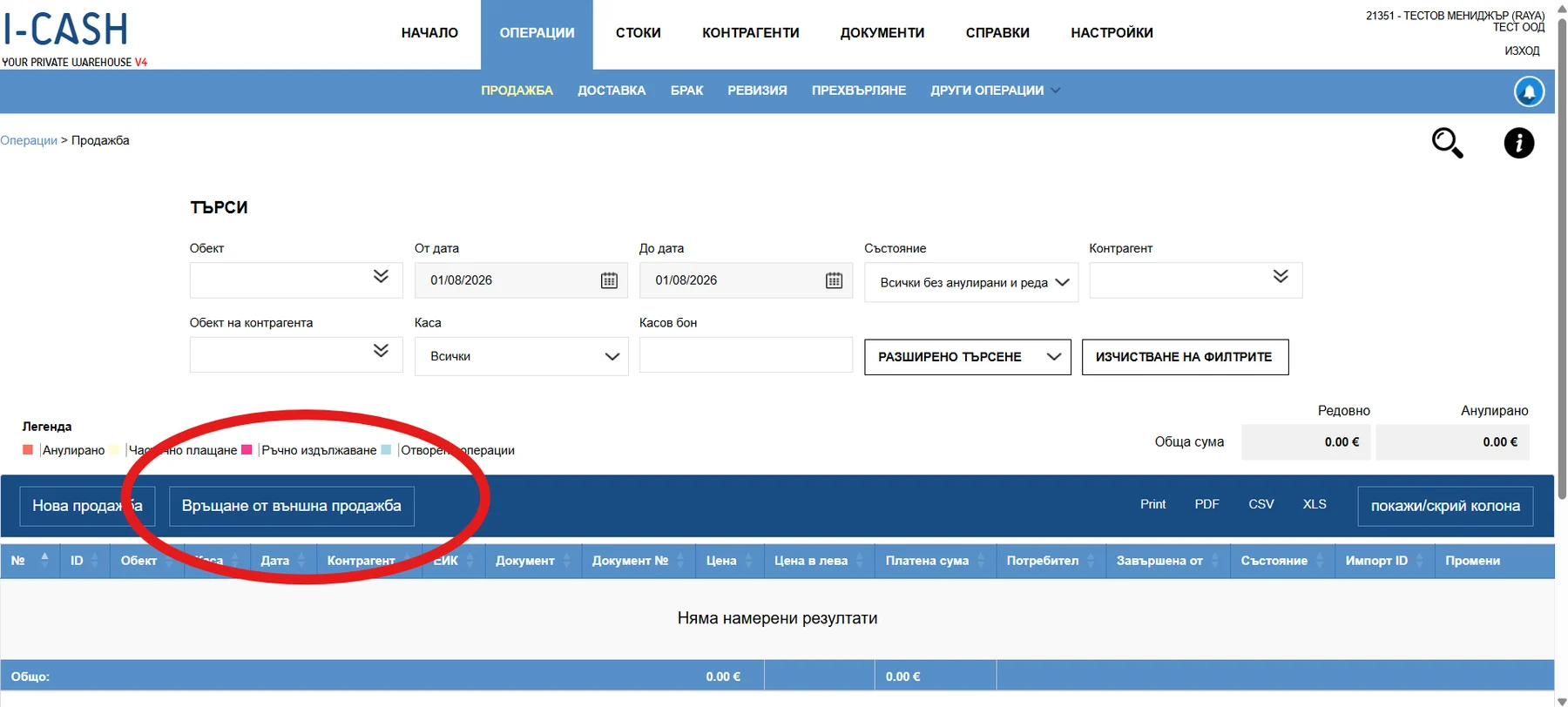
Step 1: Preparation
- Please log into your a new inventory account in euros (inventory account beginning with the digit 2).
- In a separate browser or incognito window, open your old BGN inventory account. (starting with the digit 1)
- In the BGN inventory account, find the sale/invoice for which the reversal or return will be processed. (Do not close the lev inventory account; you will need it for reference.)
Step 2: Starting the operation
- Return to the window with the euro inventory account.
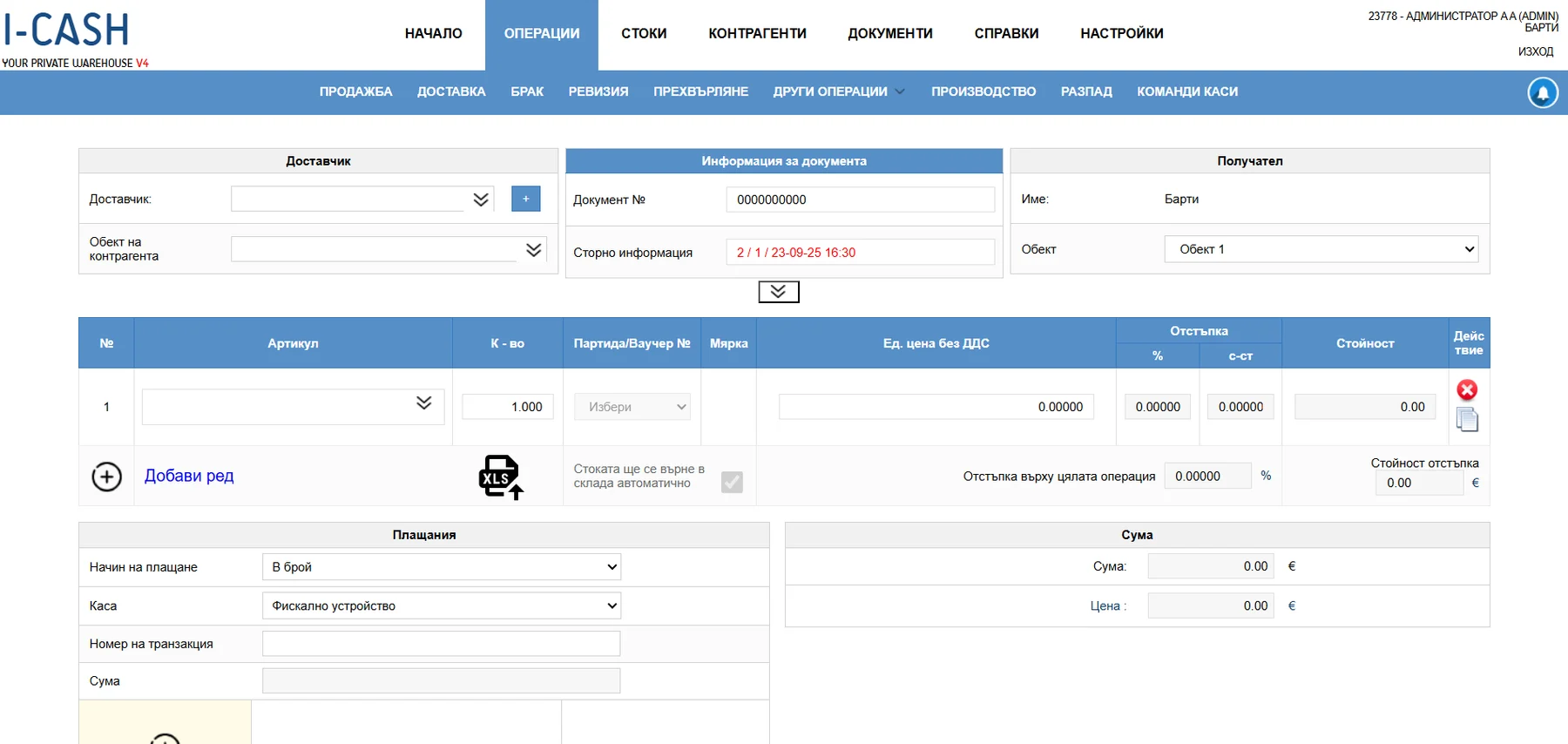
- Go to Operations → Sales → Return from external sale
Step 3: Completing the required fields
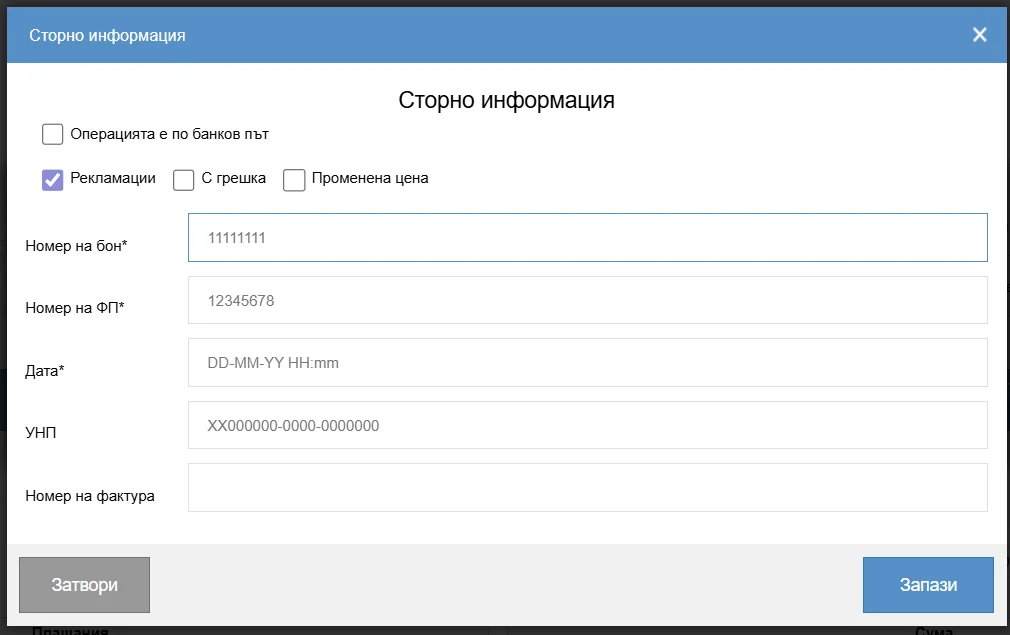
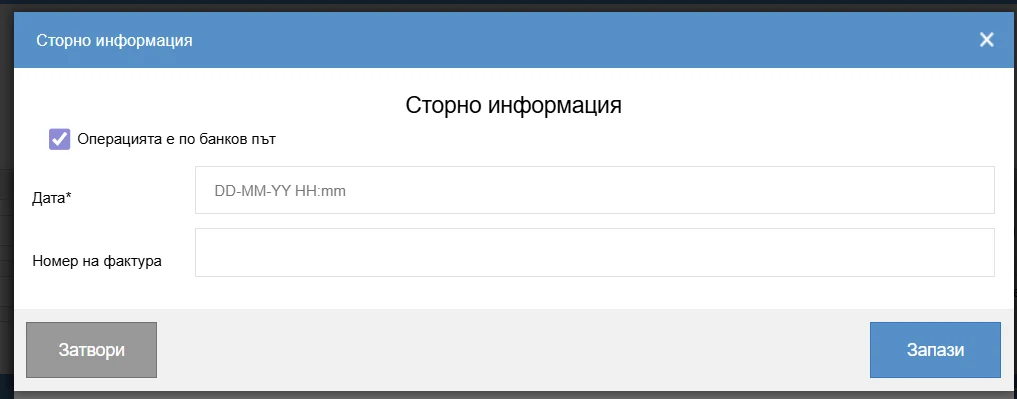
- Please enter details of the sale you wish to reverse. All fields marked * are required
- If no fiscal receipt was issued, enter arbitrary digits for the receipt and fiscal memory numbers.
- Follow the exact format specified in the fields.
Step 4: Returning the items
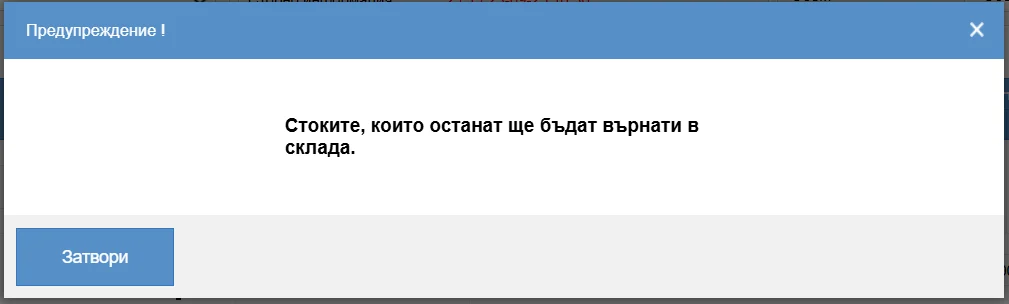
After completing the fields, a message will appear stating:
- All listed items will be returned to inventory.
- What do you need to do?
- select the items to be returned;
- Check the quantities carefully.
Step 5: Completing the operation
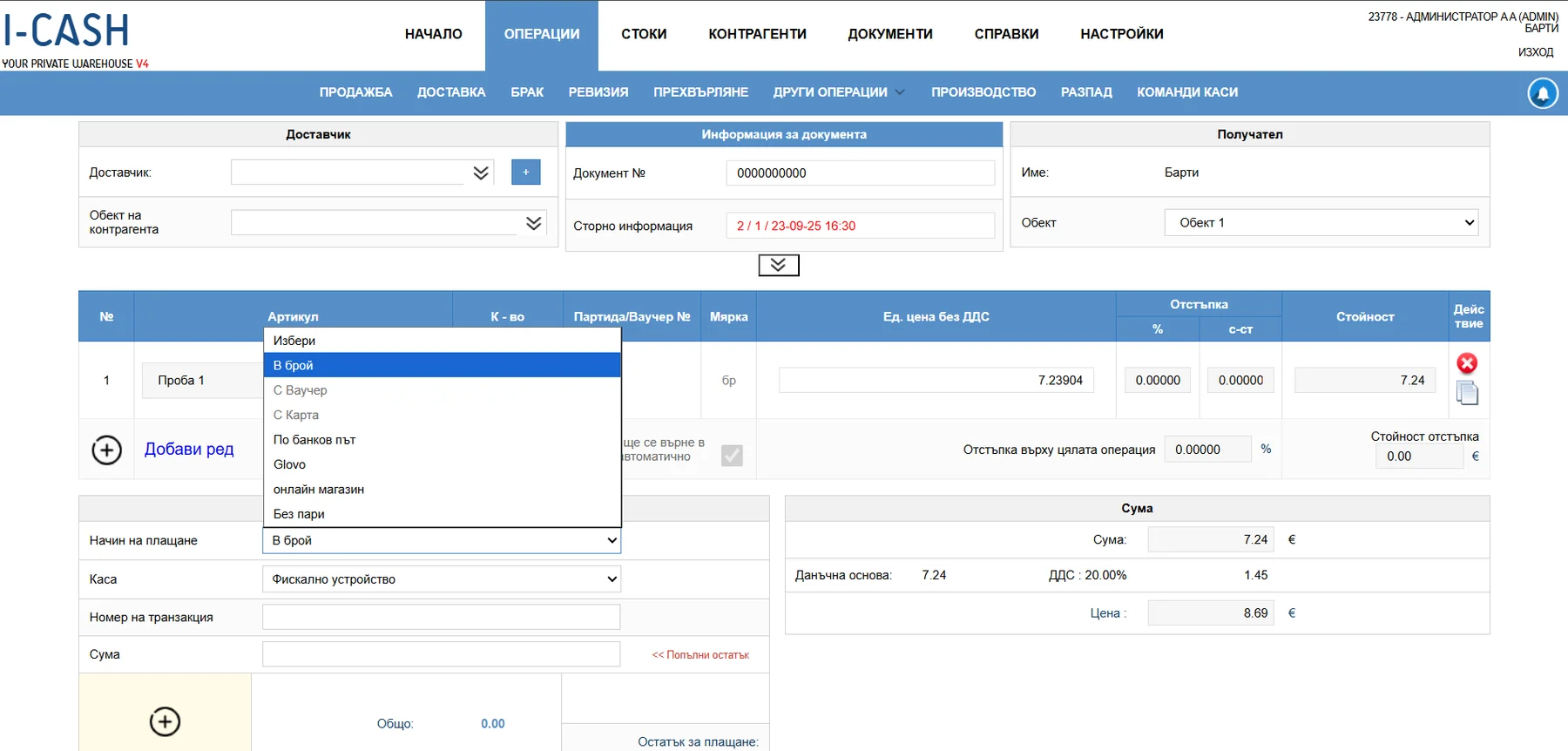
- Please select
- Payment method
- Whether the amount has been paid
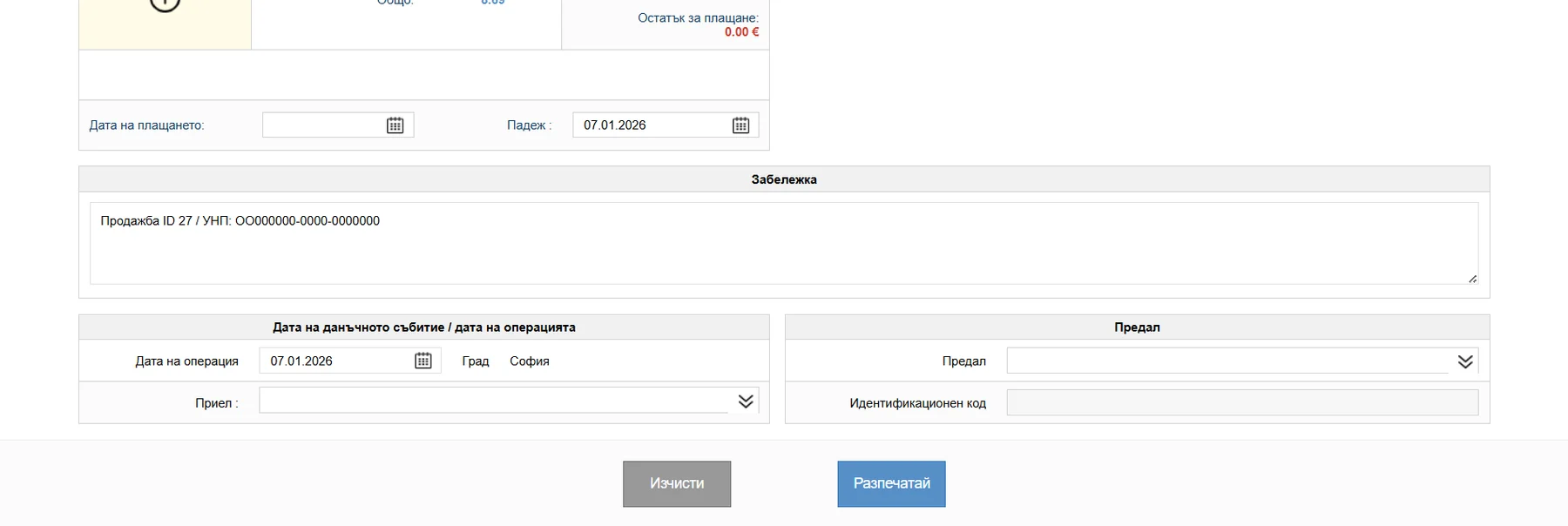
- Complete the transaction.
- If Cash payment is selected:
- A Print button will appear
- Press it to issue a fiscal receipt
- Useful tips
- Always check that you are in the correct inventory account (euro) before completing
- Items returned through this operation are automatically returned to stock
If you have doubts or discover an error, do not finalize the transaction; consult us first. If you do not have access to the relevant transaction, please contact us by email or phone so we can provide the necessary access.