Installation and peripheral device connections
Fromadmin
How to prepare hardware before starting with I-CASH
What does the program need for a normal working environment?The first thing a prospective software user must consider is the minimum requirements the hardware configuration must meet. For more information, see here.
You can download the quick sales module from the home page of your inventory account.
For Windows: extract the file and run icashpos.exe.
For Android: follow the installer steps.
Note: You can download an extraction program online. We recommend WinRAR. Tip: Do not use the tool built into Windows 10. Please follow the steps above. Online Services Ltd. accepts no responsibility for problems caused by the customer starting the program incorrectly!How do we connect a cash register to a computer running Windows?
Once the two devices are connected with a USB cable, Windows will try to recognize the cash register. To confirm this, simply open Device Manager from the Control Panel and check whether the cash register appears there as a COM port. The screen shown below varies depending on the operating system version.
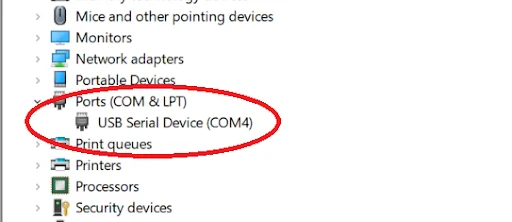
If Windows does not recognize the device, drivers will need to be installed. You can find them on the cash register manufacturer's official website. Once the drivers are correctly installed, the cash register will appear in the list. Start I-Cash and follow the wizard. Select the cash register model and the COM port used for communication, COM4 in this case.
Communication errors, or I-Cash cannot connect to a device on the specified COM port
If I-Cash cannot communicate with the fiscal device after installation:- Software: Check that the cash register is in PC mode (fiscal printer).
- Software: Check that the drivers are installed correctly. If Device Manager shows an exclamation mark in a yellow triangle, the drivers are either installed incorrectly or are not the ones you need. Try updating those drivers or uninstalling and reinstalling them. Some require the operating system to restart. Some manufacturers provide separate drivers for Windows 7, 8, 10, etc.
- Software: Check that the operating system is up to date.
- Software: Check whether power settings (power & sleep), the operating system does not switch off USB ports to save energy. Disable this option.
- Software: The quick sales module's Information menu contains a test to check the connection between the two devices. If this test detects a problem, it originates in the hardware.
- Hardware: Replace the cable between devices. If the problem recurs, contact a service technician.
- Hardware: Test every USB port by plugging the cable into each one. If the problem recurs, contact a service technician.
- Hardware: Check the USB sockets. If they are loose or wobble, contact a service technician.
How to connect a cash register to an Android device
These two devices can be connected with a USB cable or Bluetooth.- USB cable – depending on the devices' ports, you will need a USB cable and adapters. Then start the I-CASH wizard and choose USB as the connection method.
- Bluetooth—watch the video in youtube.