Preparing a .csv file for import
Fromadmin

Importing a .csv file into I-Cash
First, familiarize yourself with the specifications and requirements for the .csv import file. Mandatory fields must be completed. We recommend downloading the sample file, adding your data and deleting the example rows (the first row is informational and is not imported). For the import to succeed, consider the following:
- When opening the file in Excel, check how the delimiters are configured.
- The database contains two units of measure: kg (non-countable) and pcs (countable). Contact our staff if you wish to use other units.
- You cannot enter different items with the same barcode. Only the first will enter the database; the others will not be imported. An item is imported with just one barcode. Two columns have been added for two additional barcodes per item.
- Recommended image dimensions are 500×500 px.
- The file encoding is UTF-8.
- We recommend working in .xls format and converting to .csv when finished. Do not edit the .csv file, as this changes its structure.
- For the .csv file: Delimiter–tab (\t); Line ending–newline (\n).
- When transferring data from another file, check for copied blank spaces or tabs.
- The filename must not contain special characters or Cyrillic letters.
Also watch our YouTube video, to learn how to import items from a .csv file.
Creating a .csv file with UTF-8 encoding
- Open the file in Excel and select Save as.
- In the dropdown for Save as Under Type, select “CSV (Comma Delimited)„.
- Open Tools and select Web Options. In the dialog box, select “Encoding“. Find “Save this document as” and select from the dropdown “Unicode (UTF-8)
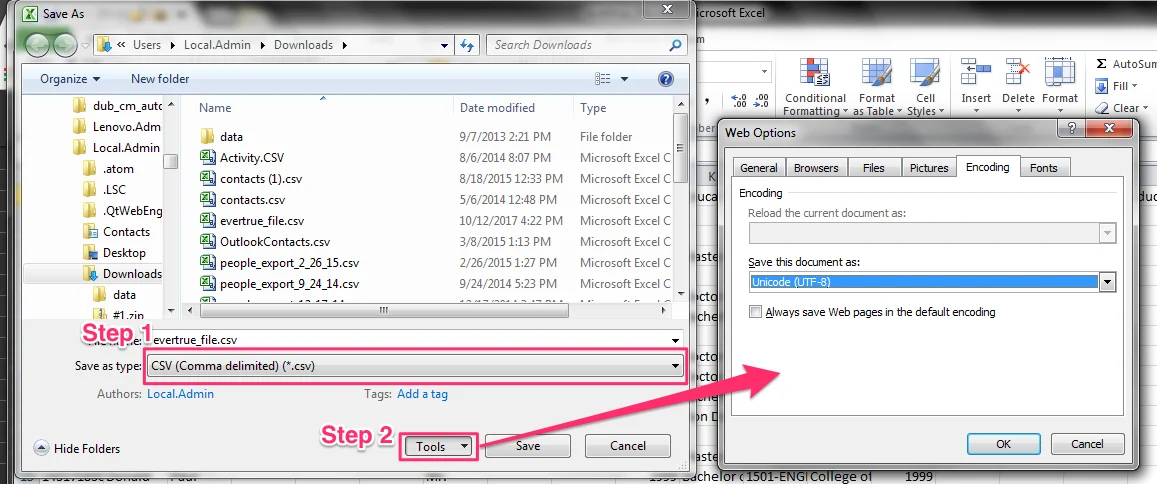
- Select Save and close the file.
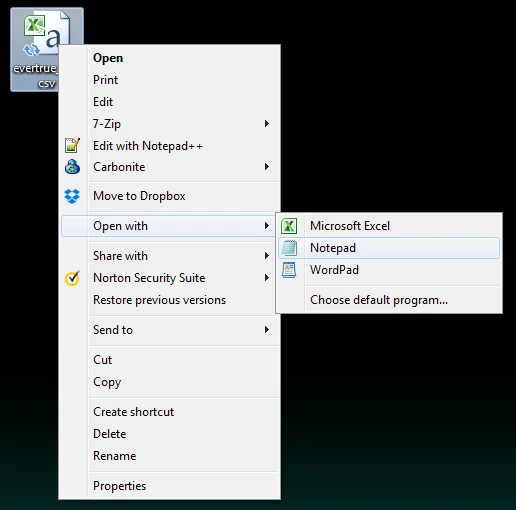
- Find the file and open it with “Notepad”.
- Once the window opens after you select Save as in the dialog, after the filename add “.csv”. This is required when the option is selected Save as , rather than simply renaming the file.
- From the dropdown menu “Encoding” select “UTF-8„.
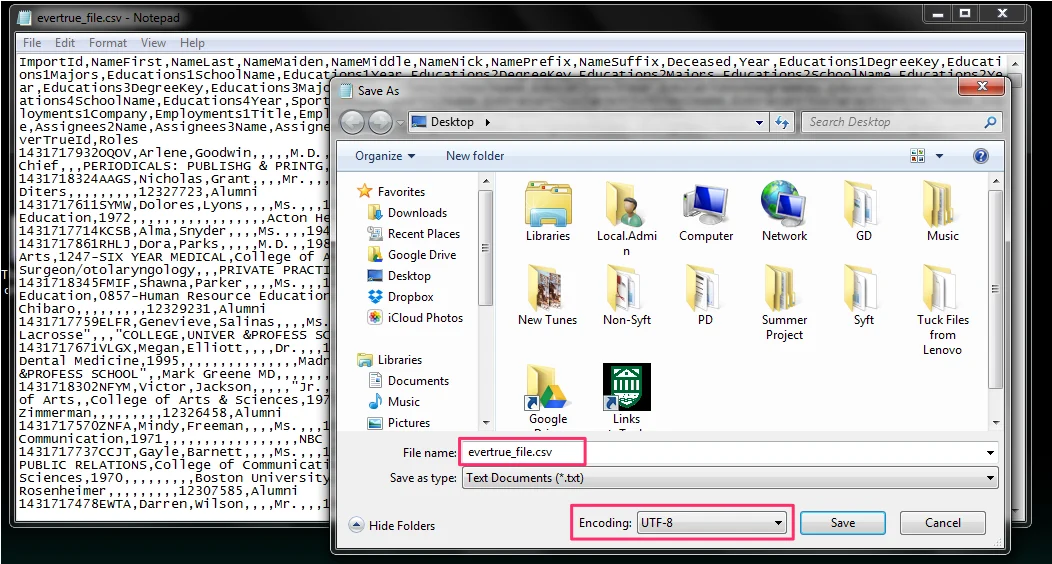
- Press Save and close the file.
The file is ready to import.
Import errors:
- Incorrect number of columns—changes were made to the .csv file being imported.
- Syntax error: prohibited Cyrillic characters used in certain columns.
- Incorrect price on row “x”—the price was entered incorrectly or is missing.
- Error: Missing item name on row 'x': an empty field, invalid characters such as an apostrophe (‘), or blank fields such as tabs (Tab).
Also read how to import items and business partners from an Excel file.