How to prepare recipes?
How to prepare recipes and create an item database in I-Cash?
We will divide product catalog setup into two approaches and discuss them separately, covering specific situations and how to prepare for them. First, we will discuss items used at the bar, then goods used in the kitchen, and separately what happens with items used in both places.
We can prepare goods entry in two ways. The first is easier and faster; the second requires a little more time. The main difference between the two methods of entering goods is reflected later in the reports the program provides.
Option 1
We start by creating an item. For example, create 'Espresso coffee', which we will receive and sell by the unit. Add the item by entering only its name and selling price. Save it, and you are ready to perform all commercial operations: purchases, sales, write-offs, stocktakes and transfers. A database created this way provides information on the item's movement within the inventory account:
how many units we received into stock
how many units we sold
how many units we have written off
how many units we found during a stocktake and whether actual and expected quantities differ
how many units we transferred between warehouses if more than one location is registered in the program
This is the faster, easier option, but it only tells us how many cups of coffee we sold, not how much coffee we purchased and sold. Items prepared this way do not show how much we spent on coffee or how much profit the product generated.
Option 2
We begin by preparing an item. We will use the example from option 1 but set it up as an item with a recipe. For this purpose, we create an item called Coffee per kilogram. This will be the item received into stock. Enter a name and a selling price equal to its purchase price. Change the unit of measure to kg, rather than a unit counted in pieces. This lets us receive stock and use the item as an ingredient, entering quantities that are not whole numbers. In additional settings, mark the item as an ingredient and prohibited from sale. Preparing it this way will prevent it from being sold accidentally in the future.
After preparing the ingredient item, return to the previous “Espresso coffee” item, open the “Recipe” tab and create a recipe. Select when the recipe should be executed—On sale—and begin listing the items it contains: select “Coffee by the kilogram” from the dropdown and enter its quantity. In this example, enter the quantity of “Coffee by the kilogram” to be deducted from inventory when 1 unit of “Espresso coffee” is sold, namely 0.007 kg.
Note: When creating an inventory account, the program generates two units of measure: 'pcs' and 'kg'. If you need additional units, contact our team using the email addresses on the website.
The next field in the recipe table is Waste. You can enter a quantity to be added to the amount specified in the preceding cell. On sale, the program adds both quantities together and deducts them from inventory. This will also increase the purchase price and sales margin.
The program also lets you add rows to a recipe, resulting in several goods being deducted for a single sale. If we create a Coffee with Milk item, its recipe will contain two rows: Coffee by the Kilogram and Milk by the Liter.
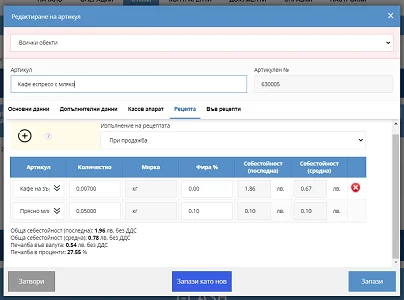
Creating a recipe
We need to prepare every item in the “Items” menu this way. First, start with a list of all ingredient items, then prepare the sale items with recipes.
What can we expect from the program with master data prepared this way?
This way of structuring the item database gives the client more detailed reports. Items in the system will be divided into two categories, allowing the client to monitor the quantity of bulk coffee in the warehouse, with the program alerting them when it runs low, and also to track revenue from coffee sales. Based on deliveries and sales, the program will also calculate profit daily, monthly and annually.
Non-fiscal printers and splitting turnover
The program also supports non-fiscal printers; you can view models on the website of Daisy Tech AD ), to which information is sent and received by the employee as a slip containing the customer's order, with item types and quantities.
To 'separate' turnover and provide the user with bar and kitchen sales information, the program must be configured to send specific information to the appropriate printer. In other words, the bartender receives coffee orders, while the chef receives dessert orders. More details are available in the blog section of our website.
Once item groups are structured, users can monitor overall turnover as well as separate kitchen and bar turnover.
How to prepare templates for non-fiscal printers see here.
What reports are available from the quick sales module? see here.