Buy three units and get a discount
The next customer loyalty pricing rule covered in this article follows the principle: the more you buy, the less you pay. In this example, we will set up a pricing rule that gives a discount when three units are purchased. This rule automatically adds the retailer's chosen percentage discount to the sales line.
How to set up a 'Buy three and get a discount' pricing rule?
To do this, navigate to Goods –> pricing rules–> Add a new pricing rule
Under basic details, enter:
- Pricing rule name
- Order—enter a position, taking into account its priority in the pricing rules list hierarchy
- Select a modifier of type: Fixed amount discount
- Enable or disable the pricing rule
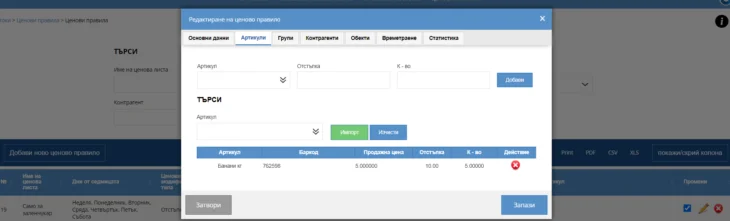
In the Items tab:
- Select an item
- Enter a discount
- Enter the quantity at which this discount activates
Choose the locations where it will be active.
You can track information about your additions in the final Statistics tab.
Save the pricing rule.
In the specific example of the photos, we will get the following result: when more than 5 kilograms of bananas are marked, a 10% discount will automatically be charged to them. This pricing rule will work on Web and POS. The system allows adding more than one item to the list and the ability to set unique parameters for each item. If you try to enter an item for the third time in the list, the system will display a message that this item is already included in the list with two options: to refuse to enter the item or to overwrite the data you have already entered. You can remove or add items to the pricing rule at any time. This pricing rule works in progression ie. the system allows adding a new price rule to give a 15% discount when buying 10 kilos of bananas.
You can find more information about pricing rules in the section blog on our website.
For more information, please view our guide.