How to fix the OpenGL error?
OpenGL error
This error occurs on computers with older graphics cards, incorrect drivers or outdated graphics card drivers. Check hardware compatibility: make sure your hardware supports the OpenGL version required by the application. Some older graphics cards may not support newer OpenGL versions. What should you do to resolve the problem? In this article, we will suggest several options to help work around the error.- Update graphics card drivers through Device Manager
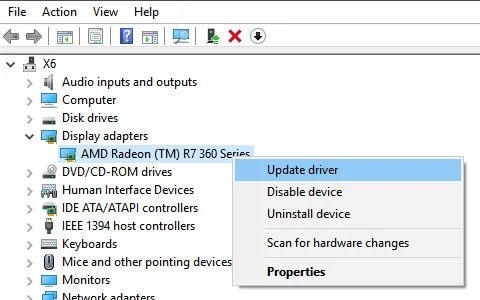
- Update drivers to the latest version using driver update software, or find them on the manufacturer's official website.
- Update DirectX.
- Check system resources: make sure you have sufficient system resources (e.g. memory and GPU memory) for OpenGL to work properly.
- Check the OpenGL version: make sure your system supports the OpenGL version required by the application. You can do this by checking the OpenGL version in system information or using a utility such as “OpenGL Extensions Viewer”.
- Update the application to version 4.60 or later. After extracting the folder, find IcashPOS.exe and create a shortcut.
Right-click the shortcut and select Properties
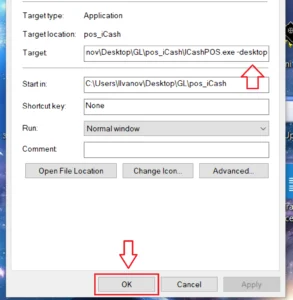
after the specified path in the Target field, add one of the three options preceded by a space; see the image:
-desktop -> uses the graphics card's OpenGL drivers
-angle -> emulates OpenGL using Windows DirectX as its basis
-software -> software OpenGL emulation, using none of the above, should not require drivers
and save with OK
Launch the program from the shortcut
rendering speed in descending order –> desktop, angle, software
After making the changes, launch it several times to check. This test will show which option is suitable for your computer. Select and test each option in turn. First -desktop ::: test
then -angle ::: test
then -software ::: test
If you have questions, contact our team using the following details:
- +359 887 701 224;
- info@icash.bg