Everything you need to know about stocktakes in I-CASH.
Stocktaking in I-CASH
Do you manage a retail location and want to monitor inventory at regular intervals? With I-Cash, you can enter quantities quickly and easily, and the software identifies differences between expected and actual item quantities.
Why perform stocktaking in I-CASH?
- To reconcile stock levels.
- For entering opening stock.
If you are starting with the software but your location was already operating, enter the goods currently in stock through a stocktake.
Types of stocktaking
Log into the inventory account and select from the main menu Operations – Stocktake and New, to start the operation. Before beginning, select a location if you have or can access multiple warehouses. Then select one of the two types:
- Item by item.
- By list.
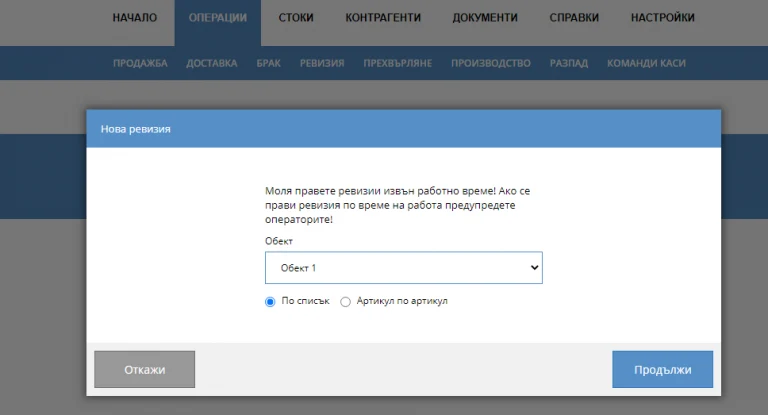
Item by item select this if you intend to count specific items at the retail location, rather than all items.
By list select this if you intend to count all available stock or an item group.
It is important to remember, that if you choose By list, but do not enter quantities for every item in the list, items without a stated stock quantity will be set to zero.
Stocktake: Item by item
Manually enter the name or number of each item you want to look up.
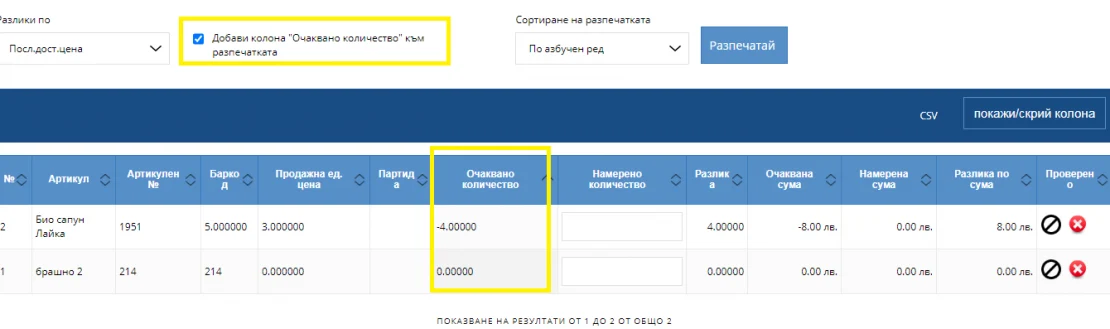
You can add or remove a column Expected quantity. Adding it shows the stock level based on all previous operations, including sales, purchases, stocktakes and write-offs. In the field Quantity found enter the current stock quantity. After saving the stocktake, I-Cash records in Expected the last one you received into stock.
This type of stocktaking also offers two more options unavailable in By list:
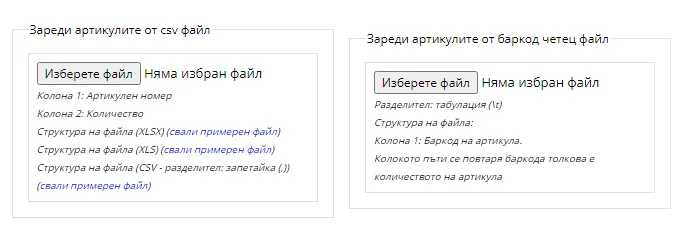
- import .csv, .xls and .xlsx files—enter only the item number and counted quantity in the spreadsheet;
- load items using a barcode scanner.
Both options make your work easier: you can either upload goods from an existing file or scan items with a reader, without having to select them by name.