Editing import file templates
Every operation in the software can be entered using a file. The program includes basic file templates. If these do not meet the customer's requirements, they can be modified. Import file templates can be edited under Settings–Imports–Operation import templates.

Opening this page displays a list of all import templates. You can edit them or create new ones. The interface allows you to arrange columns: for example, if the first column of the file being imported contains barcodes, enter 1 in the field next to Barcode. Set up each column's corresponding position in this way. Enter a template name and select the operation it applies to. Please note that some columns are mandatory.
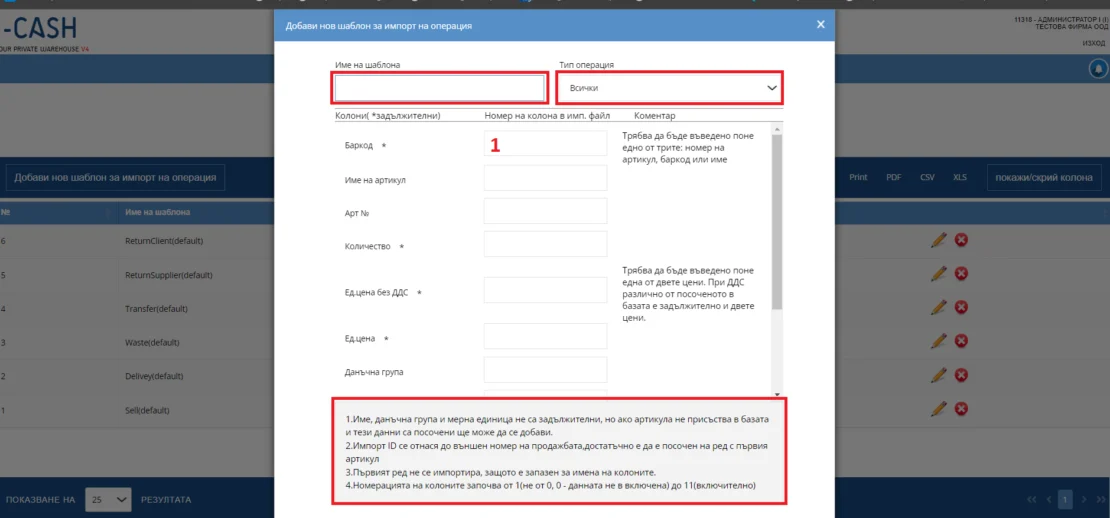
After saving the settings, you can select the new templates from a dropdown within the transaction. Each business transaction can use its own template. Several templates can be prepared for the same transaction. What is this feature for, and how can software users use it?
If you receive electronic documents from your partners, they come in different formats. In this particular case, we are looking at a transaction you receive in an Excel file. It is normal to receive different documents from each partner. Create a template for supplier X based on their document. If you receive a different document from supplier Y, create a new template for them. Then, when preparing a delivery from supplier X, select their template; when entering a delivery from supplier Y, select their template. If sales are generated in other software and imported into our system, sales import templates can be prepared to match the files generated by that software.
You can see how to import the file in this article.
You can view the complete guide at this link.