Everything you need to know about deliveries in I-CASH
Received a supplier invoice and want to enter the stock in the system? Go to Operations–Purchases.
With a new delivery, you can:
- Receive goods that have not previously been in stock. You can create a new item within the delivery itself. Enter the selling price and select units of measure, item groups, batches and more.
- Receive goods from a new supplier. If a purchase comes from a new business partner, you can create that partner and enter the company details within the operation itself.
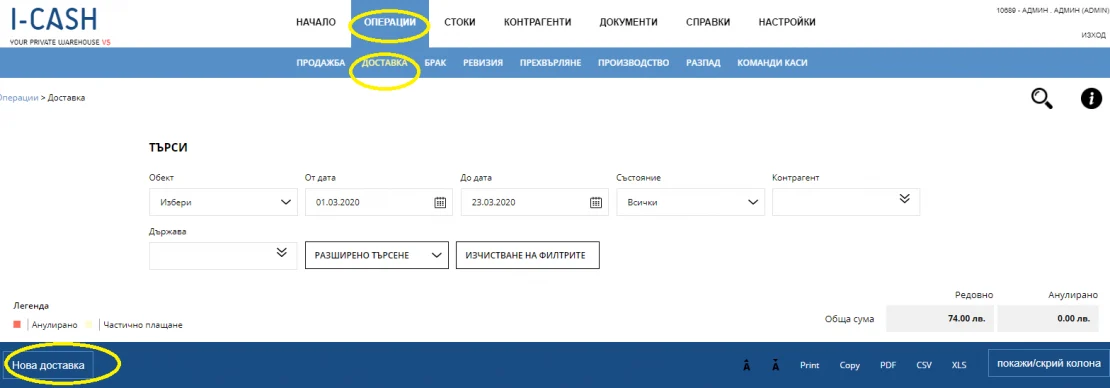
Creating a new delivery
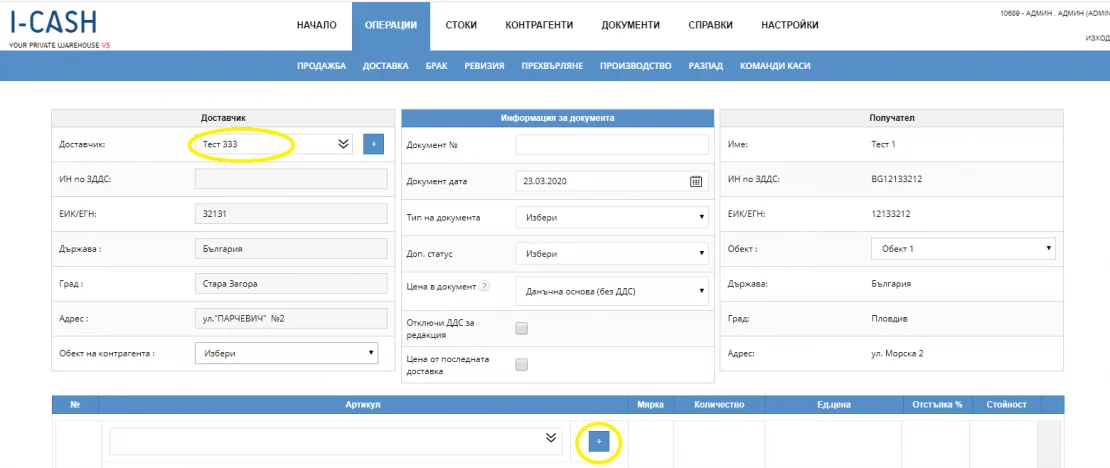
Select the company supplying the items so you can enter them afterward. When you enter the name, the required information is generated automatically.
Choose the document type: invoice, pro forma invoice or goods receipt. If left blank, a goods receipt is generated automatically.
Start entering the received items one by one. The selling price appears below the name and, for previously received goods, the previous purchase price excluding VAT and current stock. Manually enter the received quantity and current purchase price.
The system lets you choose a discount on a single item or on the entire operation, where applicable.
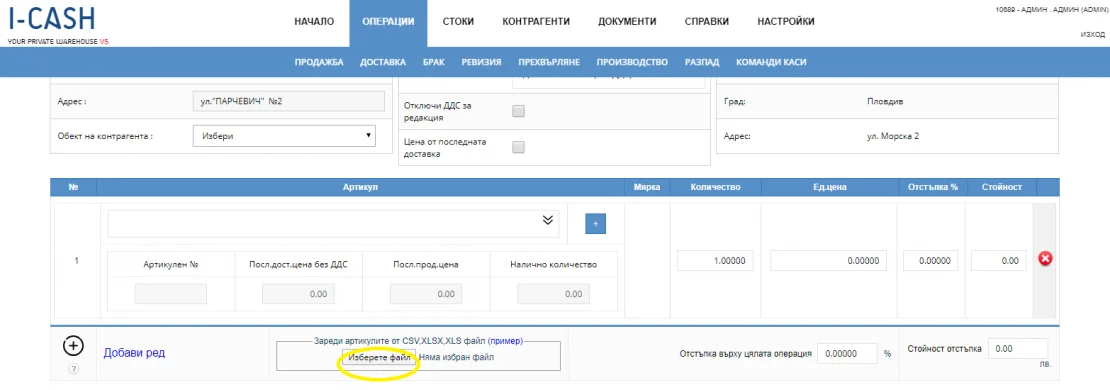
You can also create a delivery by importing.
Select a payment method and Entering a balance, to fill in the full amount.
The transaction is marked as partially paid if you enter an amount lower than the delivery value. To complete it, select Add payment from the column Changes. Again, choose how payment will be made—cash, bank transfer, etc.
The document is saved in PDF format. You can print it or send it by email.
Edit purchase
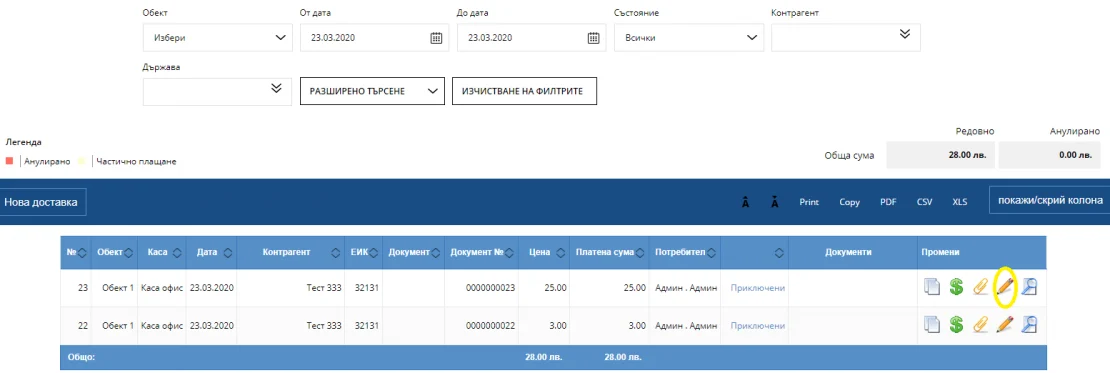
Editing a purchase you can do immediately after creating it. If you edit it, the system will notify you that the amount has been overpaid. The transaction is marked as partial payment. To record the amount correctly, select Add payment. The price is adjusted after saving the transaction.
The first delivery created is marked as Edited operation, and no further corrections can be made to it. Corrections can be made to the most recently edited purchase.
Example: You receive 12 units of product X. You enter 10 and save the document. Later, select Edit and change the stock quantity from 10 to 12. Save—this is the number of items in that latest delivery.
Supplier return
What is a supplier return? Returning N items for a specific reason—adjusting price, quantity, type or something else. The purpose is to ensure all inventory is tracked and subsequently reflected in your reports.
There are two different ways to return goods to a supplier:
- option 1 – from the icon Browse (from column Changes) and selecting Purchase adjustment at the end of the document;
- option 2 – from the icon New supplier return (from column Changes).
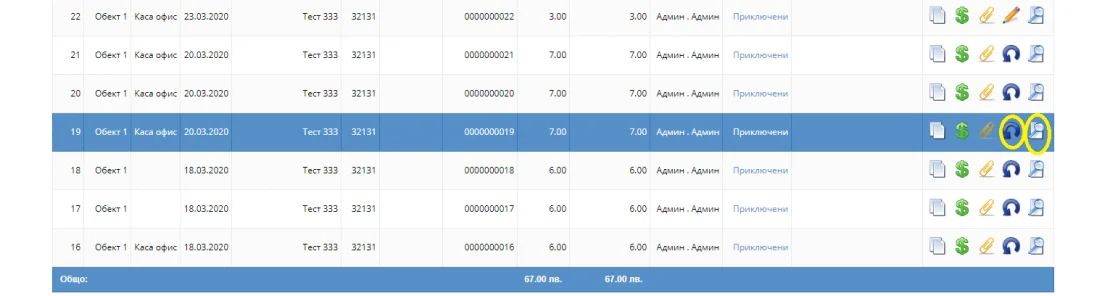
Option 1
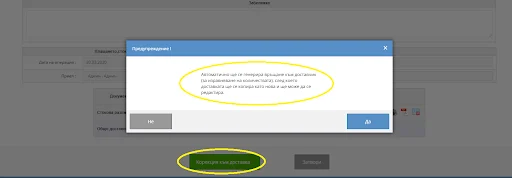
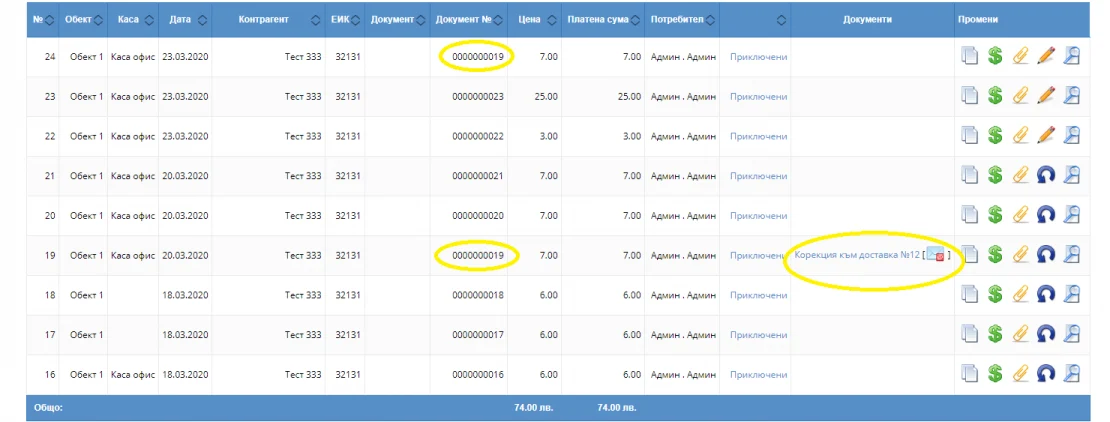
If you choose this option, the system automatically creates a return to supplier to balance the quantities. It then copies the purchase with the same number, displaying it as the most recently created purchase. You can now make the necessary corrections.
Example: You have 10 delivered units of product N. You create a new supplier return. Those 10 units are automatically returned, reducing the quantity to zero. You return 6 units. After saving the operation, you have 6 units in stock, provided you had no stock beforehand.
If stock was already available, the result is the quantity before the purchase plus the corrected quantity after the purchase.
The document recording the previous purchase remains in the system and cannot be deleted or canceled.
Option 2
In this case, it is not generated automatically return to supplier, and documents are not duplicated.
With this type of correction, you edit the document's items, quantities and prices. The latest edit is saved.
Example: You have 20 units of product X in stock and return 5 (N) to the supplier. After the return, the system shows 15 units Y in stock, provided you had no stock beforehand. X-N=Y
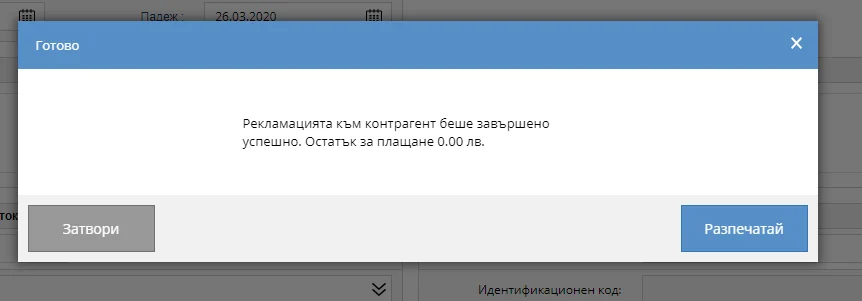
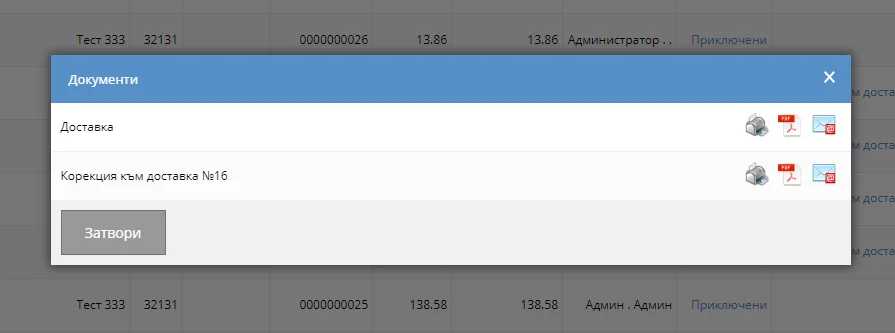
You can view all operation documents as PDFs, print them or email them.
See what other other documents can be created in I-Cash.