
Home / User guide / debit note
Debit note
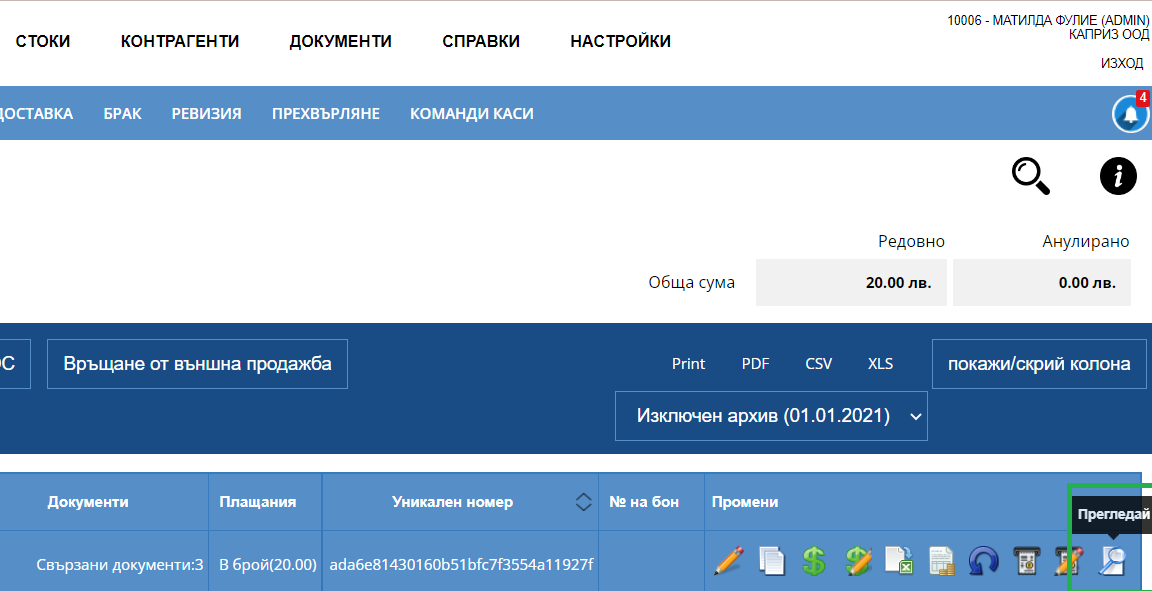
1. Creating a debit note
For this purpose, you need to find the sale for which you wish to issue a debit note. This should happen in "Operations" - "Sales" and from there view the list of sales. The sale must be tied to an "Invoice" document
After finding the sale in the list of sales, you need to select the magnifying glass to the right of the specified sale.
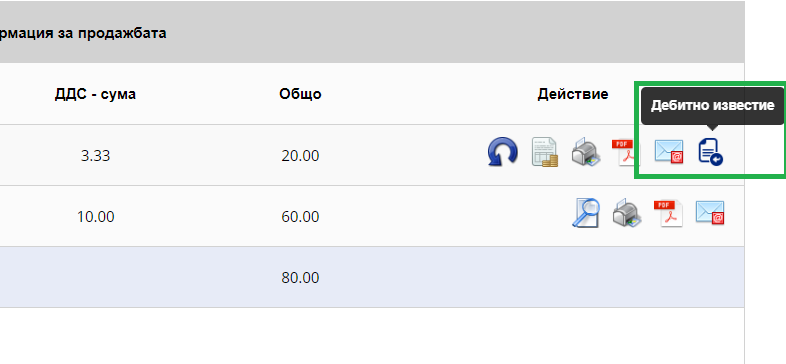
2. Issuing a document
After selecting "View sale" - at the bottom in "Sale information" you will find the number of the invoice already issued for the sale. To the right of it you have a button for issuing a debit note.
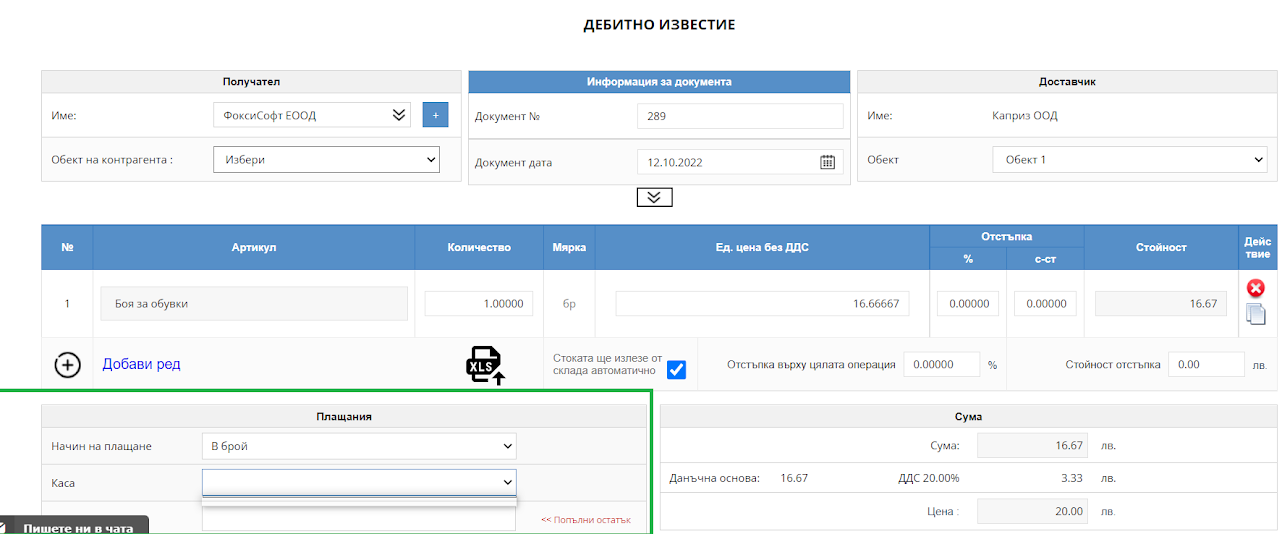
3. View
When issuing a debit note, you will find an invoice number to which the debit note is attached. In the operation, you can add goods and quantities that you wish to add to the debit note. You need to choose a payment method and finalize the operation.
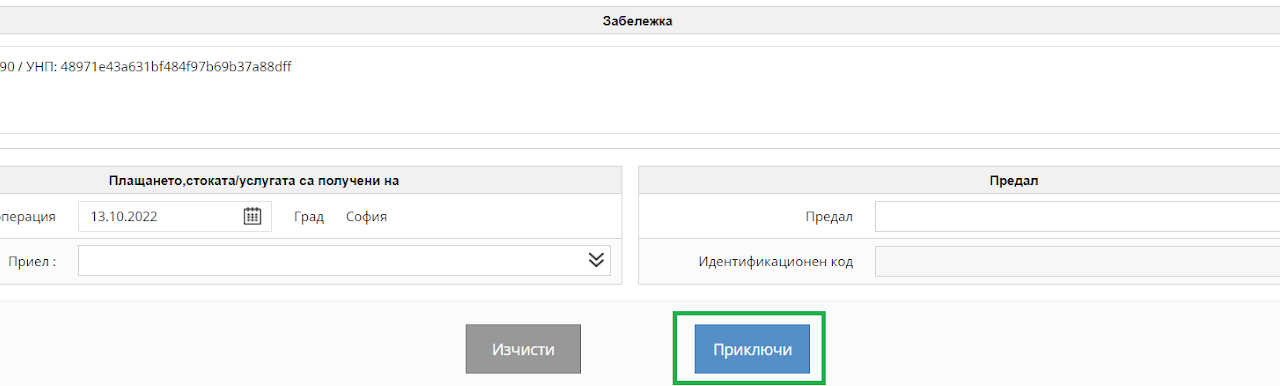
4. Finalize the operation
When issuing a debit note, you will find an invoice number to which the debit note is attached. In the operation, you can add goods and quantities that you wish to add to the debit note. You need to choose a payment method and finalize the operation. A 'finish' button will be displayed which you need to select to finalize the operation.
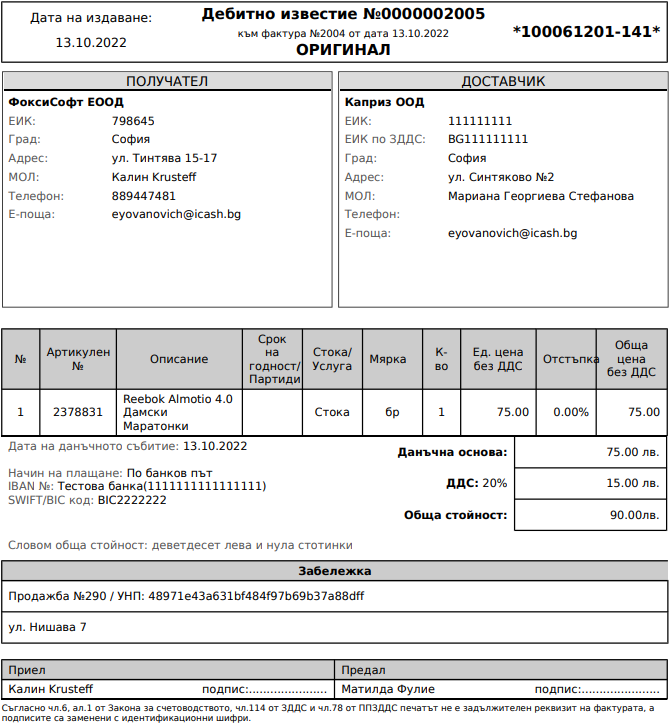
5. Document view
You can print the document or email it to the customer in PDF format.