
Home / User guide / Import items
Import items
With a pre-prepared item file, you can get started extremely quickly and create your item base.
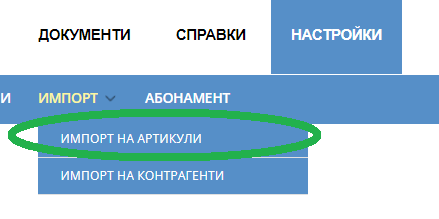
Create a file
To prepare your file, you need to go to "Settings" - "Import items" and from there you need to download the sample file, which will give you detailed information about what columns you need to import into your warehouse.

Information when filling out
The only required fields in the import file are:
Barcode
Item name
Unit of measure
Tax group
Type
All other fields are additional information that you can enter as desired. Optional columns are as follows:
Sale price
Item group
Composite item
Item photo
Additional barcode
Status
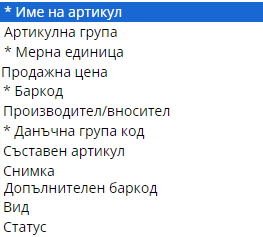
Important information to fill out
Barcode
Item name - name of the product / service
Unit of measure - to import the unit of measure it is necessary that it has been created in your warehouse.
The units of measure created are "pcs" and "kg"
If you would like other units of measurement than those listed to be added, please contact support@icash.bg to be created in your warehouse.
Tax Group - The tax group is required to be noted to reflect the tax rate of the specified item.
Type -Good or service
Selling price - the price at which you will sell the good/service. This price can be changed later after the import is created.
Item group - The item group is if you want the items to be assigned to a given group.
Example: orange juice = > "Fresh" group
Composite item - The composite item is marked with a 1 - for a composite (that is, it participates in the preparation of a recipe) and is marked with a 0 - for a final item for sale.
Item photo
Additional barcode
Status - the item will be imported as Active or Inactive for the warehouse.
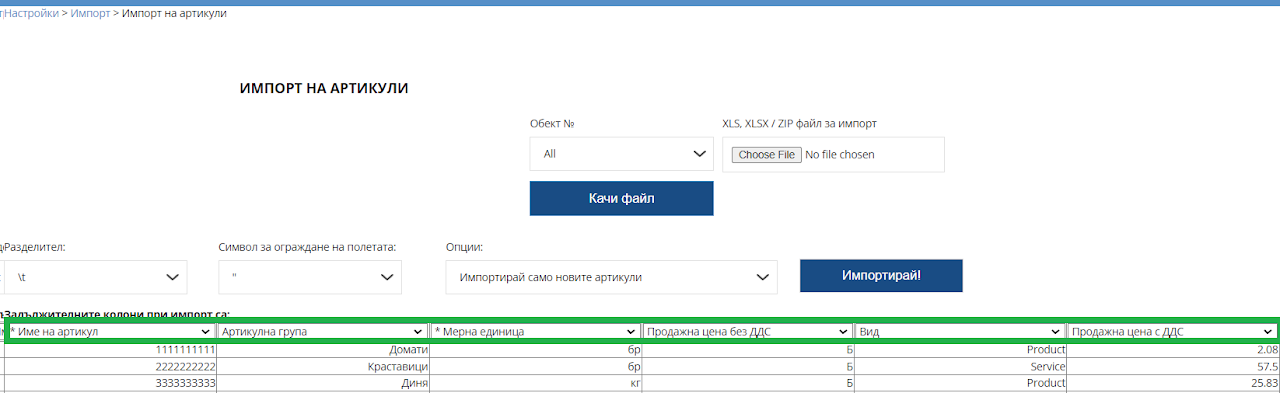
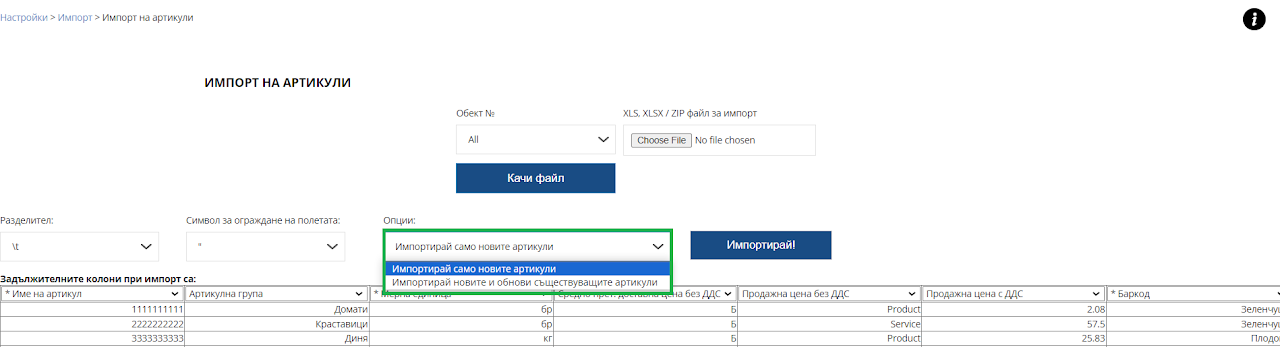
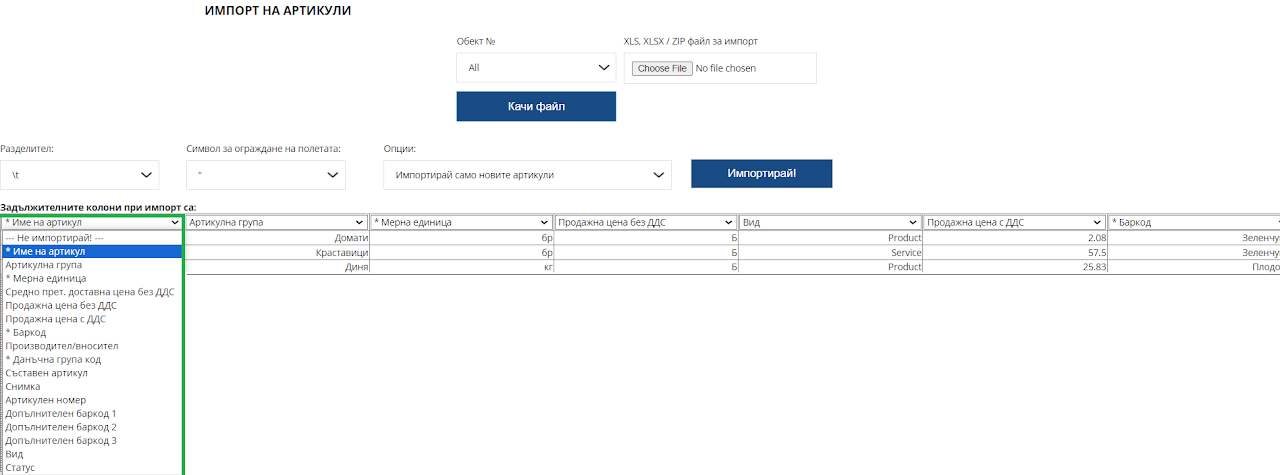
Import
When you select the file you wish to import it is very important to note whether you will import only the new items or whether you will import the new items and upgrade items that are already in your inventory.
After your selected file, you will see the preparation for the columns to be imported. Check each one to see if it matches the import you created. You can also select columns not to be imported into the business account.
Also, when importing the file, an error may occur, depending on which you need to review the file you created and see if you missed something that you need to add.
If you need assistance, you can write to support@icash.bg
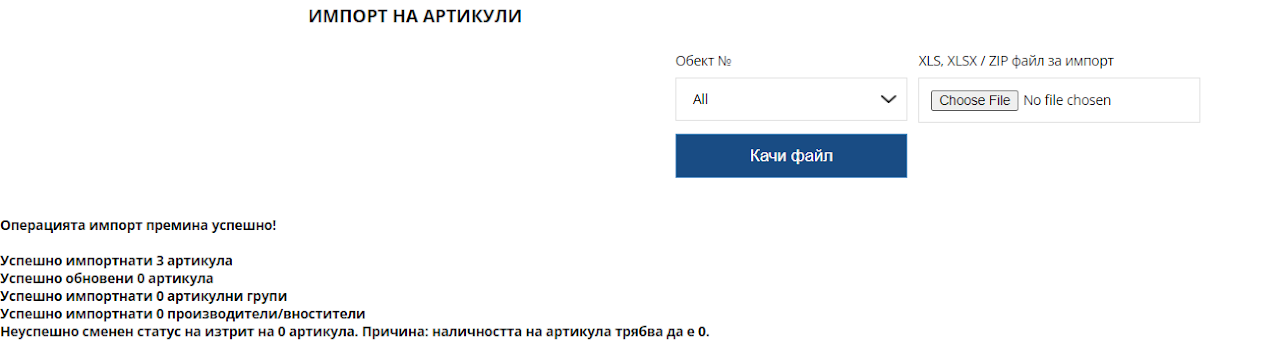
Import successful
Upon successful import, you will receive a warning message about the number of items that will be imported or updated in your warehouse.
After successful import you will find all the information in Goods: "Items".