
Home / User guide / Personal settings
Personal settings
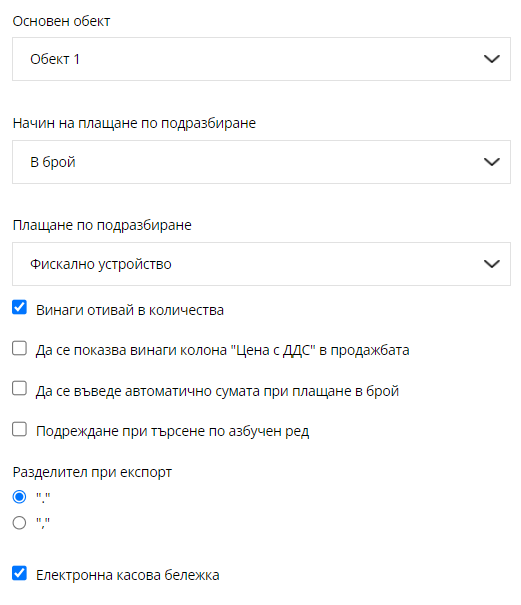
In "Personal settings" you can configure the following:
1. Main location
- When selecting "Main location", you set your warehouse to select the location you specified when creating any operation.
2. Default payment method
- You choose the payment method you want to be updated first with each newly created operation.
3. Checkbox to adjust settings:
Always go in quantities
(This setting moves the cursor to the quantity field automatically after you have selected an item)Always show "Price with VAT" column in the sale
Enter the amount automatically when paying in cash
Alphabetical search order
4. Delimiter when exporting:
- Whether it should be with a period or a comma
5. Electronic receipt
- This checker exists only for business accounts that operate an online store. Through this option, you can issue electronic receipts.
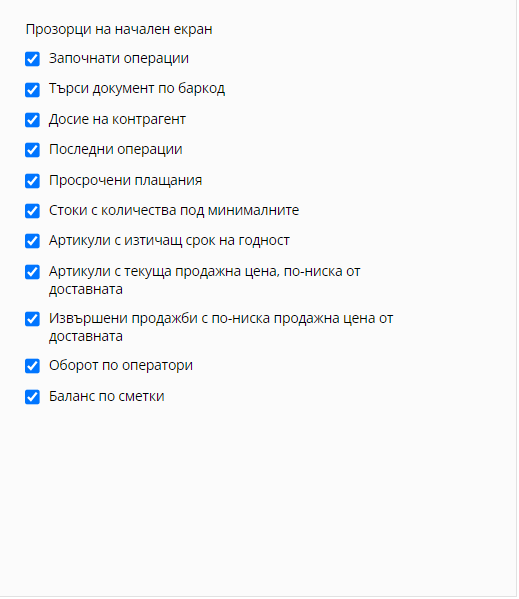
Home screen windows
! All windows are visualized in "Start"!
Operations started
- Through this window, you will be able to track any unfinished operation such as Sale, Delivery, write-off, stocktake, Transfer or Production.
You can select the unfinished operation and continue it from where you left off.Search for a document by barcode
- Generated invoices in your warehouse have a barcode, through which you can search for an operation on it.Business partner profile
- You can search for a business partner by name, EIC or barcode.
The report opens a file for all payments made by or to the business partner, as well as issued documents related to it.Recent operations
- report of last created operations, which is visualized by selecting "Operations"Overdue payments
- Indicates overdue payments on sales or supplies.Goods with quantities below the minimum
- report for all goods marked with a "minimum quantity" which, when reached, will trigger an alarm in the specified window.Expired items
Items with a current sale price lower than the delivered price
- If by chance when creating the items you made a mistake over time to enter a lower selling price of the items than their delivery, this window will show you this information.Sales made at a lower selling price than the purchase prices
-This report will tell you if you have created a sale in which you have included items sold for less than the purchase prices.Turnover by operators
Account balance
- report of amounts available to date on all your bank accounts, fiscal devices and virtual cash registers.