
Home / User guide / Synchronization of quantities
Quantity synchronization


To whom it applies
Merchants with online and brick-and-mortar stores whose products are available in stock at different prices in online and brick-and-mortar stores.
2. What happens in I-CASH and WooCommerce (sale, warehouse, payment)
When selling from the online store, the order enters I-CASH according to the set statuses (in I-CASH and WooCommerce, more about the statuses in the fifth point "Setting the mode"), the quantities are reduced in both platforms and the relevant documents are sent to the customer. In order to purchase the quantities on the site again, you need to make a delivery in I-CASH to the warehouse of the online store.
3. How to create a new item
There are four types of products in WooCommerce. Each one of them has a specific purpose and different characteristics. Only two of them have stock management option and only these two types can be integrated with I-CASH warehouse software:
Common products are most commonly distributed. These are products that are simply claimed for delivery and are not accompanied by a range of other options. An example of this is standard products that are aged and sold individually or in bulk.
Products with variations are the most complex. These are products that come with a large range of options and varieties, for example, differ in size, color, numbering, price, etc. In I-CASH, each variation enters as a separate product. i.e. if we have one product in WooCommerce with five variations in I-CASH 5 different products with different barcodes (=SKU) will enter.
Note: Please do not enter the SKU number of the main product of the variation, because it will appear in the product list during the transfer and instead of five items will become six.
Bundled products – added via plugins, i.e. are not included in the main four types of products. Depending on the way the plugin is set up, it is possible to work with simple products or with complex products (recipes) in I-CASH.
You have several options for adding items:
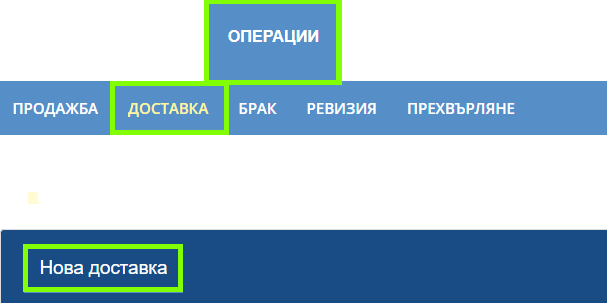
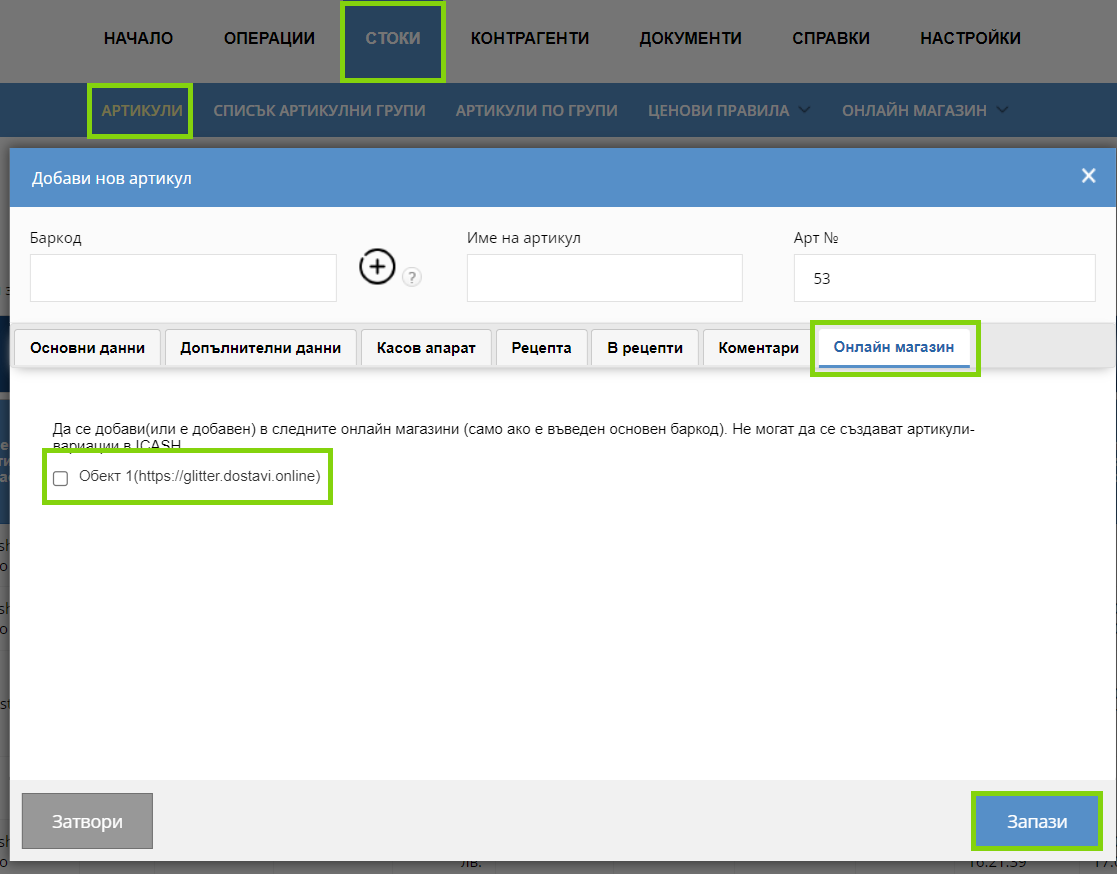
You can create and transfer regular products both to/from I-CASH to WooCommerce and to/from WooCommerce to I-CASH. You can add items to I-CASH to transfer to WooCommerce as soon as they are received: Operations➡Delivery➡New Delivery➡Blue plus to add a new item. You can add items via import, following the templates and requirements described on Settings➡Import➡Import Items or manually from Goods➡Items➡Add New Item. After filling in the desired fields ("Barcode", "Item name", etc.), click on the "Online store" tab, where you must mark the product in which online store(s) you wish to be present (if you have more than one).
Variations and Bundled products are good to create in WooCommerce first and then transfer to I-CASH, as transferring items from I-CASH to WooCommerce can only be on regular products.
If you have items that only participate in the physical store, you must create them in I-CASH without marking anything in the "Online store" field.
In order to have quantity synchronization between I-CASH and WooCommerce, it is mandatory that the products have a SKU number/barcode, have the "Stock Management" option checked in the inventory and be present on both platforms.
4. How to return goods
From WooCommerce:
In WooCommerce, the statuses that will activate the return of goods are "Refused", "Refund" and "Failed", in I-CASH this status is only one - "Cancelled". When the status of the order in WooCommerce is changed to one of the listed, you must have set it in I-CASH to "Cancelled", which will automatically return the quantities back to the warehouse (they will also be displayed in Woo) and the necessary documents will be created.
From I-CASH:
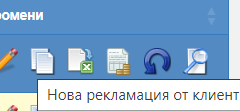
You find the order you want to cancel in the sales list and choose from the icons on the right the blue inverted arrow "New customer customer return" ↩️. The order status in WooCommerce will not change, but the quantities of advertised items in the online store will increase.
5. How to set the mode
In order to be able to perform the integration, the API (Online Store) module must be active. If you do not have it activated, please contact us at info@icash.bg or at the specified contacts on our site icash.bg
After enabling the API module, navigate to Settings➡Other➡Online Store➡Add WooCommerce Online Store.
In step one, you will need to fill in the web address of the online store, user and secret key. These keys are generated by WooCommerce (WooCommerce➡Settings➡Advanced➡REST API➡Generate API Key).
After you have filled in the mandatory fields (web address of the online store, user and secret key), you need to press the "Save and Connect" button, which will integrate the online store with I-CASH. After that, additional fields will appear for choosing the way you want to use I-CASH, in this case to synchronize only the quantities, for the time interval in which this action will occur automatically (recommended time 5-15 minutes) and for the location of the warehouse that you want to earn and from which to sell ("location 1" in the picture).
If you are going to use the simplified mode (audit file), check the box "I will use an XML audit file of the NRA".
By pressing the "Next" button, we save the filled-in information in the fields.
Second step - Statuses - Each status listed in the online store will correspond to a certain status of the sale in I-Cash. By choosing the status of the orders, you will configure how they will be created and reflected in I-CASH. Against the listed statuses from the online store, you need to choose with which status they will enter I-CASH.
WooCommerce order statuses:
Awaiting Payment - The order has been created, but the payment has not yet started. Such orders do not affect the warehouse (no inventory is written) and are considered unpaid.
Processing - The order has been paid for but is awaiting fulfillment (eg products with delivery). This status can be changed by you when completing the order.
Held - Product quantities are listed, but you need to confirm payment.
Completed - The payment is successful and the order is fulfilled.
Canceled - The order is manually canceled either by the admin or the customer.
Refunded amount - The amount has been refunded by the administrator.
Failed - Unsuccessful orders (eg: rejected payment by the customer's bank). It is possible that an order will not change its status to "Failed", but will remain as "Awaiting payment" until it is confirmed.
Draft - A started but incomplete order does not affect the warehouse or the report
Statuses in I-CASH:
Open WEB - Sale on the Internet platform of I-CASH, which, like "Draft" in WooCommerce, is unfinished, can be edited, does not affect the warehouse and the report.
Open POS - Unfinished sale in the POS module of I-CASH, which can be edited in the POS, until it is completed, it is not accounted for in the warehouse or the fiscal device (no receipt is issued).
Closed with payment - A sale that has been paid in full, the necessary documents have been issued (fiscal receipts, invoices, etc.), the stock in the warehouse has decreased by corresponding values, and the customer has received the goods.
Closed without payment - A sale where quantities have been removed from the warehouse but are awaiting payment or have been partially paid for.
Canceled - Failed sale (due to payment authorization error or other technical errors).
Third step - Payments - Here you need to link the payment methods in the online store with those in I-CASH. The default payment methods are "Cash", "Bank transfer", "Credit" and "Voucher". I-CASH also supports the issuance of electronic cash receipts with Daisy cash registers fiscalized for an online store. For editing and adding new payment methods, please contact our support at info@icash.bg or the indicated contacts on our site icash.bg.
If you are going to use a simplified mode in the field "NAR settings for electronic store" you need to fill in the number of the electronic store provided by the NRA.
Fourth step - Synchronization - If you have entered a product base in WooCommerce, distributed by category, on initial synchronization, you can choose to transfer this entire nomenclature to I-CASH. Due to the difference in category structure in the two platforms (in WooCommerce tree-like, in I-CASH linear), instead of one parent category with several sub-categories, only the sub-categories will enter I-CASH, since the parent categories have no products in them.
6. Promotions
In WooCommerce, when entering a regular product price, you have the option to also enter a promotional price for a certain period of time. There are countless plugins with which to add your discounts. Whichever way you choose to introduce discounts, when an order is placed, the price at which the customer purchased the goods will be sent to I-CASH (whatever price is in the cart, it will also be entered into I-CASH).
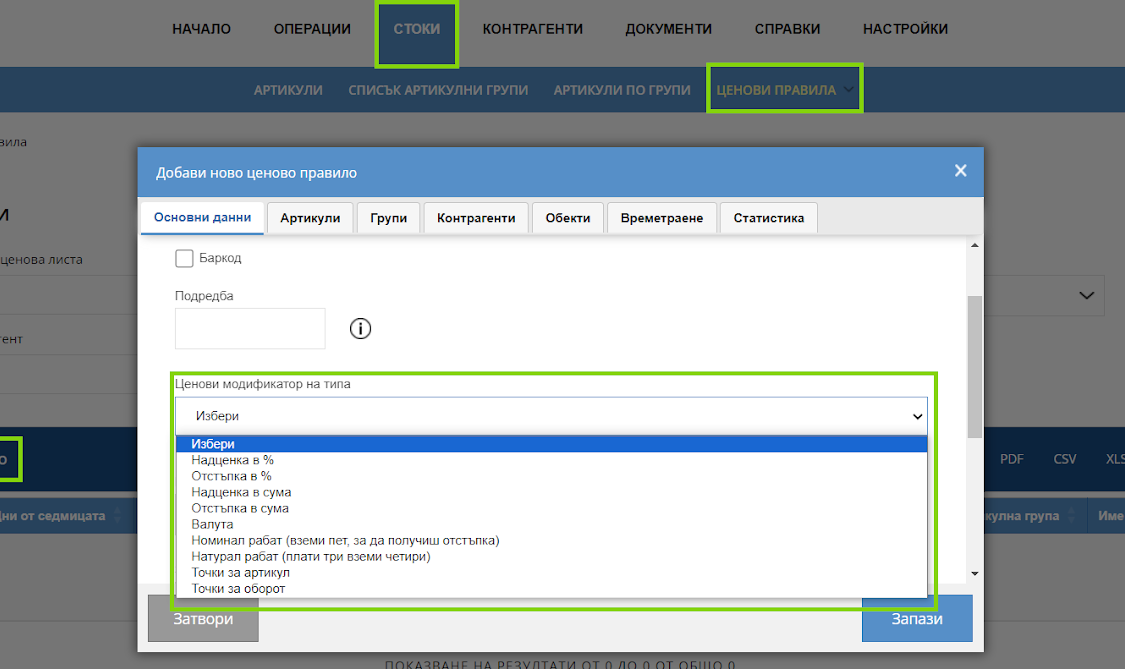
Promotional prices in the online store are not reflected if you sell through the physical store with I-CASH. The addition of promotional prices in I-CASH is done through the "Pricing rules" menu, as they will only apply to sales from the physical store and will not affect those in the online store. Since the prices are not synchronized, only the quantities, each platform manages them for itself.