
Home / User guide / credit note
Credit note
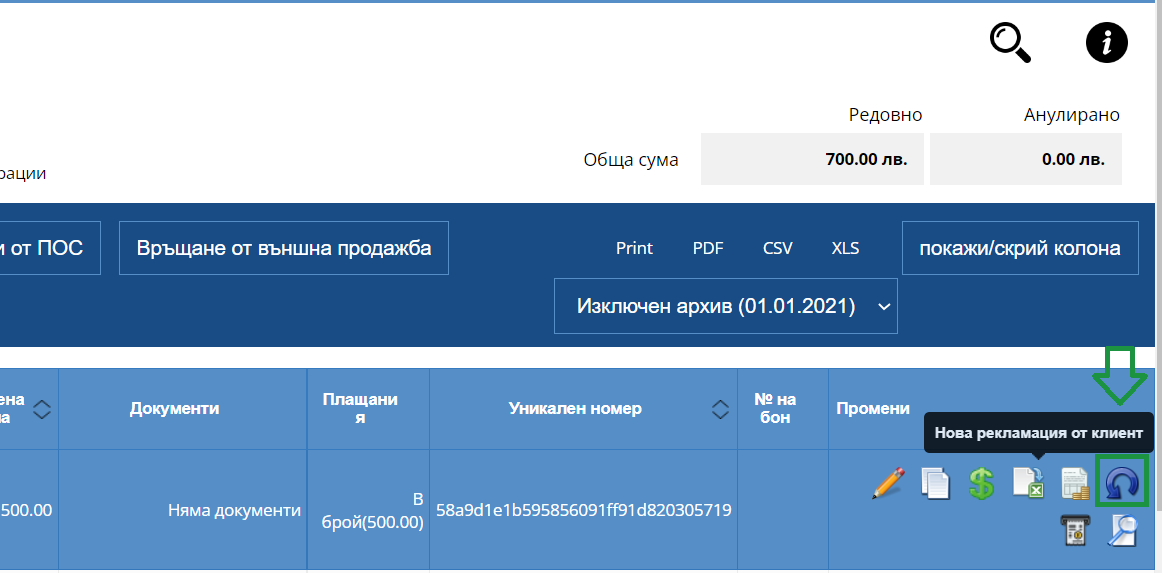
1. Creation of a credit note
To create a Credit Note, you need to find the sale whose invoice you want to credit. Once you find the sale in the list of sales, to the right of it you will find a blue rotating arrow with which you will issue a customer return.
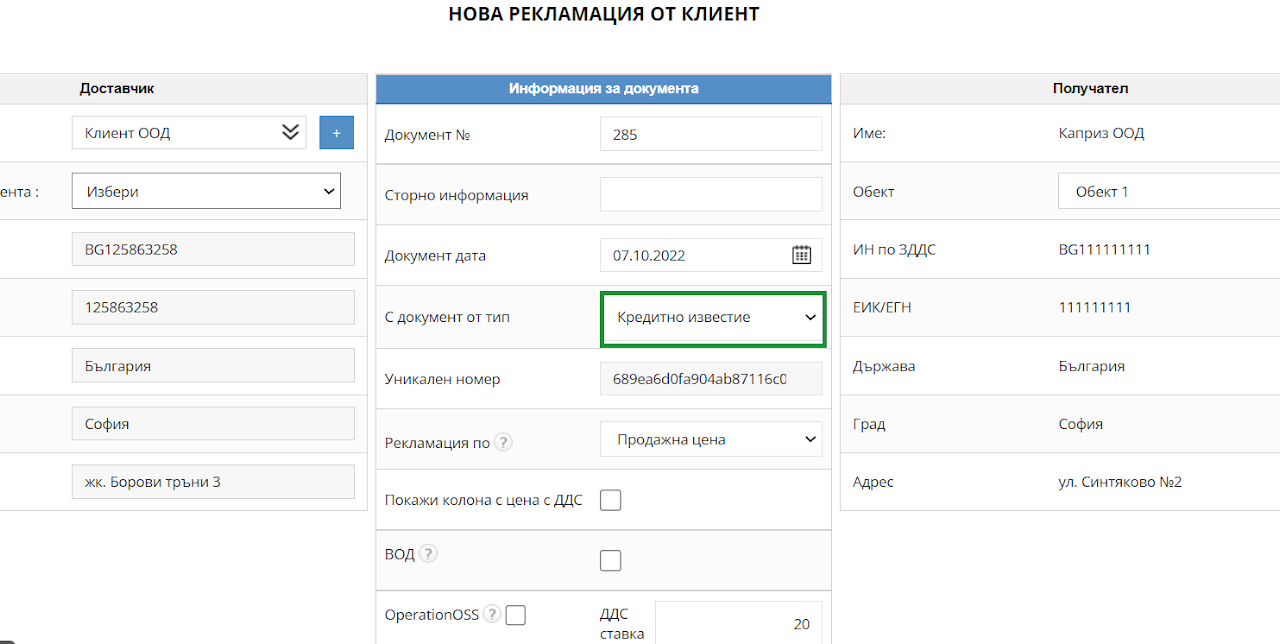
2. customer return and credit note.
When you generate a new customer return, if the sale also has an invoice issued to it, you will find in the new customer return a Credit Note that you can create for the invoice, and with the customer return you will return the goods to your warehouse.
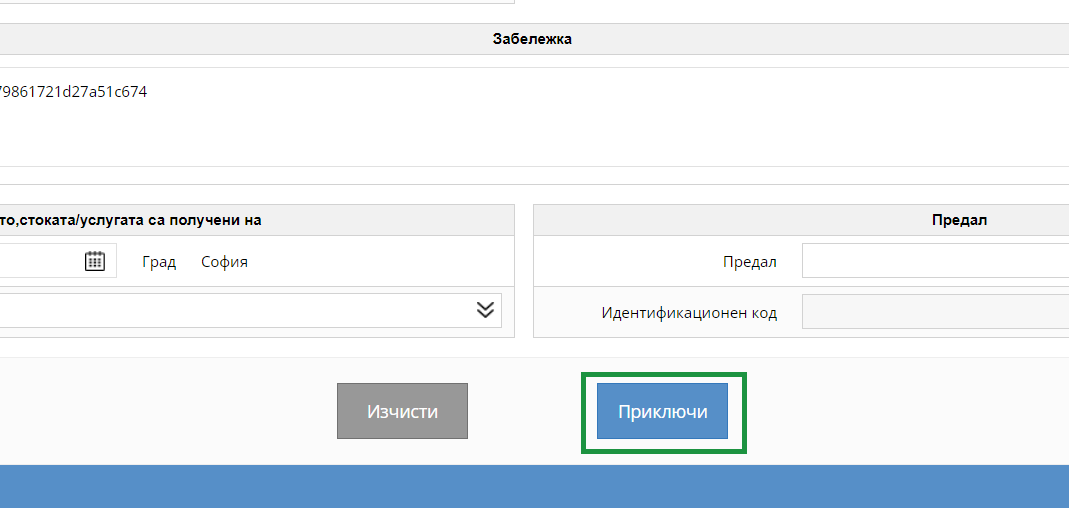
3. Finalize an operation
After selecting a new customer return with a Credit Note, you will find the items in the transaction as they were during the actual sale with quantities and prices. If you wish to issue a credit for the entire operation, you do not change anything, but if you wish to credit a specific item, you must not load all items when selecting the blue arrow. A free field will load in which you can add any of the items from the sale. Items left in the customer return will be returned to the warehouse. To finalize the operation, you need to select "Finish".
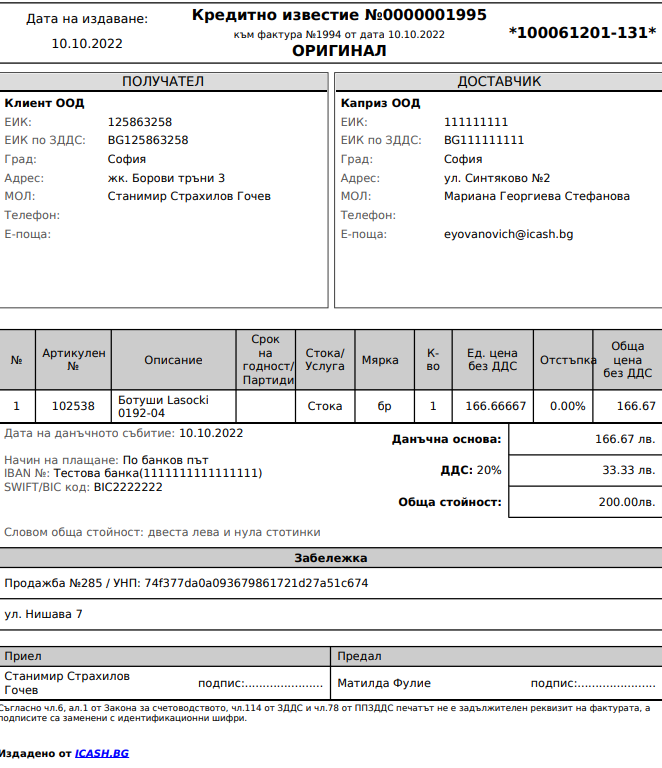
4. Documents
You will be able to find the credit note document in the list of documents, where you will be able to print the credit note document, as well as send it by email.