
Home / User guide / Delivery
Goods receipt
Purchase quantities
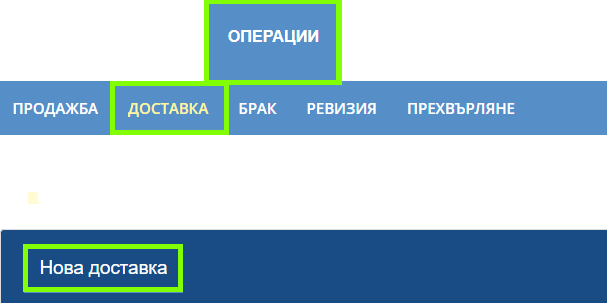
Open New Delivery
Navigate to "Operations" ➡ "Delivery" ➡ "New Delivery" menu.
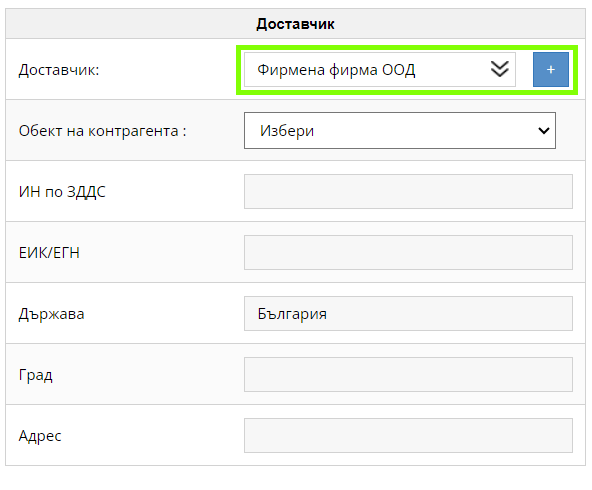
Enter a supplier
In the "Supplier" search engine, you can enter the company ID number or search directly by company name. Also, if you have not created the "business partner", you still have the opportunity to create it at the moment through the blue plus, from which, by entering Bulstata, all the information about the company will be loaded.
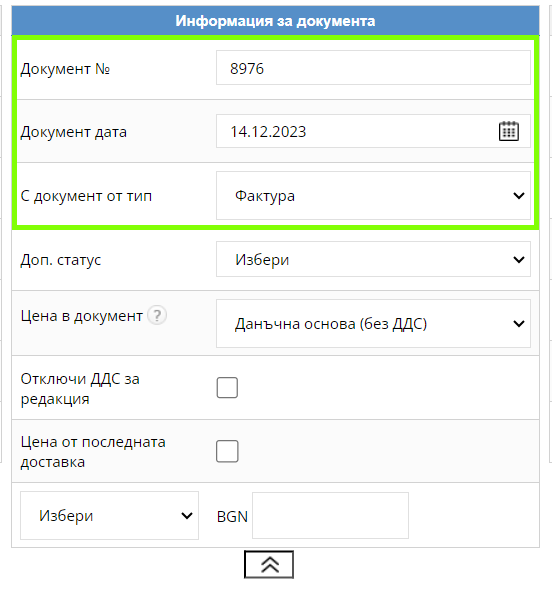
Document information
Document No.: Here you enter the document number from the supplier.
Document date: The date on which the goods entered/enters the warehouse from the document from the supplier.
With document type: Whether the document is a goods receipt or an invoice.
Price in a document: If the business partner is subject to VAT, you have a choice of two checks:
Tax base (without VAT)
Price with pre-charged VAT in unit price. I.e. whether to calculate the price with VAT in advance of the order or without VAT and charge the total VAT at the end of the delivery.
If the business partner is not subject to VAT, it automatically loads the Tax base (without VAT) and no VAT is charged on the delivery.
Unlock VAT for editing: The business partner must be VAT registered. After that you can edit the VAT on each item line.
Price from the last delivery: With this checker, when selecting items and quantities, the purchase prices from the last delivery will be loaded.
Currency: To activate this function, you need to contact an administrator in advance to be released. With it, you have the opportunity to track the exchange rate against a given currency in BGN as of today.
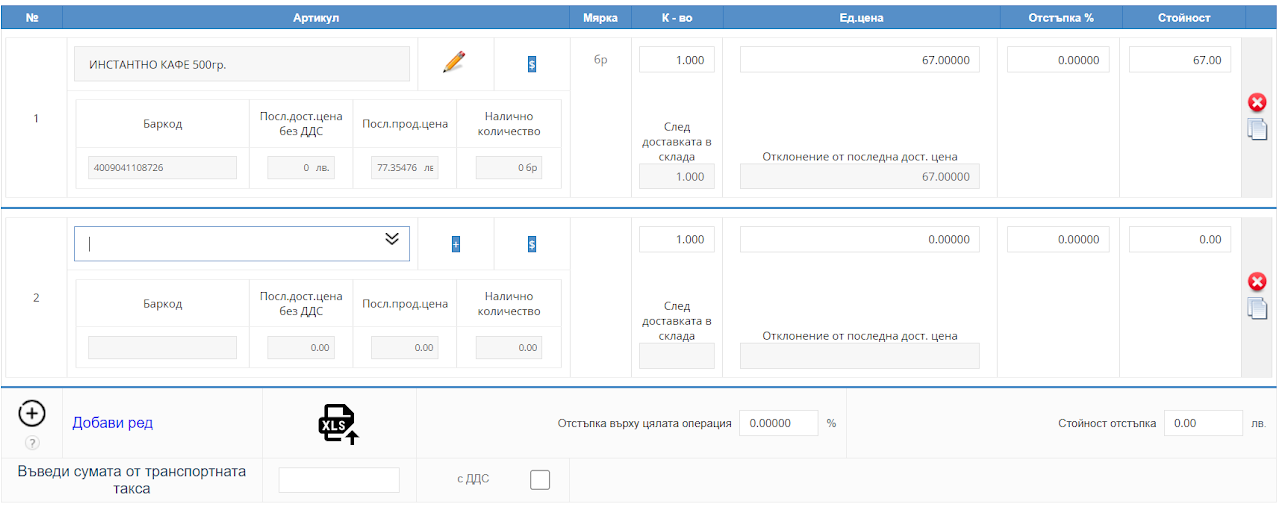
 example_import_delivery.xlsx
Enter the items
You have the option to create a new item using the blue plus to the right of the item finder or choose from the already entered ones from the drop down menu. In the item search field, you can search by item name, by barcode or by item number.
Also, the drop-down menu displays columns to navigate:
Item name - name
item number/Barcode - with which you entered the item when creating it
Ed. price without VAT – the shipping unit price with which you entered the item in the system
Ed. price – the purchase prices including VAT
Quantity in the location - The quantity in the location so far
Manufacturer/ Importer - If you entered one when creating the item
Groups – if the item is assigned to a given item group
For faster addition, you can also use a barcode reader or import the items according to the specified template (example_import_delivery).
On each line and item, you have the option to edit the item's quantity, price, and discount.
After you complete the delivery, you have the option to set a discount in percentage or in the amount of the entire delivery.
The shipping fee is entered after you have selected the business partner, items, prices and quantities. After the transport charge is entered - it is intended to be distributed among all the entered quantities equally to help subsequently in calculating the profit => to have a correct margin calculation. By ticking the "VAT" check, the transport fee will be distributed between the items with pre-charged VAT.
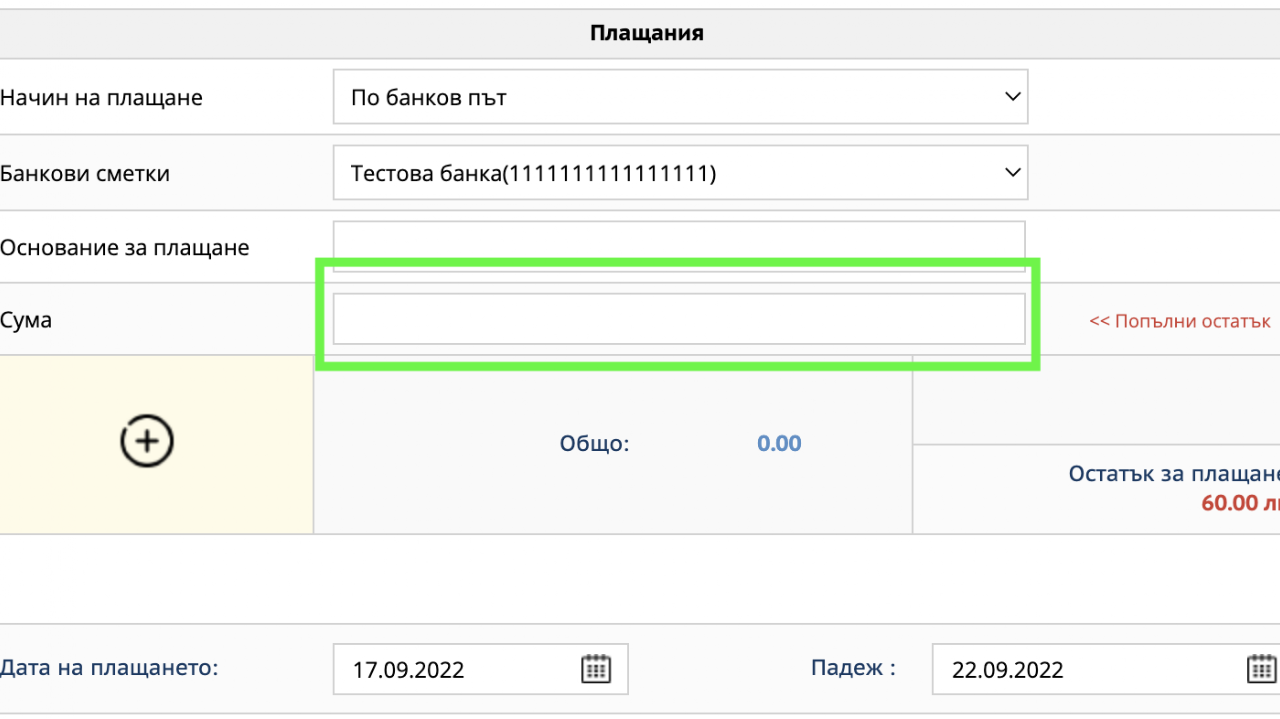
Payment for delivery
Select the payment method and enter the amount you paid for this delivery. If you have not paid, you can leave this field blank and pay for shipping later.
For this purpose, you need to select the method by which you paid for the delivery.
In the amount field, you can fill in the entire amount or part of it (if the business partner has rights to partial payment)
The bank account is loaded as you previously entered it in Settings - Bank accounts.

Delivery completed
Using the "Save" button, the operation will be saved as open and you will not have any change in the amount. You will find the operation in blue color in the list.
The "Finish" button will finalize your operation and through it you will receive the specified delivery in the warehouse.
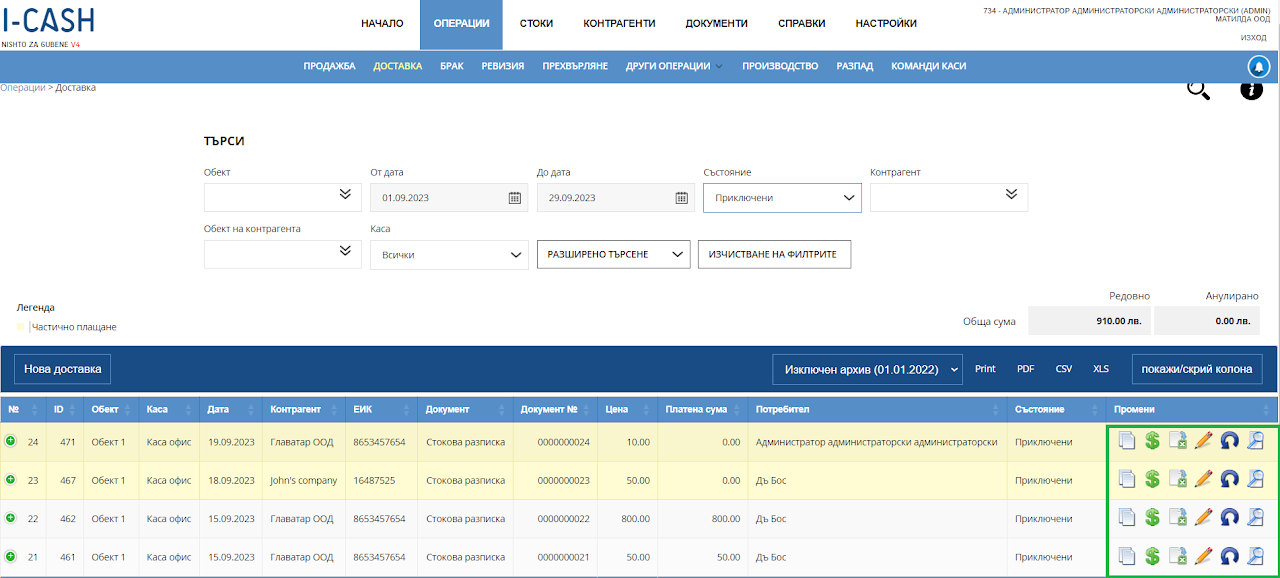
Supply list
In a list of supplies you will find all supplies since the creation of the warehouse.
You can search by:
Location
from date to date
Condition
business partner
business partner site (if you delivered from a specific supplier site)
And you have an advanced search that lets you search in more detail with more detailed filters.
Also in the sales list you will find every single delivery to which you can make the following changes:
Ability to send a document by mail, open it in PDF or print it on a printer.
Add payment (if no payment was made on the delivery when created, you have the option to add the payment later)
Export of the operation in Excel
Editing of the operation (editing is possible only if the user has been given rights to edit the operation)
*editing allows changing the business partner, date, document number, document type, deleting an item, changing price and quantity.
When editing the delivery is complete, the changes will be reflected in the reports.New return to supplier - when the delivery is wrongly accounted for or the goods in it must be partially returned to the supplier.
With the "return to supplier" operation, you remove the quantities of the goods from your warehouse in I-Cash.
Loading a new return to a supplier will load the same operation as the delivery you made. In the new return to supplier, you must leave the goods that you want to return to the supplier and delete the ones that you will not return to him.View Delivery - With View Delivery you will be able to see everything you have added as items in it, prices and quantities.
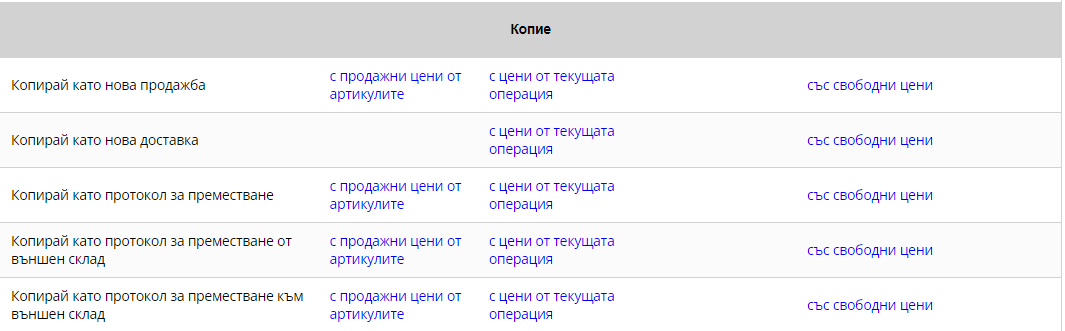
Copy of delivery
When choosing to view the delivery you specified, at the bottom of the operation you will find four proposals for copying the delivery document with the prices you want it to be loaded with:
Copy as new delivery (if you want to create the same delivery anew)
Copy as a move protocol (this way if you messed up the delivery and say you created it to the wrong warehouse, you can create a quick move protocol from here)
Copy as transfer protocol from external warehouse (if you want to create a transfer from an external virtual warehouse, in case they are not the physical locations that your warehouse has and you want to copy the delivery as a faster transfer option)
Copy as transfer protocol to external warehouse (if you want to create a transfer to an external virtual warehouse in case it is not the physical locations that your warehouse has and you want to copy the delivery as a faster transfer option)