
Home / User guide / Sales by item for a period
Sales by item for a period
The Sales by Item for Period report is available in the reports panel, By Item menu
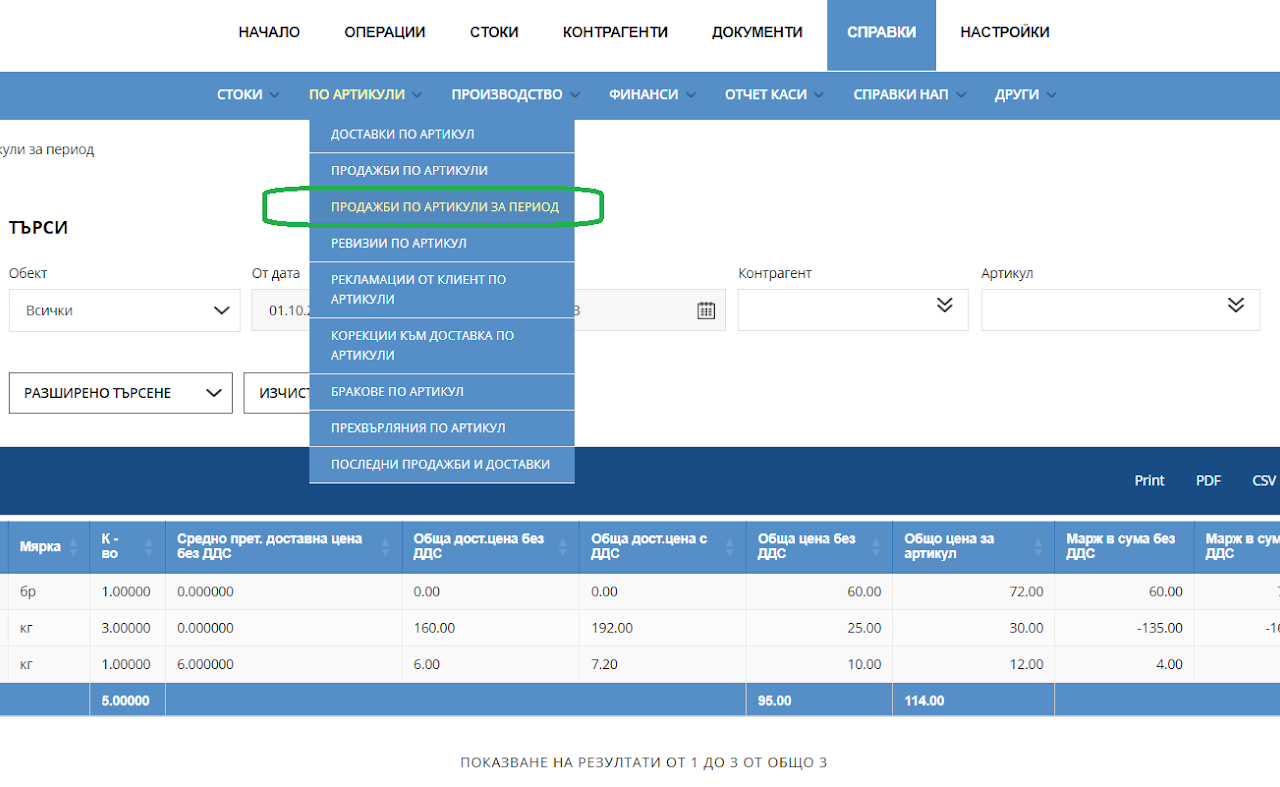
What it is used for:
The Sales by Item report tracks the sales of one or more items for a given period.
Clicking the "Advanced Search" button opens additional fields for easier searching.
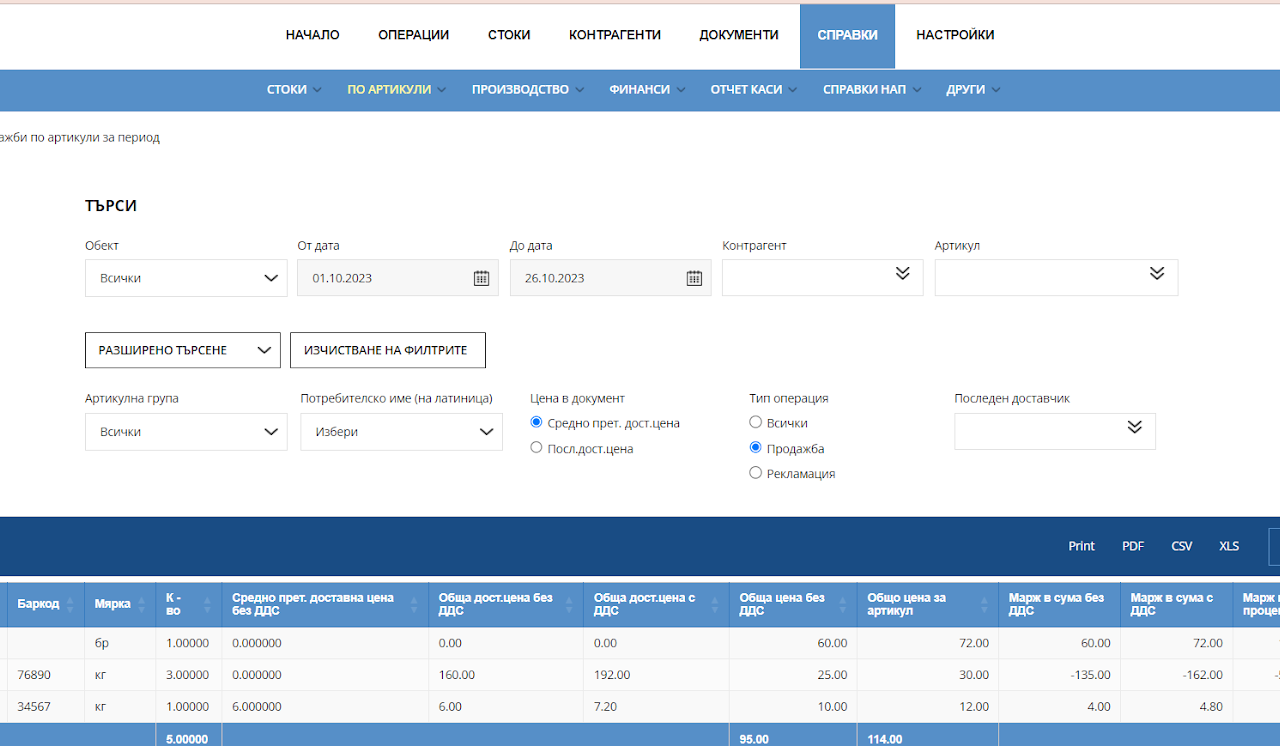
The following orientation columns are tracked:
Type of operation
Item
Item number
Item group
Lot
Customer
Date of sale
Quantity
Measure - unit of measurement.
Total purchase prices without VAT - The total price at which the specific number of items were delivered.
Unit price without VAT - Unit selling price of the item without VAT.
Total price excluding VAT - Total selling price excluding VAT.
Creation date
Price with VAT - Sales price with VAT for one unit of this item.
Total price including VAT - Total price for all items sold including VAT.
Last supplier
Trade discount
Margin amount excluding VAT - The difference between the total price excluding VAT and the total purchase prices excluding VAT.
Margin in the amount with VAT - The ratio of the total price with VAT and the total purchase prices with VAT
Margin in percentage - Product of the margin in amount and the total purchase prices, respectively with or without VAT.
Percentage - Calculated as a margin in an amount with or without VAT divided by the total purchase prices.
Requests:
With this functionality, you can create a request that is loaded based on the sales of the goods incurred by a certain Supplier for a certain period of time.
In the search filters, if you select "Recent Supplier" all delivered goods from him, sold in a specific time period, will be loaded.
Thanks to this report, you can create a new request to load exactly the sold goods to date, received by the supplier in question and send the new request.
The request button is visualized after selecting "Last Vendor" in the search filters.
The new request, in addition to being a Vendor request to send, will also appear as a started operation in your warehouse's delivery list. Subject to editing.
When the request is completed and the goods arrive in your warehouse, you need to make an edit to complete the delivery.
In this way, you will also receive the quantities in the warehouse of the warehouse.