
Home / User guide / Transfer
Transfer
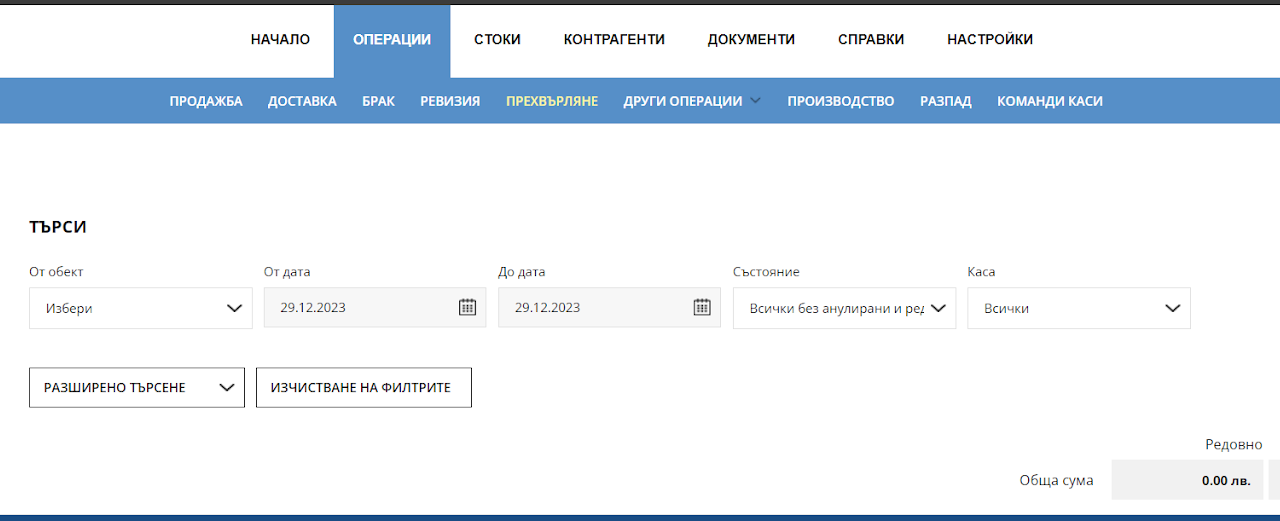
Navigation
Some of the functionalities are active if you have more than one location (warehouse) in your warehouse.
Navigate to Operations - Transfer menu
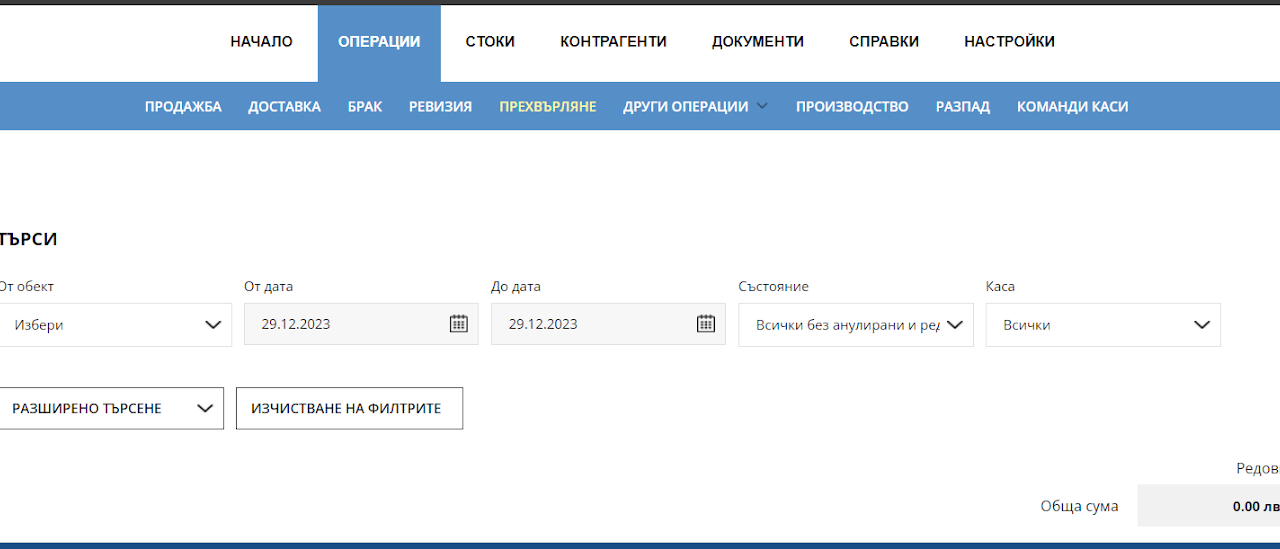
Filter
The system allows you to specify the list according to certain filters:
From location - from which location the transfer of goods started
From date to date - time range in which the transfers were made
Status of the transfer - is it complete, is it in progress
Cashier - if there is a payment for the transfer, from which cashier in the location it was made
Advanced search - more filters to refine results
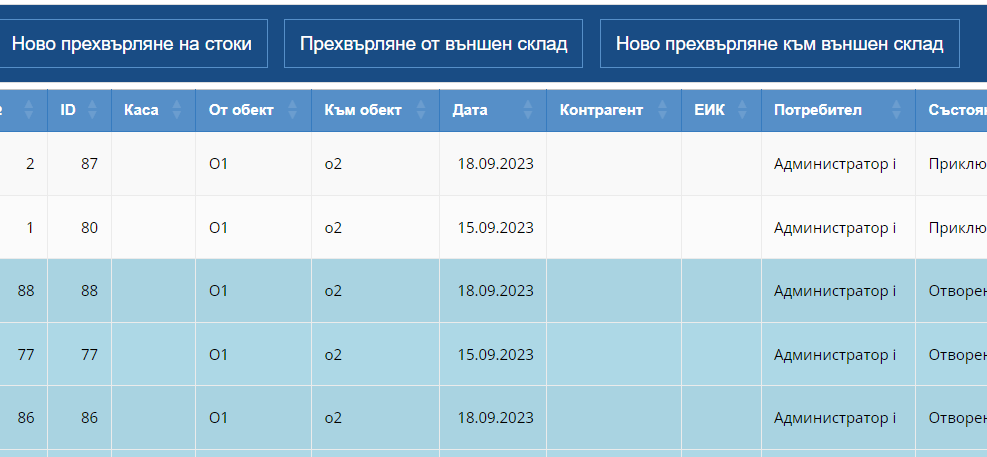
List
Transfer List :
Based on set filters, the system will display a list of completed transfers
Serial number - depending on the status of the transfer
ID - internal number for the system
From location - where the goods come from
To location - where the goods are purchased
Date - date of the operation
business partner - if a transfer is made from and to an external skald
Eic - Eic number of the partner
User - name of the user who made the transfer
Status - Completed (goods moved out of warehouse) and Open Operations (goods currently being prepared)
Username - last user edited the transfer
Note - if there is a note in the transfer, it is visualized in this column
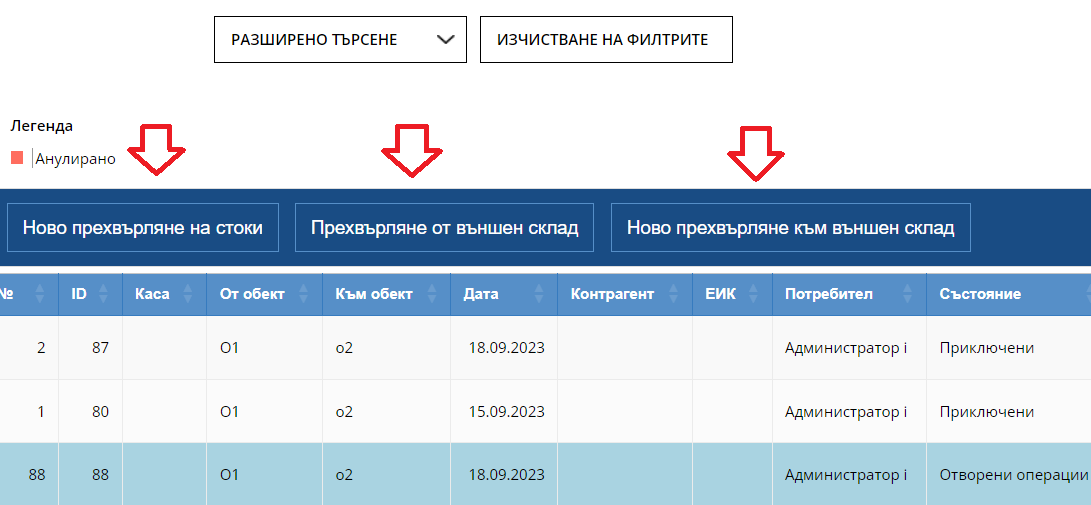
Types of transfers
The system supports three types of transfers:
Internal - transfer between the company's sites. Used for logistics companies. Loading goods on buses and trucks and monitoring the goods in them. Transfer of goods from a central warehouse to the company's store network.
External - transfer of goods to external partners.
Transfer with Confirmation - Represents a transfer with transfer tracking between entities. Each transfer stands with its respective status, depending on whether it is pending, confirmed, or a discrepancy occurred at a less accepted quantity.
Simple transfer
What is a simple transfer?
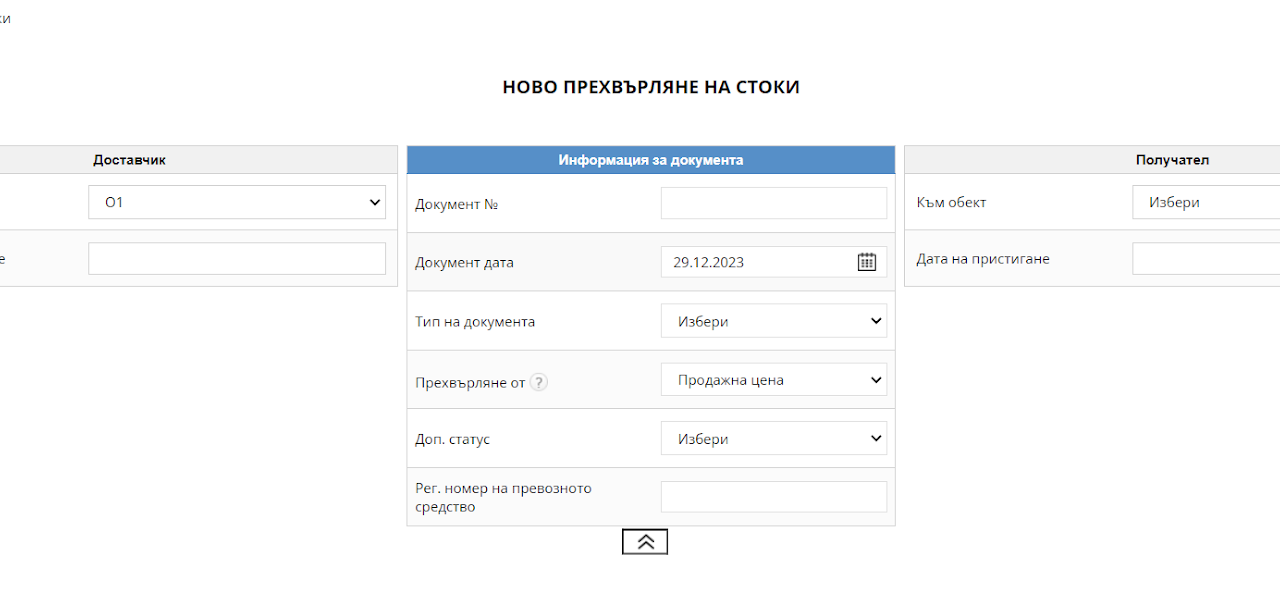
-The ordinary transfer represents a direct transfer from location A to location B, with which we transfer the quantities and lots directly.
Select the button "New transfer of goods"
from the left column: where the goods are sent from, on which date and at what time
in the middle column: document number, document date, status and number of vehicle used to transport the goods
in the right column: to where the goods are transported with the date and time of arrival
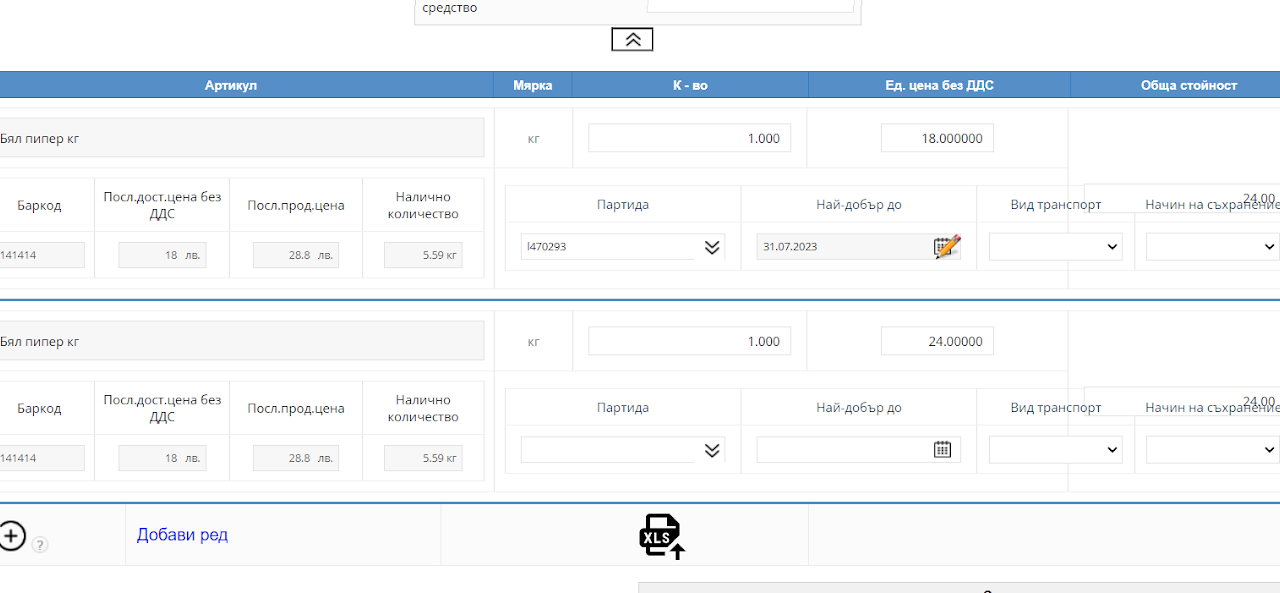
Enter the product, its quantity and batch data and expiration date (if applicable) for shipping. If settings are unlocked, you will be able to enter its price as well.
Enter a note and save the operation.
It will be displayed in the list of transfers.
Transfer with confirmation
What is a confirmed transfer?
- Represents a transfer with transfer tracking between locations. Each transfer stands with its respective status, depending on whether it is pending, confirmed, or a discrepancy occurred at a less accepted quantity.
To activate this setting and method of operation you need to write to support@icash.bg or contact the indicated telephone numbers on our site ICASH.BG
By activating this option, you will be able to transfer between locations with traceability.
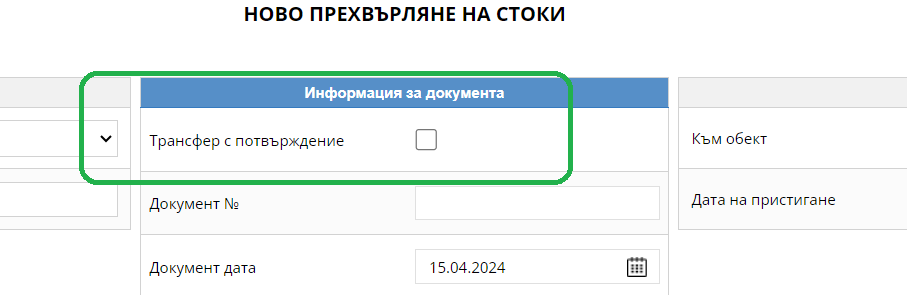
1st Step - > New Transfer
After selecting a new transfer, a checker will be unlocked, with which you will be able to make a transfer with confirmation.
Thus, sending the goods to another site will require confirmation to finalize the transfer.
The user will see those transfers that have been made to or from the locations they have access to.
The user who is waiting for the transfer will find the operation in their account with the status "Waiting" and need to edit and finalize it. In this way, the operation is started.
If the user accepts fewer units, a new operation with a status of "Discrepancy" will be displayed from the ones transferred to the "Manager" user, which will alert about the unaccepted difference>
The manager as a user needs to enter the specified operation and choose whether the differences will be scrapped or revised to clear the missing quantities.
STATUS - TRANSFER WITH CONFIRMATION

Open operation - An unfinished operation that does not commit goods to stock.
Pending - Awaiting acceptance by the Facility to which the order was sent. As it must be accepted, edited and closed by a user bound to the specified location.
Sent - The order has been sent and not yet received.
Completed - The order has been accepted by the location to which it was sent.
With discrepancy - If a smaller quantity is received on the order than sent, a new separate line will appear, visible only to customers who have rights to orders with discrepancy. A row will appear in red for the amount missed (unaccepted) on the opposite side.
Only a manager can direct the discrepancy, through an edit to determine whether the rejected item will enter as a stocktake or write-off.