
Home / User guide / Sale
Sale
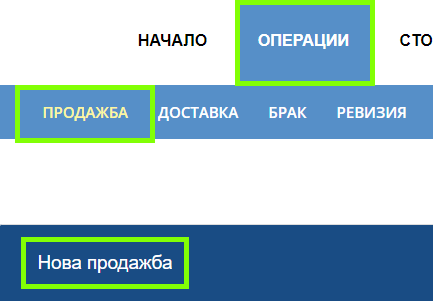
Make "New Sale"
To make a sale, you need to navigate to the "Operations" Menu ➡ "Sale" ➡ "New Sale". You will be taken to a new window from which you will be able to fill in the details of the sale - recipient, type of document, items, payment method, etc.
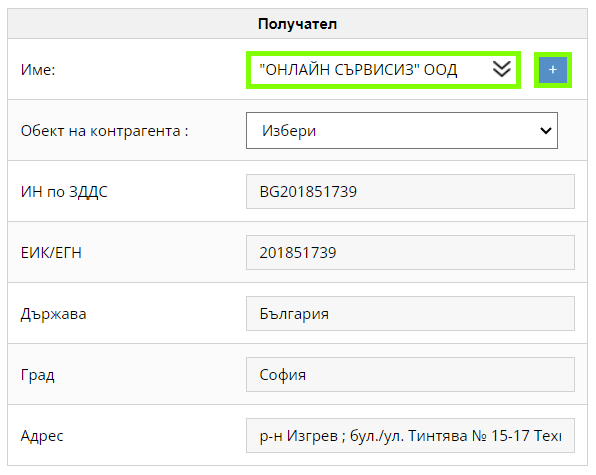
Add recipient
Under recipient, you have the option of choosing a business partner that you have either previously entered in the system or that you can create using the blue plus on the right.
Once created, the business partner is saved in the business account and you can select it in the next operation.
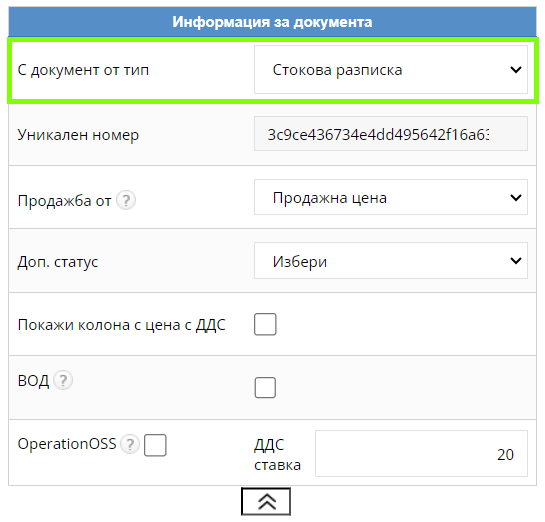
Document information
In the "Document Information" field you will find the functions:
"With document of type" - you choose what kind of document you will use, each document corresponds to a different type of sale action:
Goods receipt
"Sale from" - allows you to load the price of the items in the sale from sale price, last purchase prices, weighted average purchase prices or custom price. Default is "Sales Price".
"Show column with price with VAT" - if you want to visualize the prices of items with VAT, except for those without VAT, on each line of the sale.
 example_import_sell.xlsx
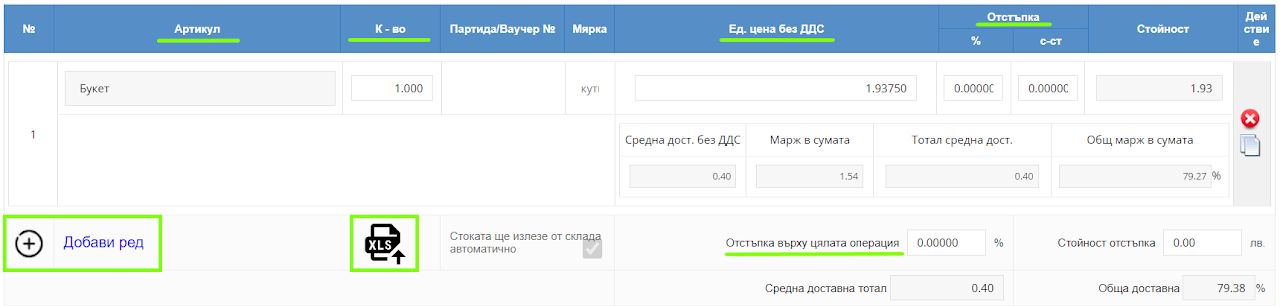
Add an item
You can search for items by "Item Name", "Item No", "Barcode", and to add items faster you can use a barcode scanner. The scanned item is automatically added to the list.
After you have added an item, you need to select the quantity you sell of that given item, its unit price without VAT (the system automatically calculates VAT) and you have the option to add a discount to the specified item or to the entire operation in percentage or amount.
With the Excel file icon, you can import all items in the sale from an Excel spreadsheet. It is important when importing to stick to the column arrangement (default) in the sample table attached below. You can import items that you have already created in your item database. For more information about settings for import tables, see the following link: Operation Import Templates
The drop down menu from the search engine gives information about what the quantity of the item is in stock at the moment. You can also track the last selling price at which you sold the item, as well as what price it was last delivered at.
You can track which item group it belongs to and if there is a note on this product. This information and report columns can be customized to show only what you need. For more details, please contact our support at icash.bg.
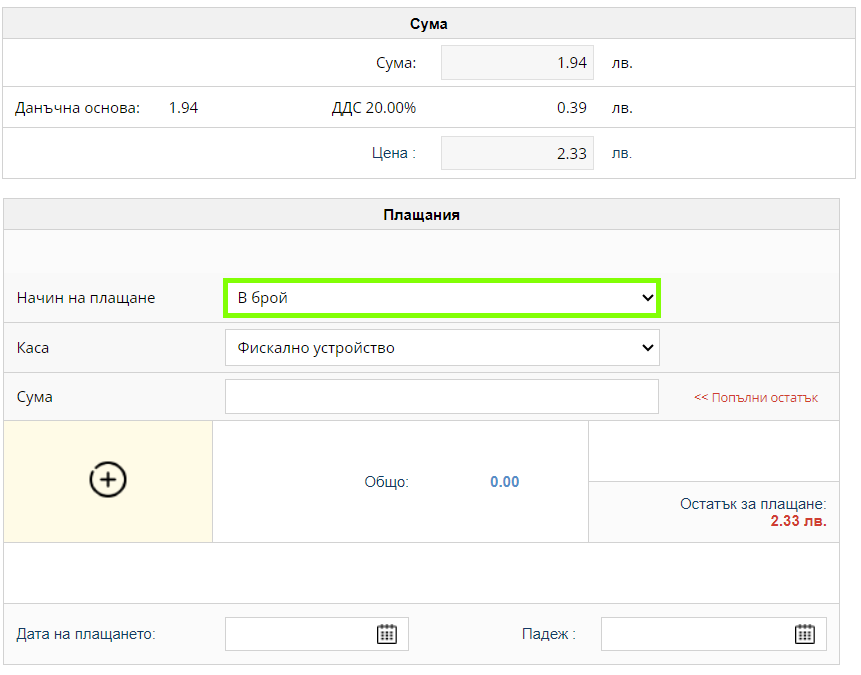
Payment methods
Cash - A cash payment method generates a fiscal receipt. For different types of documents, this payment method behaves differently.
Goods Receipt – For a document, a goods receipt requires full payment of the document and generates a fiscal receipt for the full value.
Proforma – This document does not finalize the operation. With a proforma invoice document, you can keep the cash payment method, but a proforma is an editable document and you can change it whenever you want.
Advance invoice – When issuing an advance invoice, the option to remove the goods from the warehouse automatically (at the end of the sale) or not (at a later stage, when issuing final invoice for the advance payment). In it, you mark the items and their quantities, and in the field for filling in the balance, you enter only the advance value that they paid you and generate a receipt for this value.
Invoice – When creating a sale with an invoice document, it is necessary to enter the entire value of the sale and with this a fiscal receipt will be generated for you
By bank transfer: Payment method by bank transfer does not generate a fiscal receipt. If you are working on V5 and have a connection to a fiscal device, when loading the operation will register a UNP number.
Goods receipt – With a goods receipt document, full payment of the document is required, cashless payment.
As with the bank payment method, you can pay only a partial amount of the amount due or pay nothing and then top up the balance.Proforma - This document does not finalize the transaction With a proforma invoice document, you can keep the bank payment method, but the proforma is an editable document and you can change it whenever you want.
Advance Invoice – The advance invoice removes the goods from the warehouse and finalizes the sale. In it, you fill in the advance value and subsequently generate an additional advance invoice or final invoice, which do not include issuing a fiscal voucher.
Invoice – When creating a sale with an invoice document, you do not need to enter the full value of the sale.
Payment methods such as ATM, card payment and/or others are a setting for which you can get more information through our support at icash.bg


Sold out
At the bottom of the page there are 3 buttons "Clear", "Print"/"Finish"* and "Save". The "Print"/"Finish" button is required to complete the sale. This will change the item quantities in your business account. By clicking the "Save" button, the operation will be saved as open and you will not have a change in the quantity, the sale can be edited. If the sale is for cash, a receipt will be automatically generated. After completing the transaction in a sales list, you will be able to review it.
*The "Print" button is displayed when the sale is a cash payment method where a fiscal receipt is printed. "Finish" is loaded when the payment is non-cash.
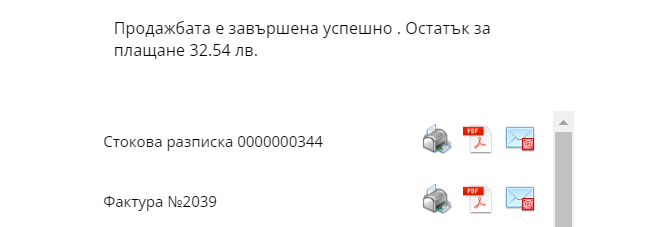

Documents
After the "Sale" operation is completed, a window for the documents issued by you will be displayed. Each document has the option to print, email, and open in PDF format for viewing. You can also access these documents 📄 from the sales list.
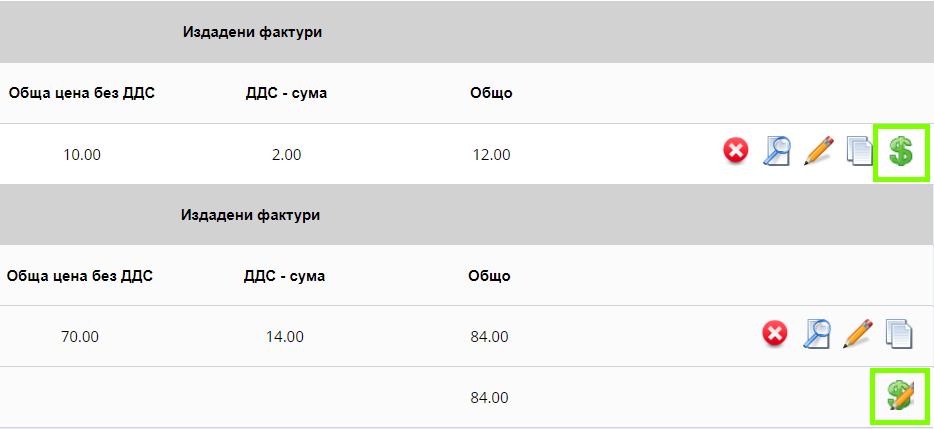
Add and change a payment
In an overview 🔎 of a sale, in the "Information about the sale" field, you will find all the documents issued under this operation.
An option to add a payment 💲 or to correct✏️ an already created payment is visualized for each invoice.
*If a fiscal receipt was issued for the sale, payment adjustment would not be possible.
Also in "reports - Finances - Receivables and Payables" you can track all unpaid invoices and from there you have the option to add a payment to reset your payables.
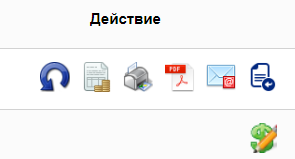
Information about the sale
When viewing the sale, in the "Sale Information" field, you will find several options for actions on the created transaction:
customer return↪️ - by selecting the blue inverted arrow, you will create a customer return, which will return the goods back to your warehouse, as well as deduct the money you originally received as revenue from the sale.
The customer return opens a new window, which is an analogue of the selected sale, with the same items, quantities and business partner. Only the product and the items you wish to return/return to the warehouse should remain in the customer return.
If an invoice has been issued prior to the sale, you will be able to issue a credit note with the customer return.Ability to generate an invoice - if an invoice needs to be issued for the created sale, you can create one using the document icon.
Printing of documents🖨️
PDF
Email📧 - possibility to send the document by e-mail to the client.
Debit note - a new window will open where you can add items, quantities and price to issue a debit note to the document invoice.
Editing of the payment - this action gives you the right, in case of a wrong payment, to be able to edit with another payment method, which will subsequently be reflected in the reports.
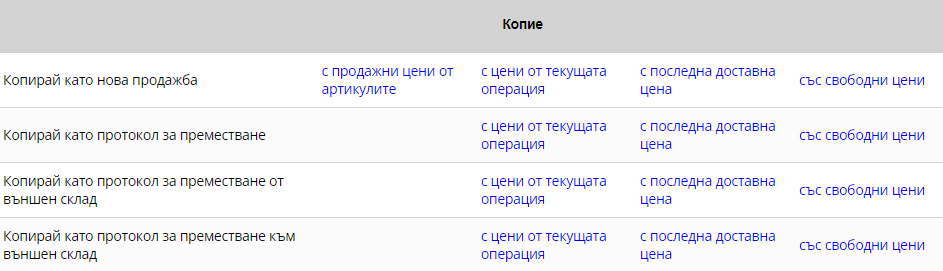
Copy for sale
When choosing to view the sale you specified, at the bottom of the operation you will find four proposals for copying the sale document and the prices with which you want it to be loaded:
Copy as new sale (if you want to create the same sale again)
Copy as a move log (this way if you messed up the sale and say you created it to the wrong warehouse, you can create a quick move log from here)
Copy as transfer protocol from external warehouse (if you want to create a transfer from an external virtual warehouse in case it is not the physical locations that your warehouse has and you want to copy the sale as a faster transfer option)
Copy as transfer protocol to external warehouse (if you want to create a transfer to an external virtual warehouse in case it is not the physical locations that your warehouse has and you want to copy the sale as a faster transfer option)

Sale edit
The editing✏️ of a sale is an operation that must be activated from Settings➡Users and allow the "Edit (delete) operation" right.
If the user has editing rights, he will be able to edit the specified sale.
The editor allows:
change of business partner
delete/add item
changing the price and quantity of an item
change of operation date
change of user who performed the operation
The editing of the specified fields will also be reflected in reports.
Recommended articles
Reports
#2.1