
Home / User guide / Synchronization of prices and quantities
Synchronization of prices and quantities
Who is it applicable to?
It is applicable for anyone who wants to monitor and update real-time their stock availability and product prices on both platforms, both warehouse software and WooCommerce. It is a suitable mode for any type of business.
If you choose to work with the following quantity and price synchronization scenario, all prices, quantities and SKU numbers will be synchronized in the synchronization direction you choose, whether it will be from the online store to I-Cash or from I-Cash to your online store. Or you'll choose both sync directions.
What is happening in I-Cash and WooCommerce?
Quantities:
After integration, the quantities are accrued and updated only through the I-Cash platform through "New delivery" through which a purchase prices is entered, based on which the margin of each product will be calculated in the future.
Items in delivery can be searched by barcode or name.
If the item is new and you want it to be present in your online store, when creating a new item in I-Cash (it can be created via "Goods - Items" or via "New Delivery"), you need to enter a name, price and mandatory as field "Main barcode" of the item, it will be updated in your online store as a SKU number and the quantities will be updated when the delivery is finalized.
When creating a new item, it is important in the last folder for "Online Store" to mark the item as belonging to the specified location for connection to your online store.
Prices:
Prices are only entered and updated via I-Cash as an item edit.
The price will also be updated in your online store as such.
How to create a new item?
Option 1: The SKU numbers of the items can be created through I-Cash, as when creating a new item or editing an old one that is not present in the base of your online store, it is selected that it belongs to the specified location (linked to your online store)
! Variations cannot be created through I-Cash! - but you can create such in the online store.
Option 2: If you have an item database created in your online store and each item has its own SKU number, and each variation of the item has a SKU number, each of the specified items will enter the I-Cash item database with the item name and SKU number as the main barcode.
How to return goods?
customer returns are made through both platforms, both through I-Cash and through your online store. This operation is only possible with pre-created settings for linking order statuses in your online store with I-Cash.
Option 1: After correctly implemented settings (further down in the file there is a description of how they are configured) in I-Cash in "Sales" and there in the list of all sales, to the right of each operation you will find a function (icon with a blue rotated arrow) through which you can make a customer return, which will return the quantities of goods back to your warehouse.
This operation will update the quantities on both platforms.
Option 2: After correctly implemented settings in I-Cash, regarding your online store, changing the order status in WooCommerce to “Refunded” will also create a sales customer return in I-Cash, which will update the quantity of goods in both platforms.
How to set the mode?
In "Settings" - "Other" - "Online Store" when creating or editing an already created online store, in the first step for basic settings, you will find the 4 operating modes between the two platforms, from which you can choose how you will work in the future.
In order to implement the integration, it is necessary that your warehouse has an enabled module for working with an online store (API).
For this purpose, if the specified module is not active, please contact our support at info@icash.bg or on the indicated phones on our website -> https://icash.bg/bg/ to activate it for you.
SETTINGS
1. Basic settings
At the beginning you will find three fields to fill in.
1. In the first field, you need to enter an exact link to the web page of the online store that will be integrated.
2. In the second field, you need to enter a user key, which you need to get through your WooCommerce settings through the admin panel of your online store.
After generating the keys, the first one is entered in the "User key" field
and the second is entered in the "User secret key" field.
3. In the third field that will be displayed in the settings of the online store in I-Cash, you must enter "User secret key"
After selecting "Save and Connect" a connection will be made between the two platforms through which you will find the synchronized items in I-Cash
"Goods - Online Shop - items"
After the connection is made, further fields for the integration will be unlocked.
Sync Selection:
Don't sync (sale only)
Sync quantities only
Sync prices from main
Synchronize quantities and prices
Interval for synchronization of items (prices, quantities) and item groups in min:
=> Minutes of synchronization are noted
In the I-Cash settings for synchronization with your online store, you can choose whether to work with a light mode file that will be generated by I-Cash.
(XML audit file)
"locations from which the online store is loaded" (WooCommerce):
The location whose stock will be tracked as a movement of goods is selected.
"location through which the sale is carried out in the online store"
Each order made through the online store will be reflected as a sale (completed, incomplete) in I-Cash, and for this purpose, an location must be selected through which the sales will pass.
2. Statuses
In the second step, the reflection of statuses from the online store in I-Cash is configured.
Each status listed in the online store will correspond to a specific sale status in I-Cash.
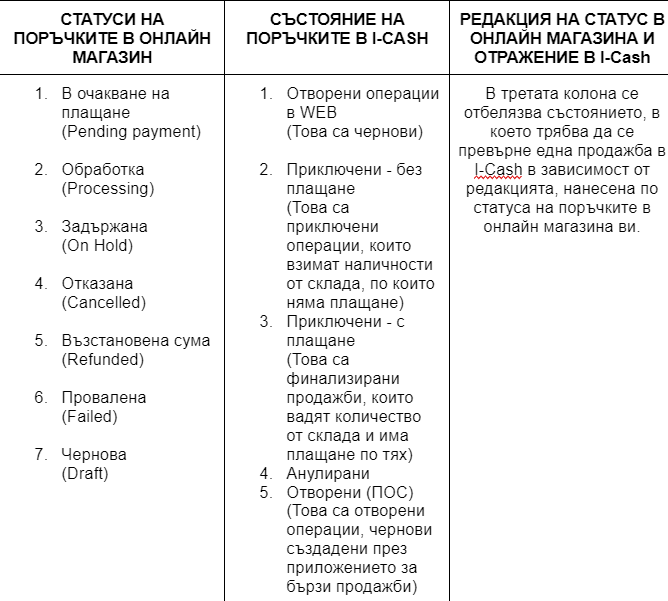
You only need to bind the statuses that will be used in your online store.
Each status you use must be linked to a specific sales status and its visualization in I-Cash.
Completed transactions (with payment and without payment) - Finalize the order as a sale, which removes the specified items as a quantity from the warehouse.
3. Payments
In the third step for configuring the online store, you need to choose how you will bind the payment methods you use in your online store to I-Cash.
If you use multiple payment methods, for example:
- payment via Stripe
- by Cash on Delivery
- By bank transfer
Each of the mentioned examples of payment through your online store must be configured in I-Cash and the way it will be reflected.
- Stripe - > payment method "By card"
- by Cash on Delivery - > is determined depending on the way of work.
IMPORTANT!
If cash on delivery payment in the online store requires a tied payment method "cash", it is necessary to specify whether the payment requires the issuance of a fiscal receipt.
In these circumstances, you need to choose in the newly appeared field whether the bound payment will be "with" or "without" a fiscal device.
- By bank transfer - > Payment method 'By bank' and selection of bank account.
The following functionalities can be adapted to each payment method:
You can issue an invoice when processing each order through your online store.
The delivery fee in your online store should be entered as an additional line on each generated order in I-Cash
You can issue an "Electronic Receipt"
* There are two conditions - a fiscal device with a configuration for electronic notes and if it is tied to a "Cash" payment method. Currently, only daisy fiscal devices are supported for e-receipt. Taxed for online store
4. Synchronization
In the 4th step, the full synchronization from WooCommerce to I-Cash takes place to update the names and SKU numbers of all goods.
When saving the settings in the list of your online stores, you will find an option to make a connection if you consider that there are times when there is no one with the "Connect" button
You will find two more options:
- For synchronization from WooCommerce to I-Cash
- For synchronization from I-Cash to WooCommerce
Either option will update or create all items with their SKU numbers / barcodes depending on the synchronization direction selected.
Synchronization is performed once, then when creating subsequent operations, orders, deliveries, etc. information is updated, both in I-Cash and WooCommerce.