
Home / User guide / Documents
Documents
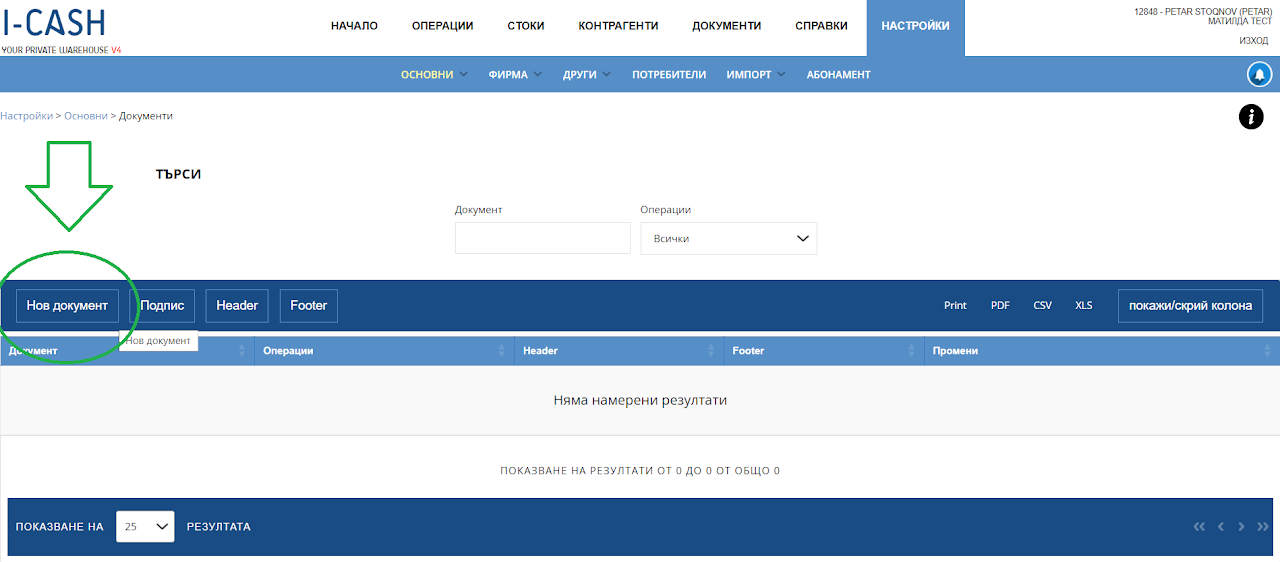
In addition to the predefined documents in the program, the client has the opportunity to prepare his own personalized documents. Please navigate to Settings – Basic – Documents menu.
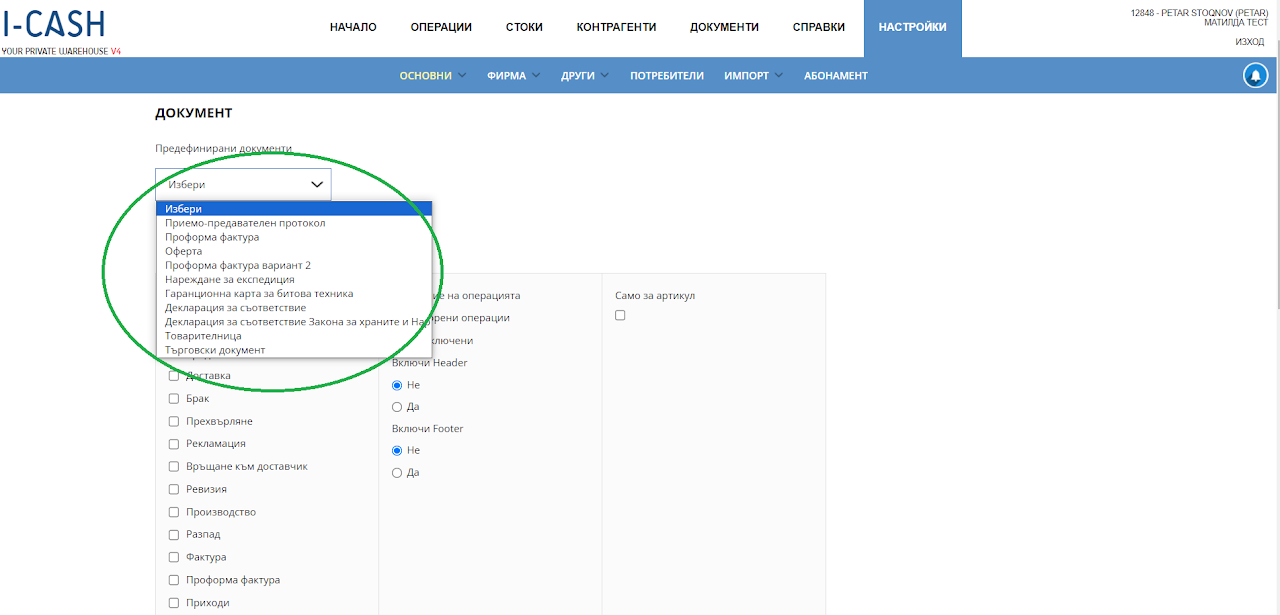
After selecting "New Document" a text editor will open. Before starting the layout of the file, we need to choose when and where the document we have prepared should be generated. From the predefined documents menu, you can choose from a list of documents already prepared for your distributor. Then enter the name of the document you are creating. The next step is to choose which trade to add to. It is possible to select more than one operation. After you have selected the operation, you must choose whether this document refers to an Open or Closed operation. You can only select the open operation field when it refers to a document that will be generated in a sale. If you are preparing a document for a commercial transaction other than a sale, please select the "Closed" status. You have the option to add Header and Footer pre-prepared.
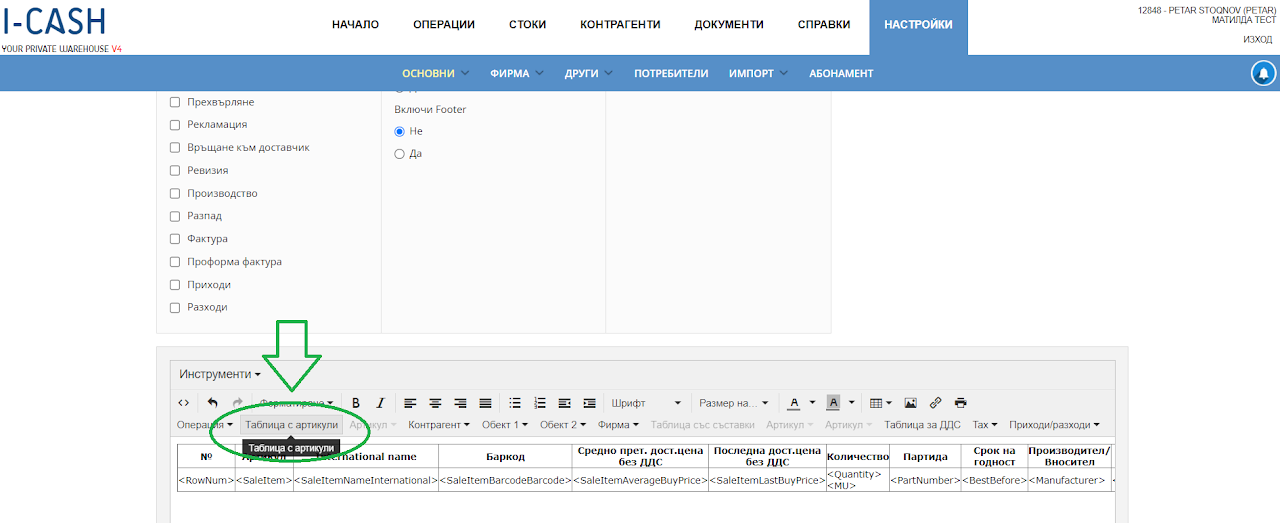
If a document needs to be created for only one of the items involved in the transaction, the "Only for item" field should be selected. The document prepared in this way will be generated in line in the preview of the commercial operation.
On the first line are menus with which you manage the file with global functions such as inserting images and tables.
On the second row are all functionalities related to the editing and format of texts, paragraphs, tables, links and photos.
On the third line, all the variables that you can use from your business account are entered. Each variable is visualized in the document closed with tags"<>” Once the document is prepared and the information in these tags is retrieved, all of this information will be retrieved from the database.
Some of the variables load entire tables of information such as "Item Tables". Selecting this menu will visualize that part of the document in which the goods are entered with their nomenclature - price, lot quantity and expiration dates.
You have the option to edit this table by removing or adding columns of information. Pay attention to the menus - depending on the information you are editing, some of them are active and some are not.
In this way, you can prepare any personal documents with your own design and specific information extracted from your database. These documents can be sent by email to the client or printed in A4 format.
Header
This field allows you to add information in the form of text or a photo at the top of all documents created on your business account. After selecting the button, a text editor opens that allows entering information. Like any editor, it allows you to enter and edit text while formatting it. You can insert a photo or company logo, which will make your documents unique.
The information is visualized at the top when the document is subsequently issued.
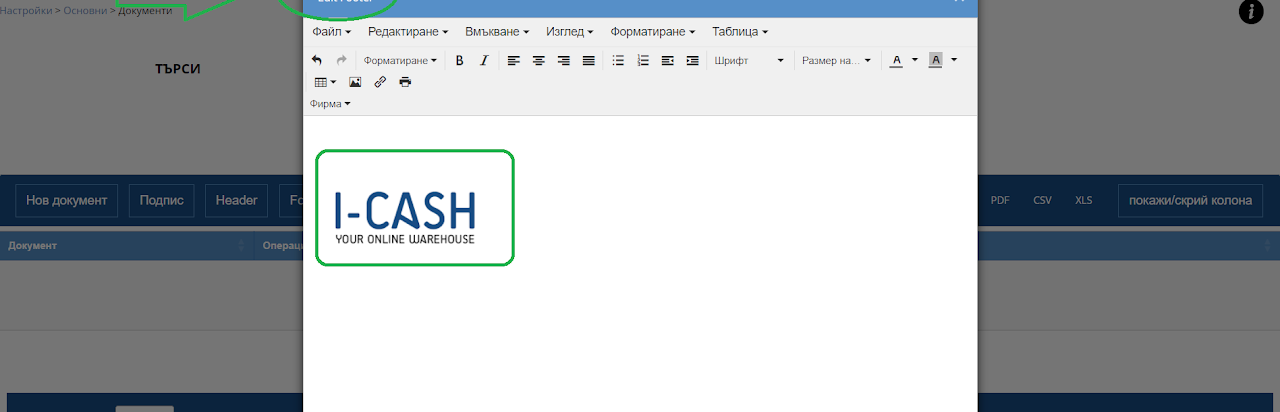
Footer
This field allows you to add information in the form of text or a photo at the bottom of all documents created on your business account. After selection, a text editor opens.
The information is visualized at the bottom when the document is subsequently issued.
Additional settings in the document.
There are two main documents in the program:
Goods receipt and Invoice. The design of these documents is set by the program and cannot be changed by the client. The fields visible in the document are set by default. It is possible to remove or add information in these documents. The list below lists all the items that can be added or removed from the preview of these documents.
The columns that can be added/removed are the following:
Invoice Design Settings ->
Expiry date/Lots
Discount
Product/Service
Note
MOL
Site address in note
Tax rate summary table
Customer phone number
Customer email
Maturity date
Method of payment
Ed. discounted price
Dan. group
Ed. price with VAT
Total price with VAT
Barcode
Stock Design Settings ->
Note
MOL
Site address in note
Tax rate summary table
Customer phone number
Customer email
Method of payment
Discount
Expiry date/Lots
Product/Service
Ed. price without discount
Dan. group
Price with VAT
Price excluding VAT
Item note
Barcode
NB: This can only be set by an administrator. If you would like such a setting, please contact our support at support@icash.bg or from the contacts mentioned on our site.