
Home / User guide / Price rules
Pricing rules
Types of pricing rules
Discount in amount or percentage to the Customer
- for certain item groups
- for all offered goods and services
- when purchasing over a certain amountRetail and wholesale prices
- You can choose a business partner to which the price will be different from the regular one (higher or lower) and this will be a fixed amount for each sale made to the specified business partner.Happy Hour
- You can choose certain goods or groups to include in your Happy Hour, in which at a certain time of the day every day or on specific days of the week there will be a discount in the amount or percentage of the selected goods to all customers. The same goes for longer promotions where, say, you'll create a promotion for a whole week where it will be sold at a discount.Nominal discount
- An opportunity through which, when a certain number of items are purchased, the customer receives a discount.Natural discount
- An opportunity by which when you buy four pieces, you get the fifth one for free.Points per item
- With this option you can choose how many points the customer will receive for a certain item or an item from a certain item group.
As these points are accumulated, the customer will be able to use them in the future to shop with them.Turnover points
- With this option, you choose how many points the customer will receive for a certain turnover.
Makes it possible for the customer to shop with these points in the future.
You will find more detailed information about the types of pricing rules below⬇️
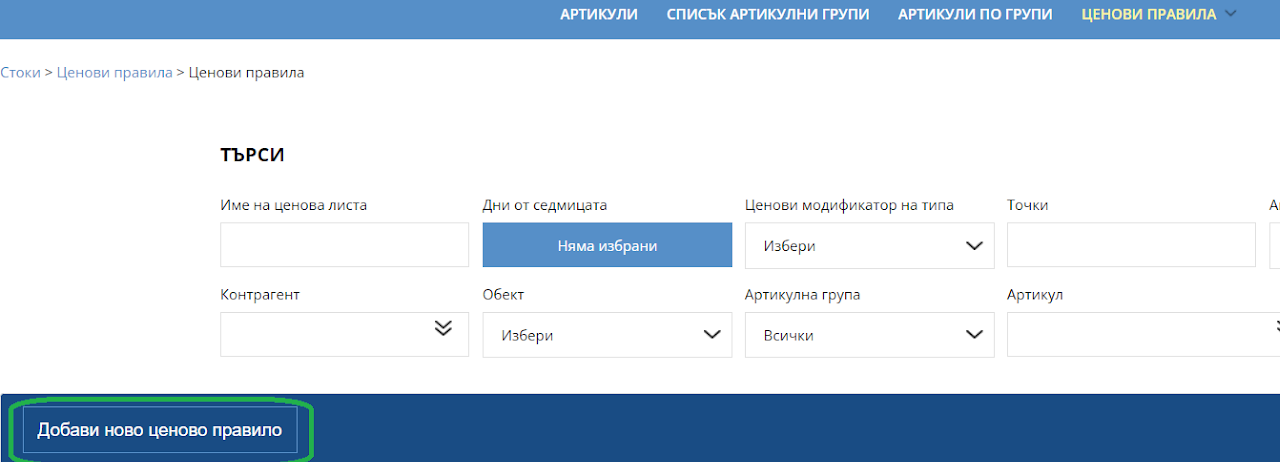
Create a pricing rule
For this purpose, it is necessary to enter Goods - Price rules - Add a new price rule.
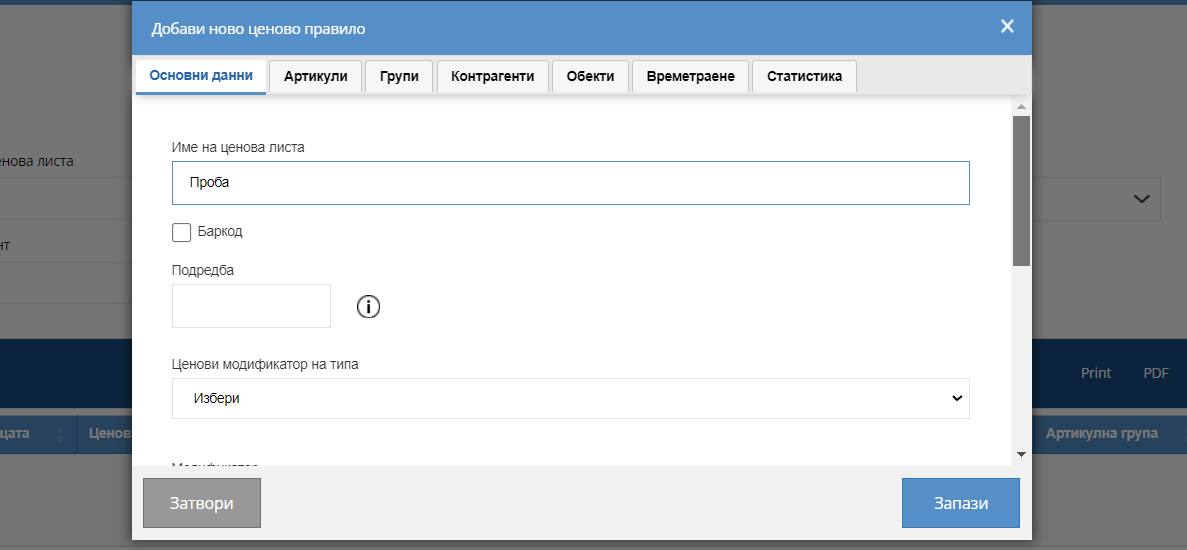
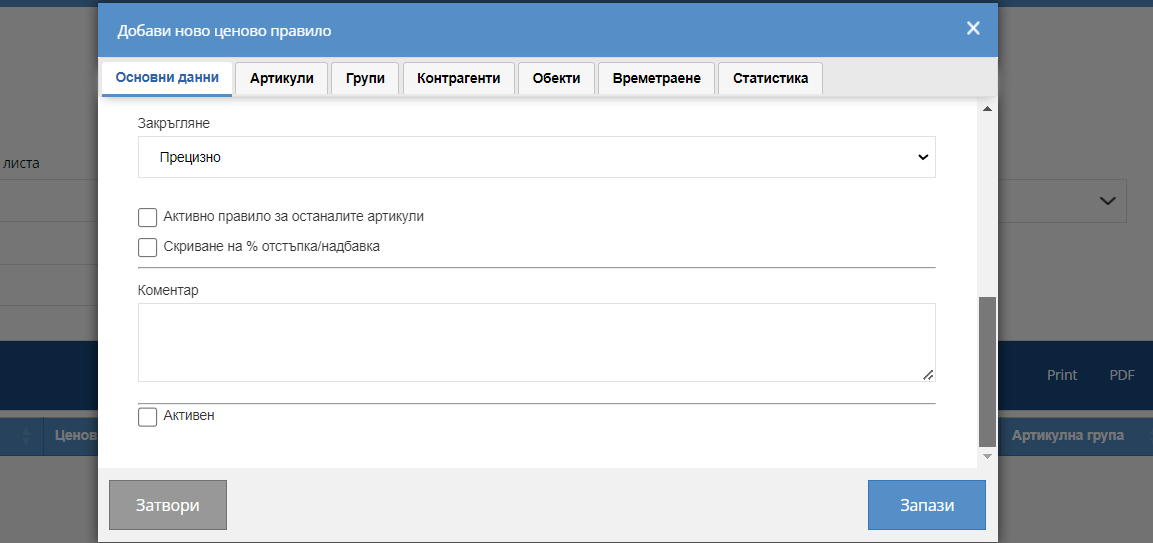
Basic data
The following is configured in master data:
Name of the price list
Order - this is the priority of the price rule, which allows you to prioritize several rules with the same items, which one should be the main one.
Price modifier of the type
- Markup in %
- Discount in %
- Overestimation in amount
- Amount discount
- Nominal discount
- Natural discount
-Points per item
-Points for turnoverModifier
- A modifier is the value you give for a certain discount, markup, amount, or points when preselection of the Price Modifier type.Rounding
- Rounding determines in the total how to calculate the total value.
Namely - to be accurate or to be rounded in a difference of a few cents to the upper limit or to the lower limit of the total.Active rule for other items
- With this option, regardless of the priorities set on the other price rules will prioritize this regardless of the number of price rules the item is added toActive
- Activation of the price rule
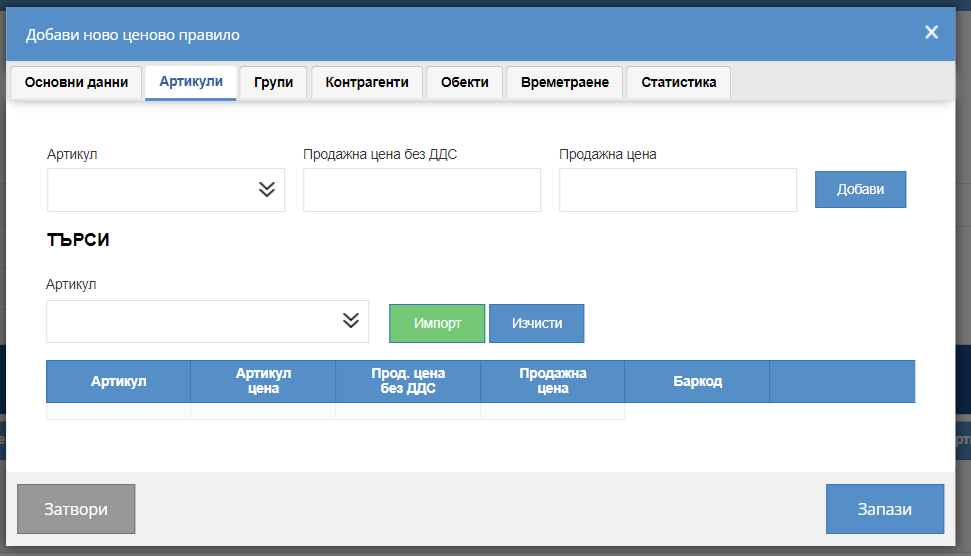
Items
In "Items" you have an option with which you can create a list with all the items whose price you want to fix according to certain criteria such as modifier and type of price rule.
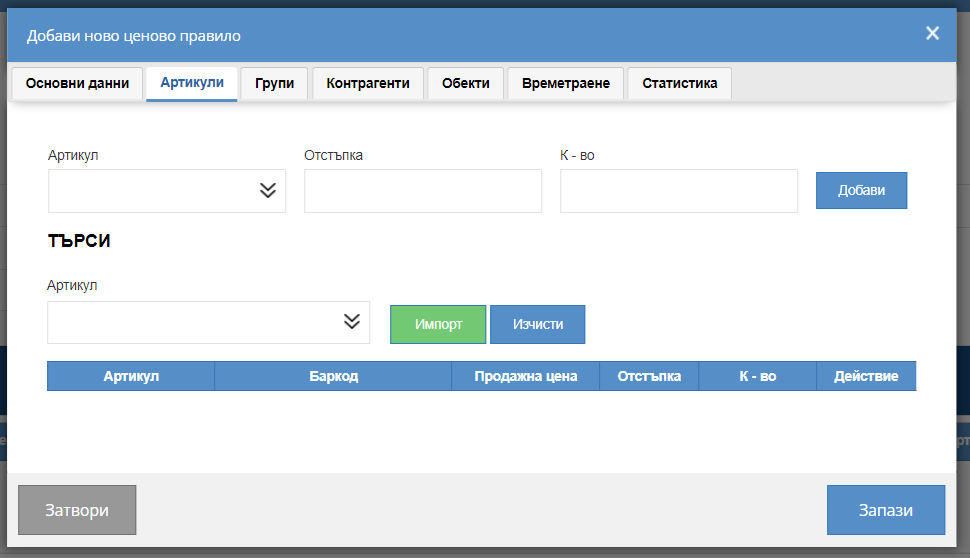
Items
When selecting the "Nominal Discount" pricing rule type, you will notice that the fields change, depending on the units purchased, what percentage discount you will configure.
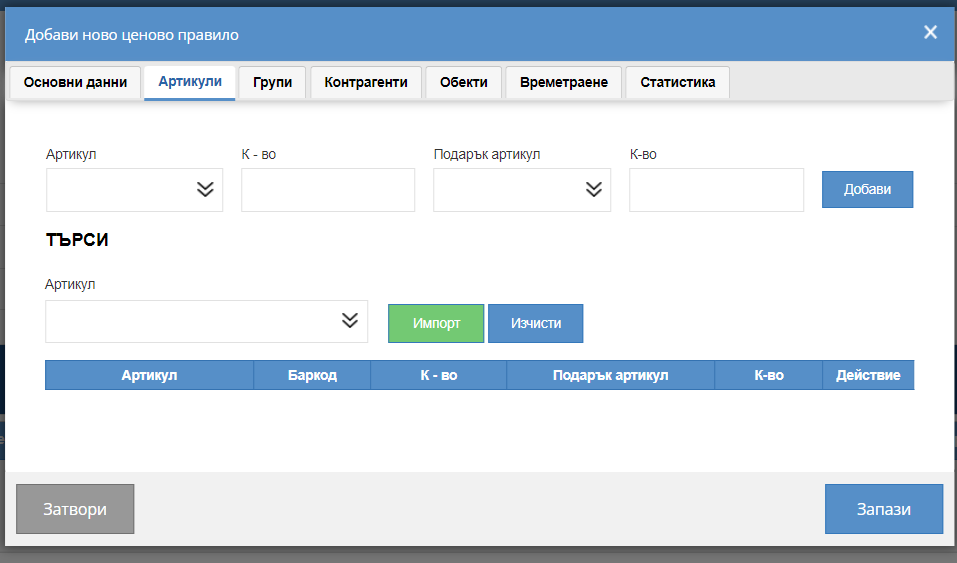
Items
When selecting "Natural discount", the fields change, depending on how many of the specified item, the customer receives an additional 1 free.
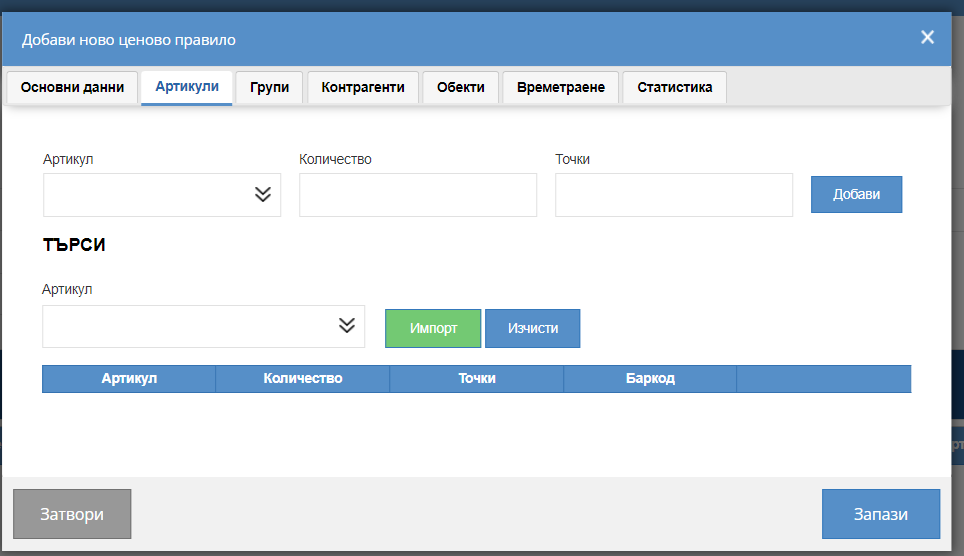
Items
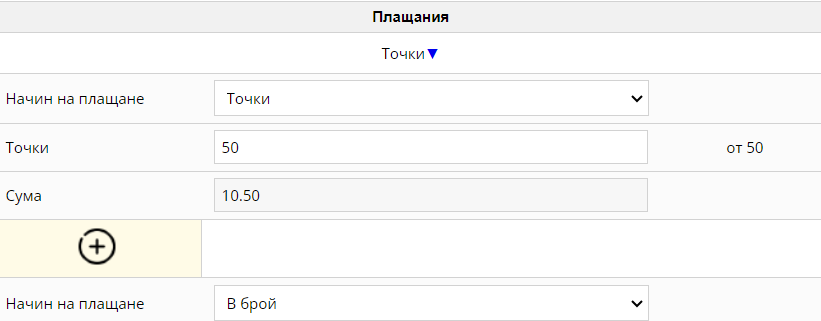
When selecting "Points per item", the fields indicate how many points the customer earns and for what quantity of a given item he receives the points.
IMPORTANT INFORMATION:
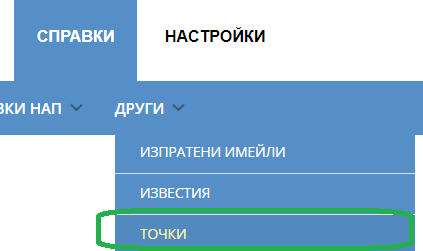
When you create a price rule in which you have selected a business partner who, upon purchase of 5 items, receives 10 points. You will be able to track these points in "reports - Other - Points" where you will be able to track how many points this business partner has currently accumulated.
To sell for points in your warehouse, you need to contact support (support@icash.bg) to have this new payment method added to you, where you need to specify what the point is worth in your warehouse.
After you have specified the payment method "With points" for each sale, you will be presented with an option to pay in points, and when you select a Counterparty, to the right of the payment method, you will see exactly how many points you have so far and what their total value is.
Groups
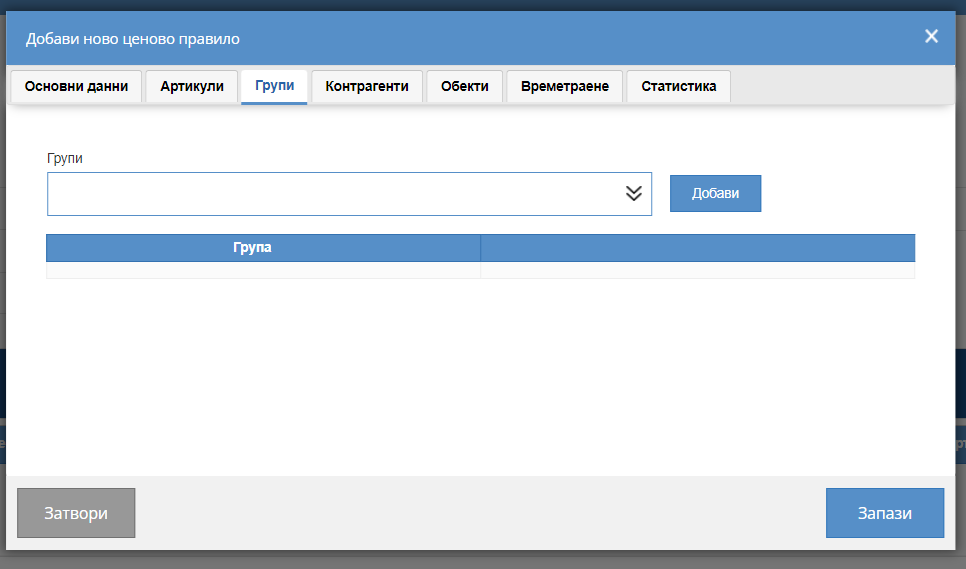
From "Groups" you select the item groups to which the price rule will apply.
Business partners
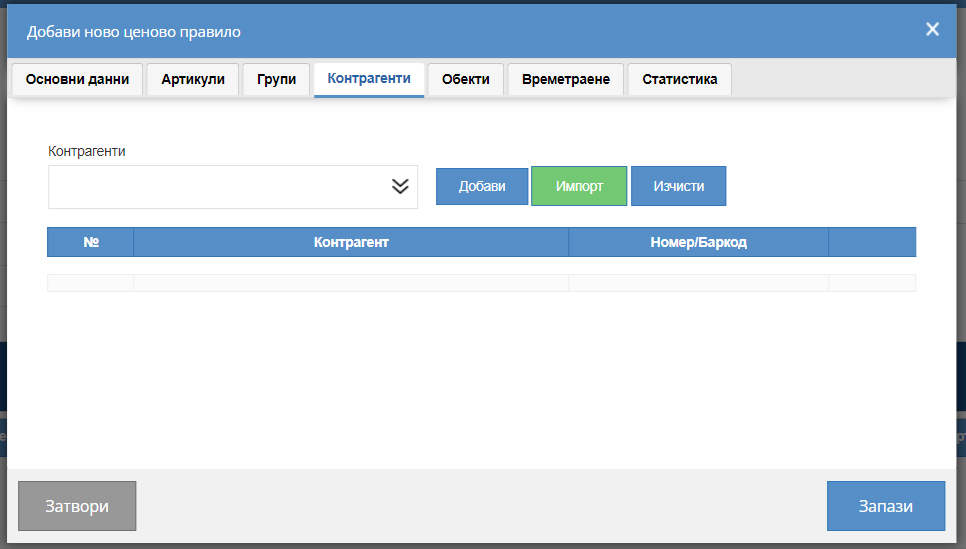
From "business partners" you choose which Counterparts you want to be included in the price rule you created and to which it will apply in the future when selling.
Locations
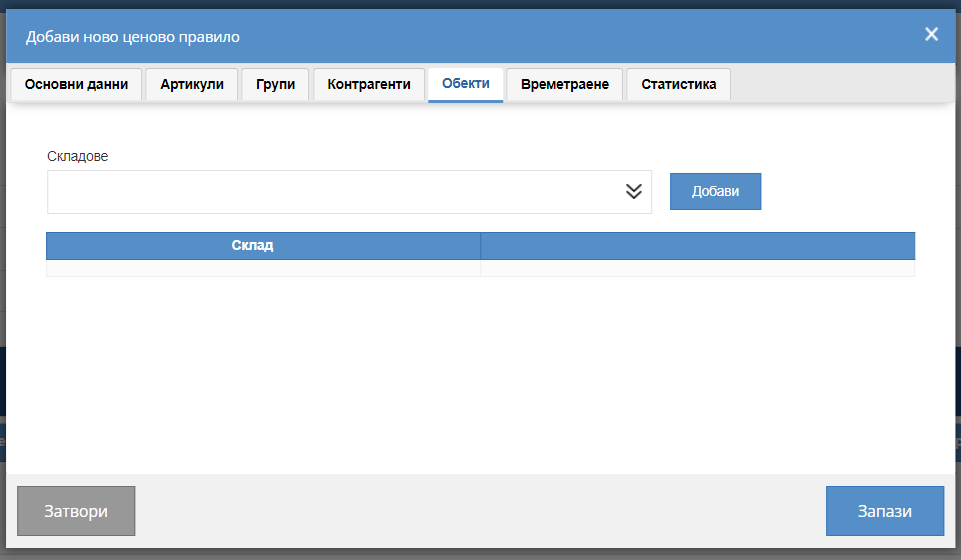
To which locations do you want the price rule to be active, visible and used.
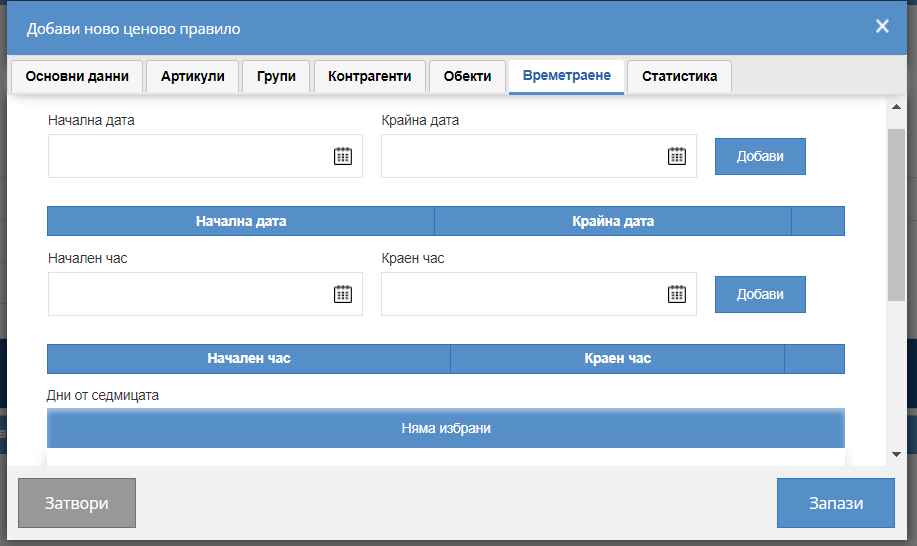
Duration
By duration, you can create a pricing rule for Happy Hour or Black Friday or pre-holiday discounts.
The idea is that you have modifiers by which you can choose to have the rule active in a range of certain hours, for certain dates, or certain days to be active.