
Home / User guide / Installation under Android
Installation under Android
Installing POS under Android
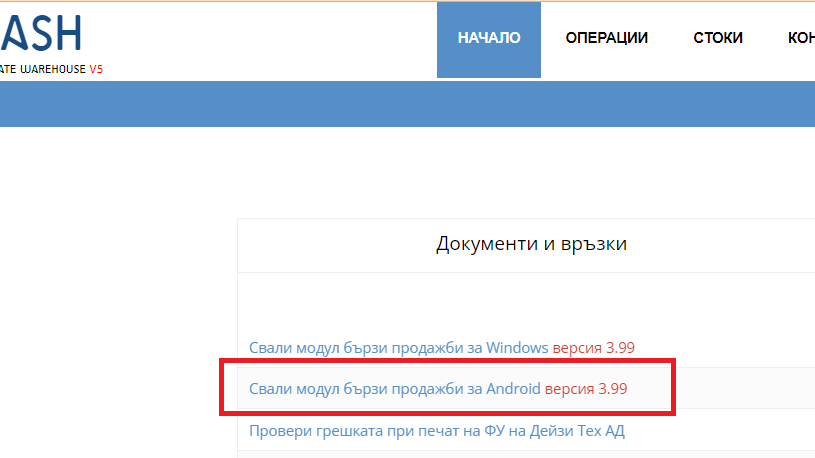
Download app for Android
Navigate to your warehouse home page and download the file from the Documents & Links widget for Android.
You follow the steps from the installer, allowing the app to access the device's media and files.
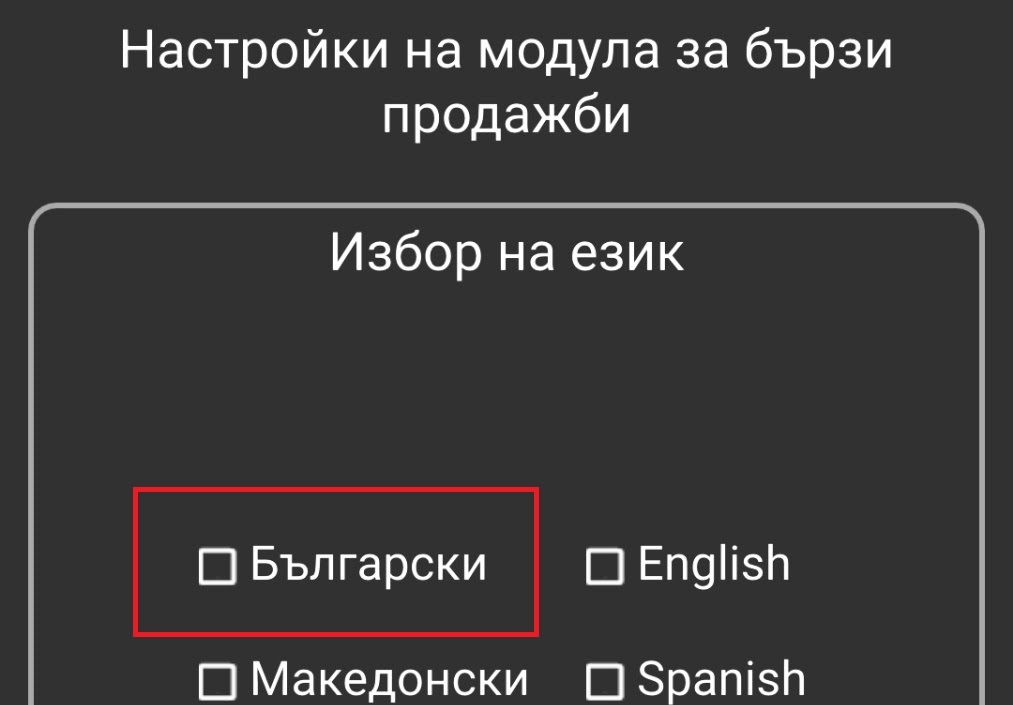
2. Launch POS under Android
Launch the app and select a language.
Select the "Continue" button.
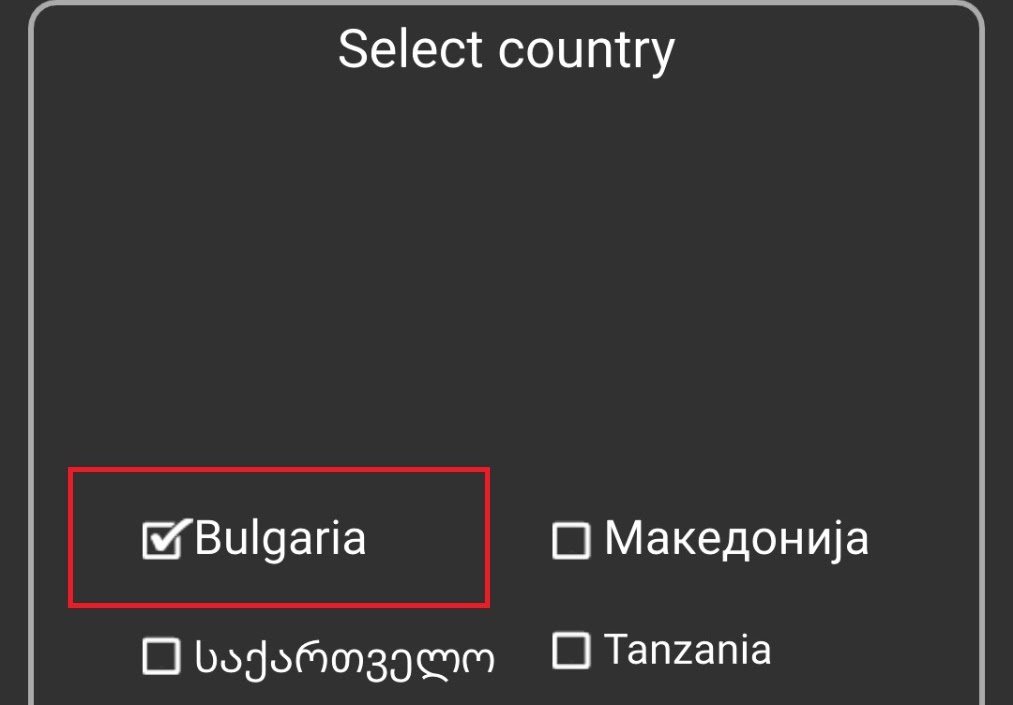
3. Country selection
Select a country.
Select the "Continue" button.
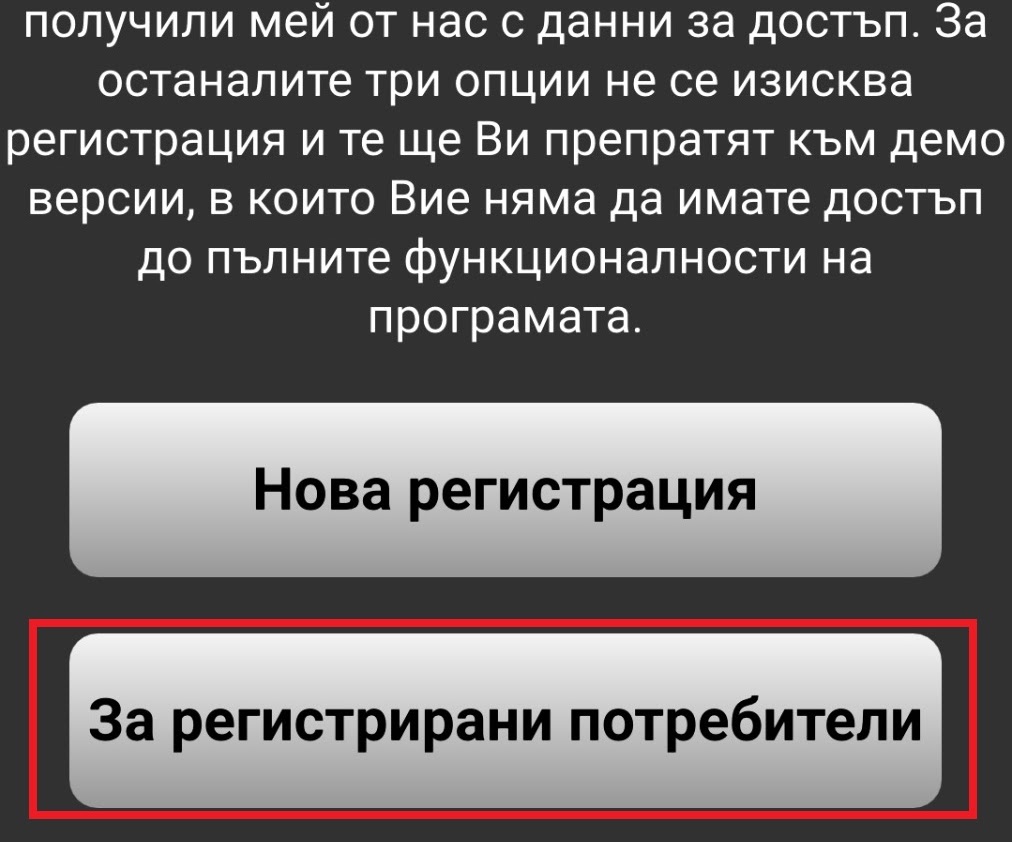
4. For registered users
Select "For registered users" button
Note: The program allows the customer to register from the application itself. Selecting the "New registration" button will redirect you to the address registration form https://v4.icash.bg/registration. Every single visitor to the site has the opportunity to register, after which they will receive login data to the program and one month of free access to be able to look at the product.
In this case, we consider the option where the client has already registered in the program and received login data, for this we select the "For registered users" button.
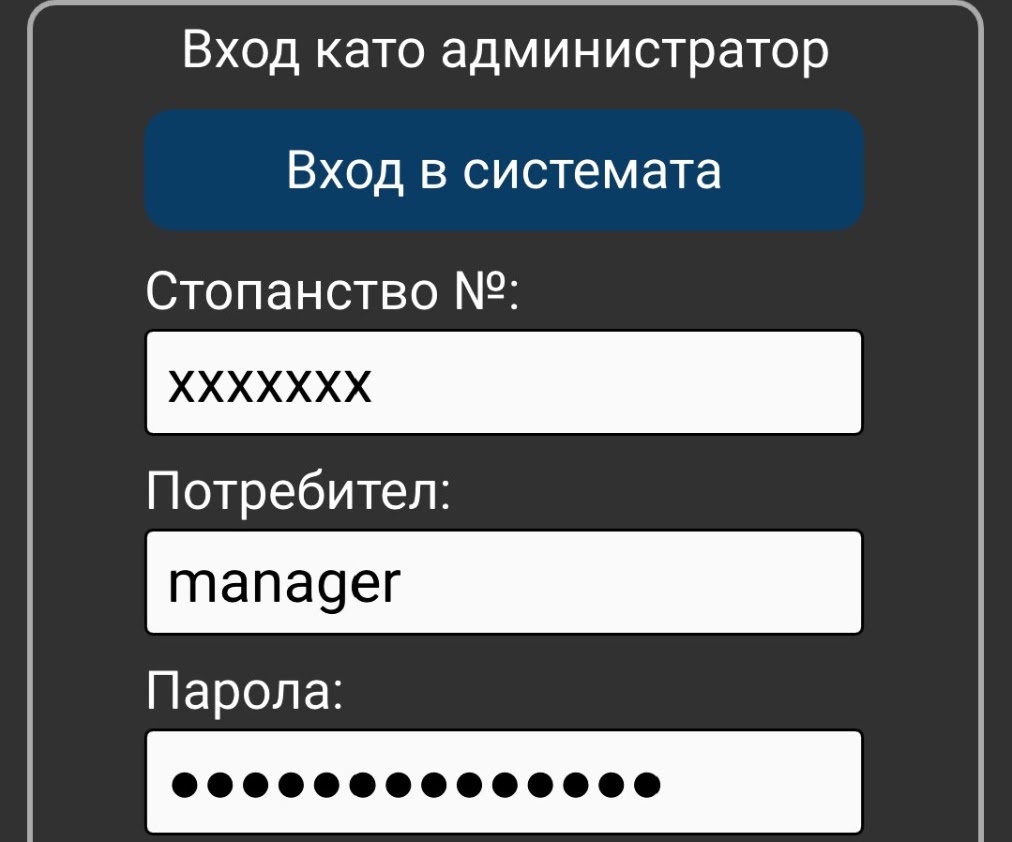
5. Entering login data
The login data, which are entered at this step of the installation and configuration of the program, can be found in the email you received after registration at: Registration.
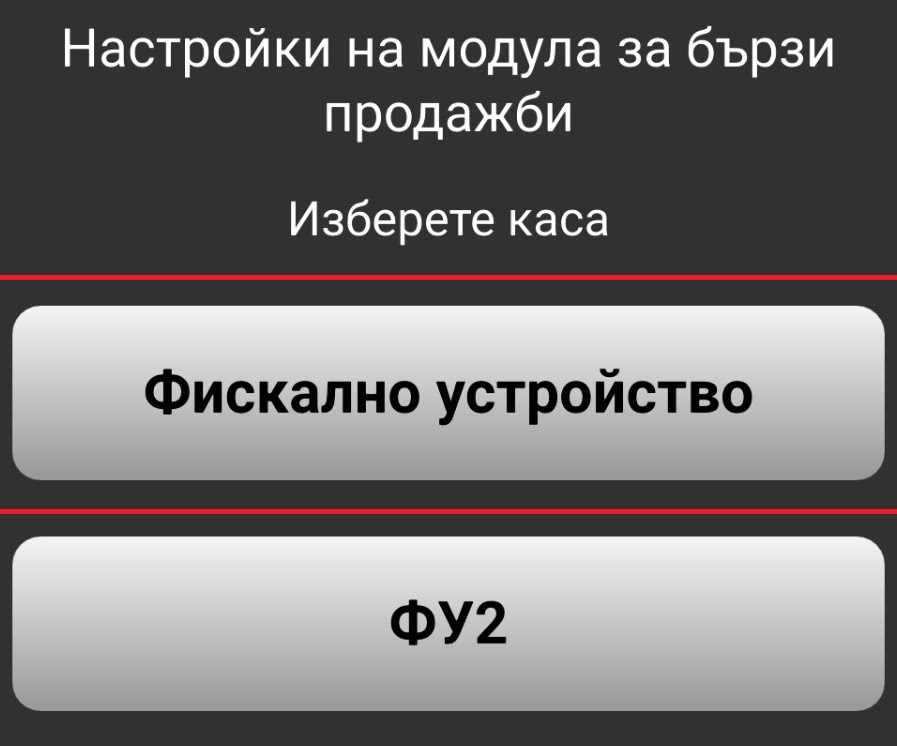
6. Installation of POS under Android
The next step is choosing a fiscal device.
Every newly registered customer has access to "Fiscal Device" by default. Please select "Fiscal device".
Note: Depending on how many cash registers are paid by the customer, this list may consist of one or more cash registers.
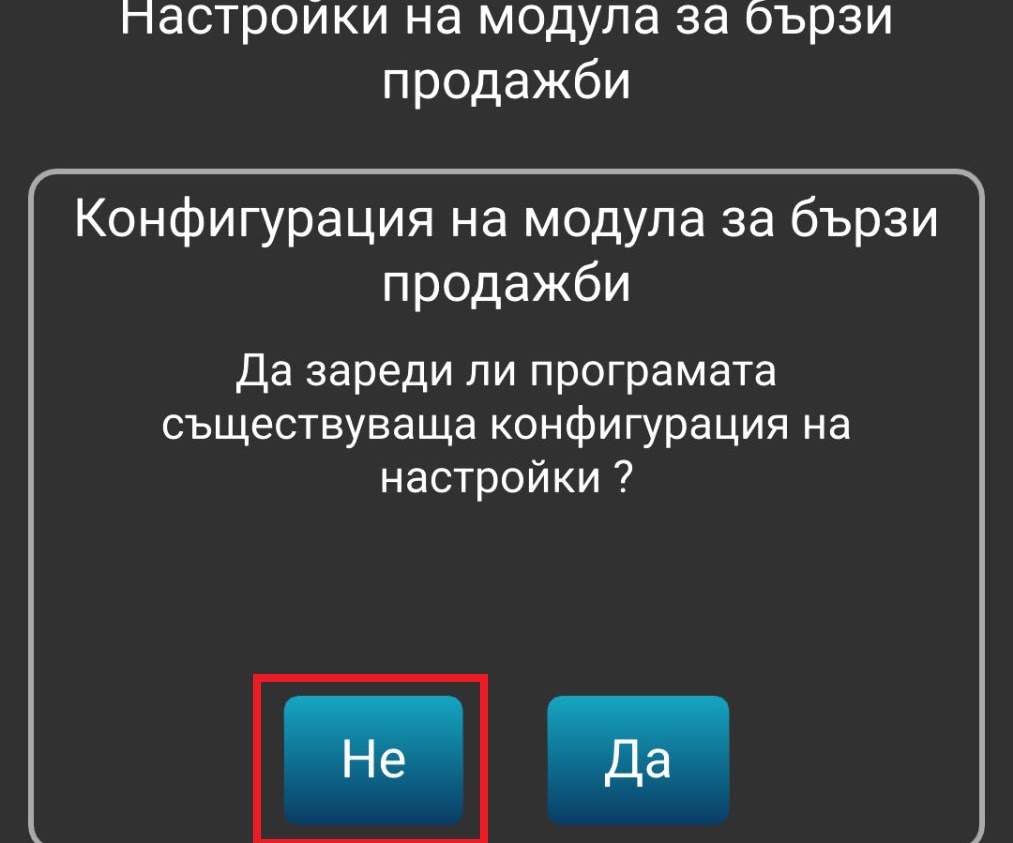
7. Configuration
You have the option to load already existing settings from the system. In this case, as new customers, you do not have an existing configuration, so the choice will be "No".
Note; in the case of a possible installation of the program on a new device, after selecting the "Yes" button in this step, the program will load the configuration from the last update based on the previous device.
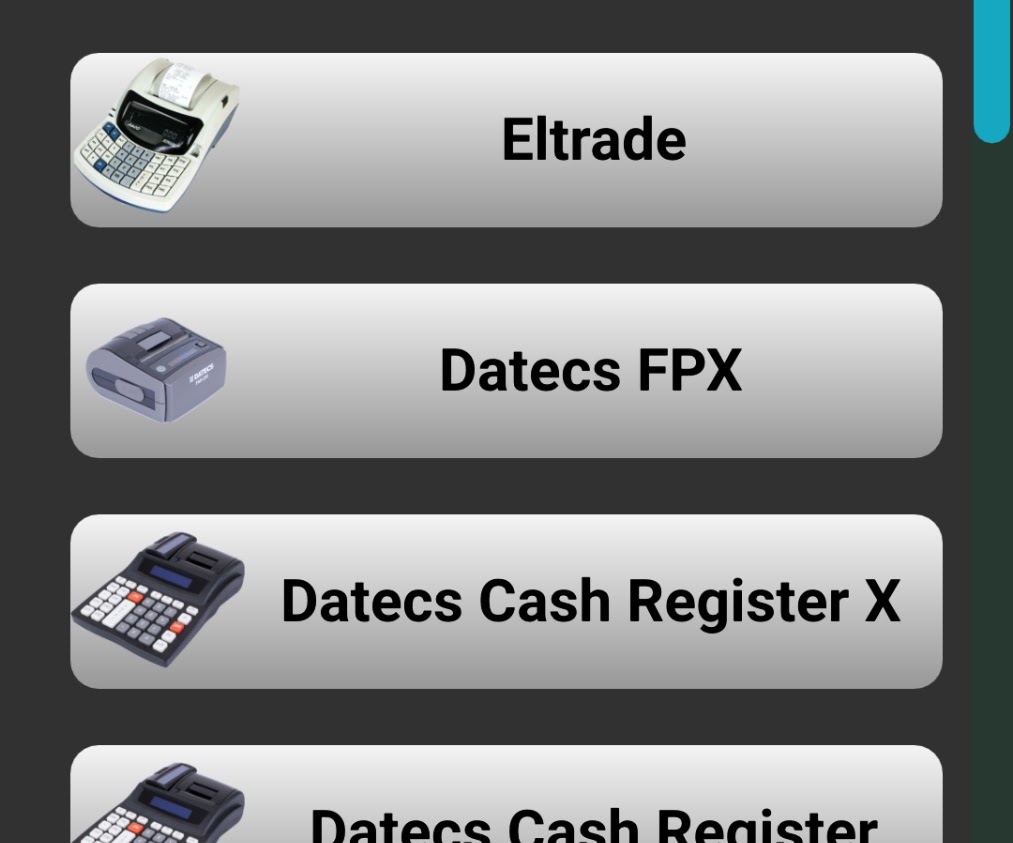
8. Device selection
Select your fiscal device from the list.
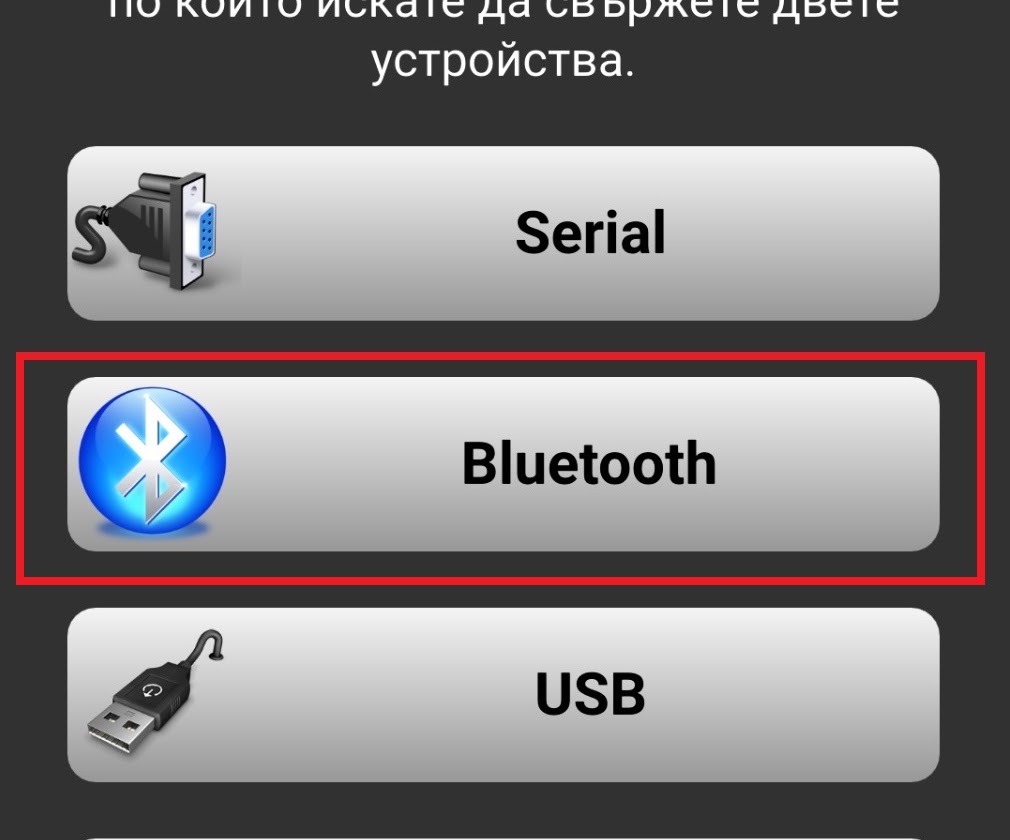
9. Choice of connection method
Choice of the way the connection between the fiscal device and the application will be made. In this case we select "Bluetooth"
Note: The connection is entirely dependent on the hardware in both devices.
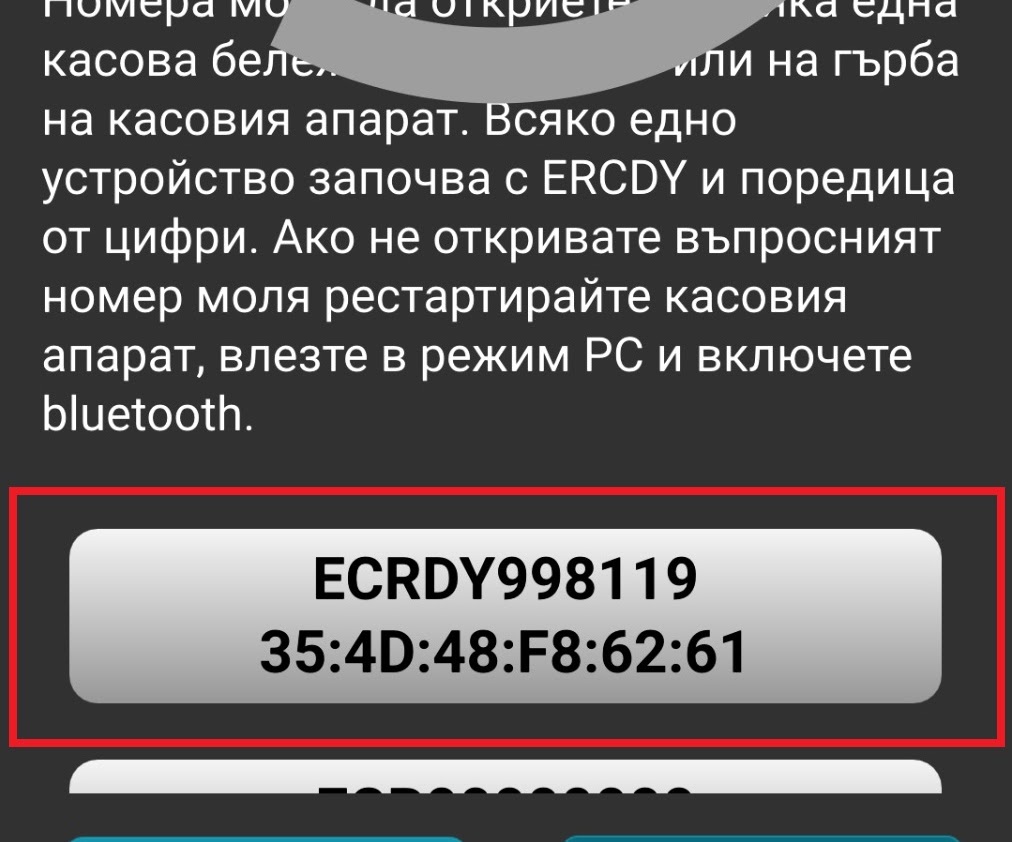
10. Select a Bluetooth device
Select your device from the list.
Note: There is a brief description in the text of how the number may have been written.
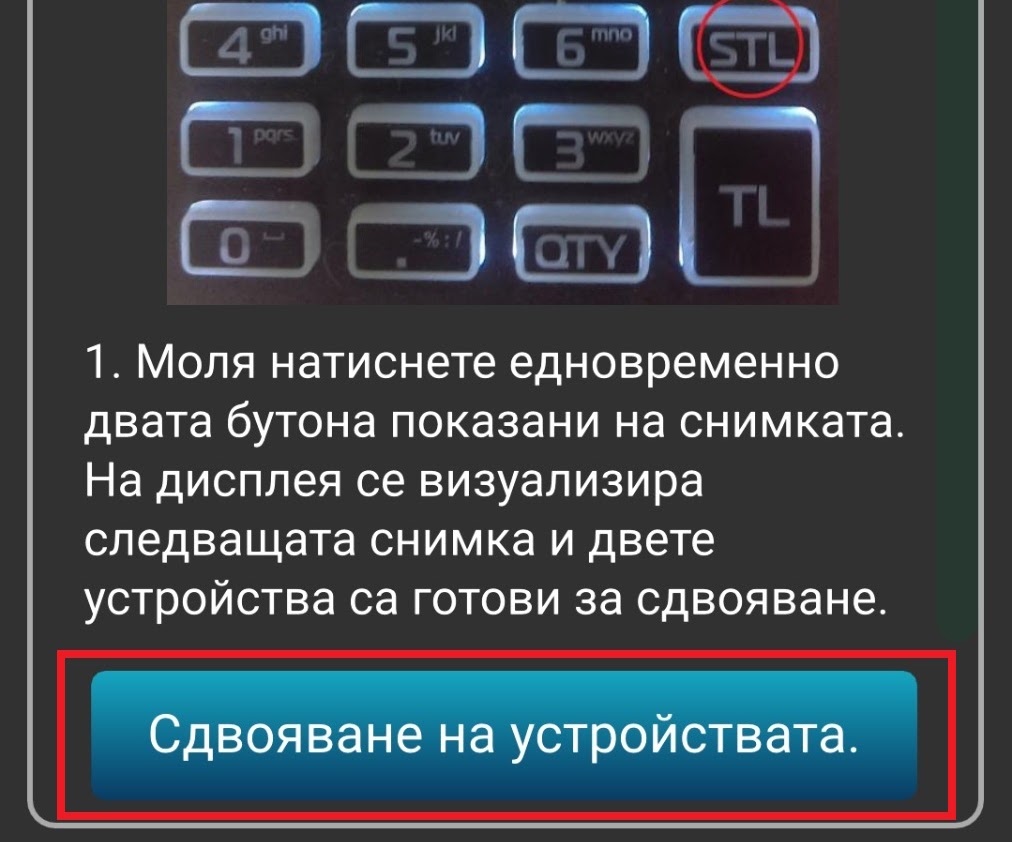
11. Pairing
Read the pairing instructions and once completed, press the "Pair Devices" button.
Note: Each device has different requirements. Please contact a service technician in case of connection difficulties.