
Home / User guide / Install under Windows
Installation under Windows
Installing POS under Windows
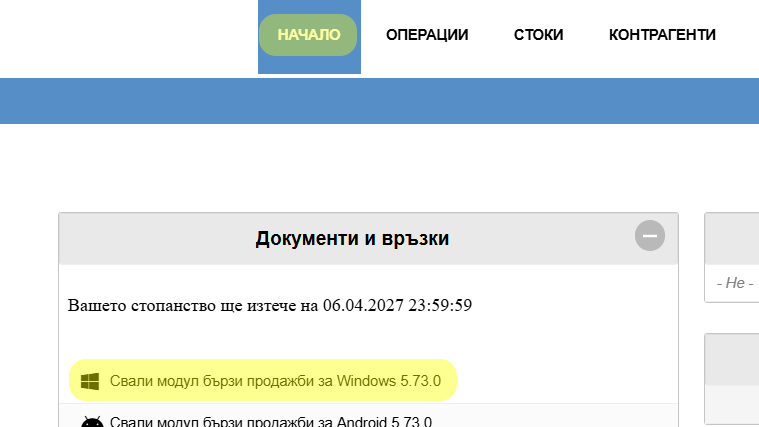
1. POS installation under Windows
Navigate to your warehouse home page and download the file from the Documents and Links widget for Windows.
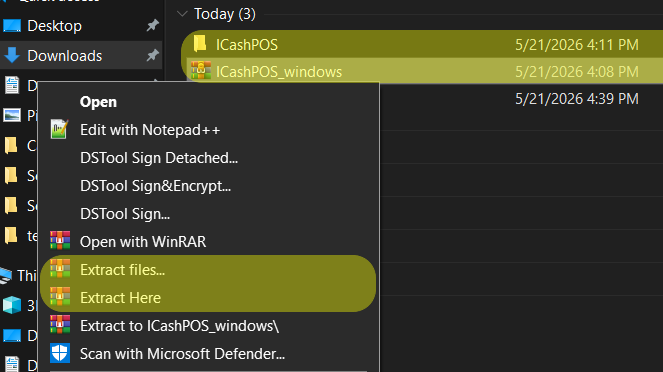
2. Unarchiving
Unzip to a location of your choice on your computer.
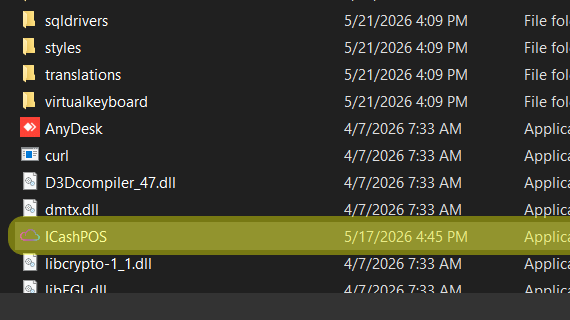
3. Start POS under Windows
Run the application (Application) from the ICashPOS folder.

4. Select a language
Choose the language you want to operate with.

5. Registration
In the access fields, fill in the registration data for the Internet platform received on your email and press the "Login" button.
If you do not have a registration, please follow the given link: https://v5.icash.bg/login/
You can change the theme (dark/light) with the sun/moon icon.

6. Select checkout
The default name is "Fiscal Device". A cash register is any device with an installed I-CASH POS and a cash register connected to it.
If the needs of your business require the configuration of more cash registers, you can email us at support@icash.bg.
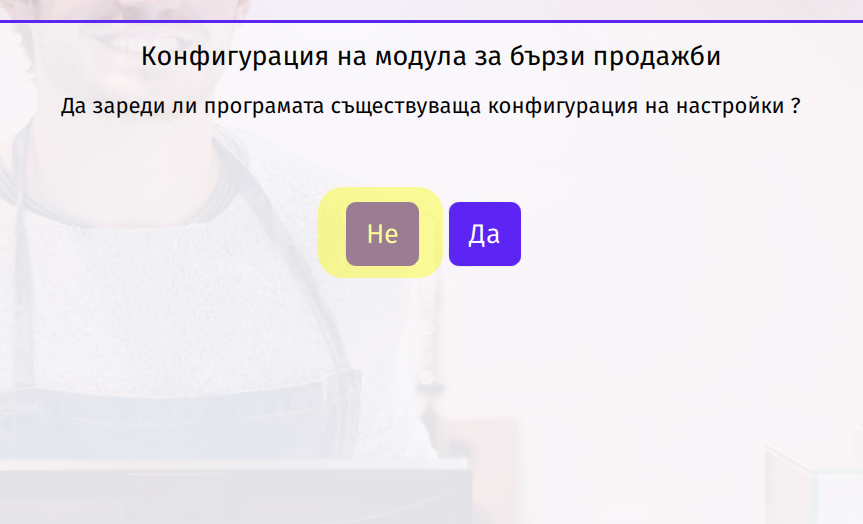
7. POS Configuration
For a first installation, the choice is "No" because no settings have been configured to load with "Yes".
8. Remove the base
Wait for the item and price database you filled out on the web platform to download to the app.
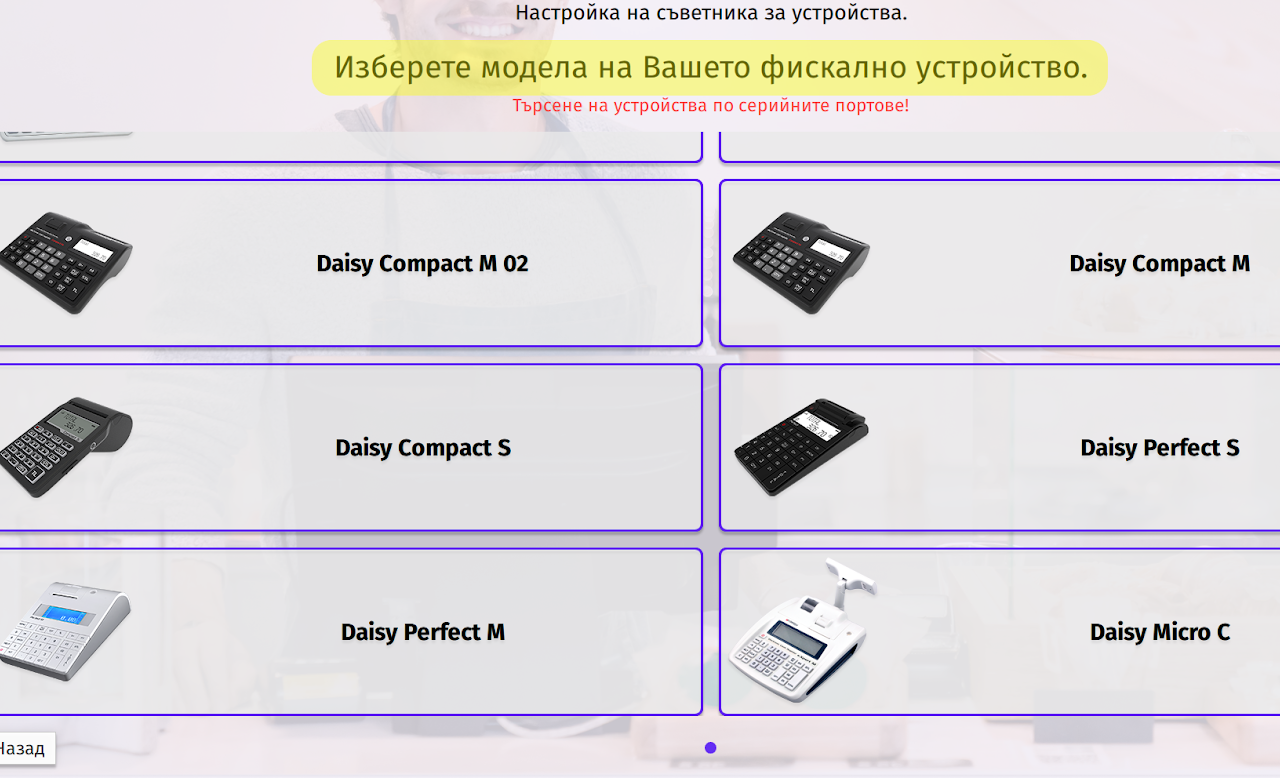
9. Fiscal device configuration
Select from the list of devices the cash register that you will bind to the quick sales module.
*For Fiscal Daisy devices, this configuration is automatic, the device just needs to be in PC mode and connected to the computer.
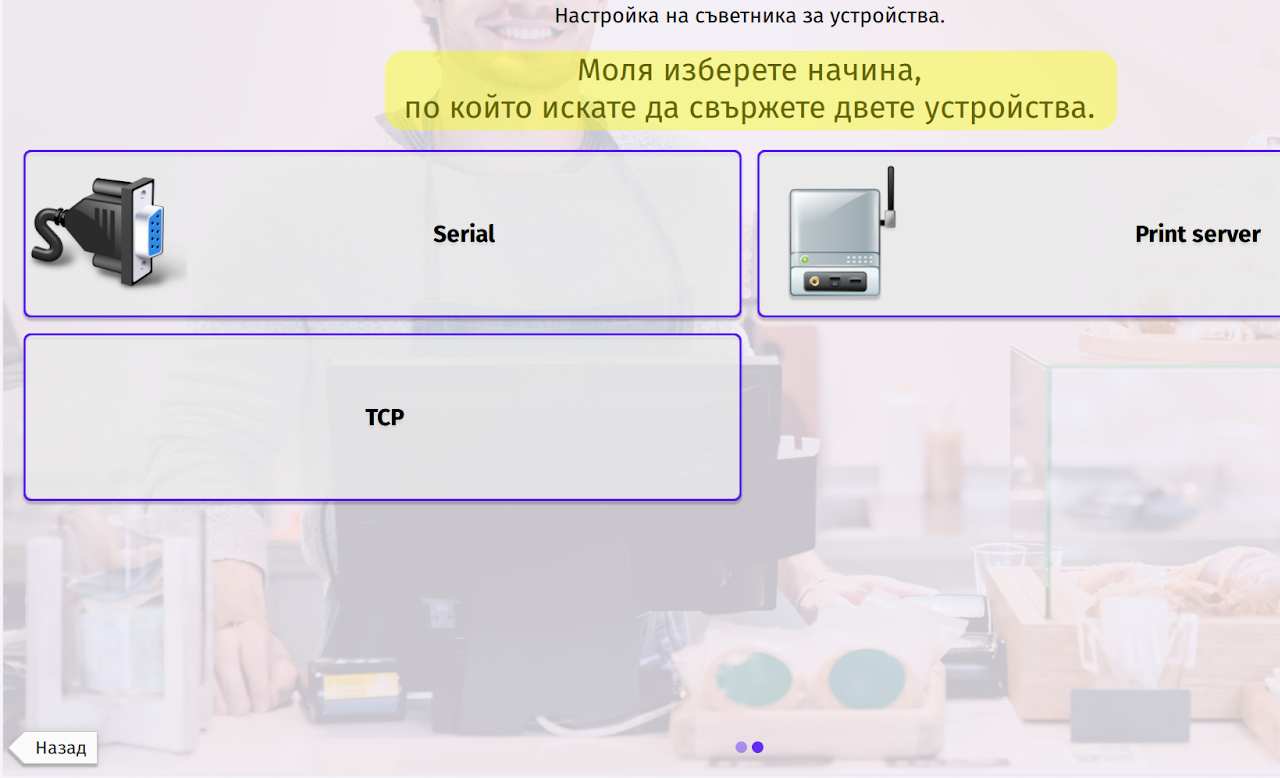
10. Select the connection type
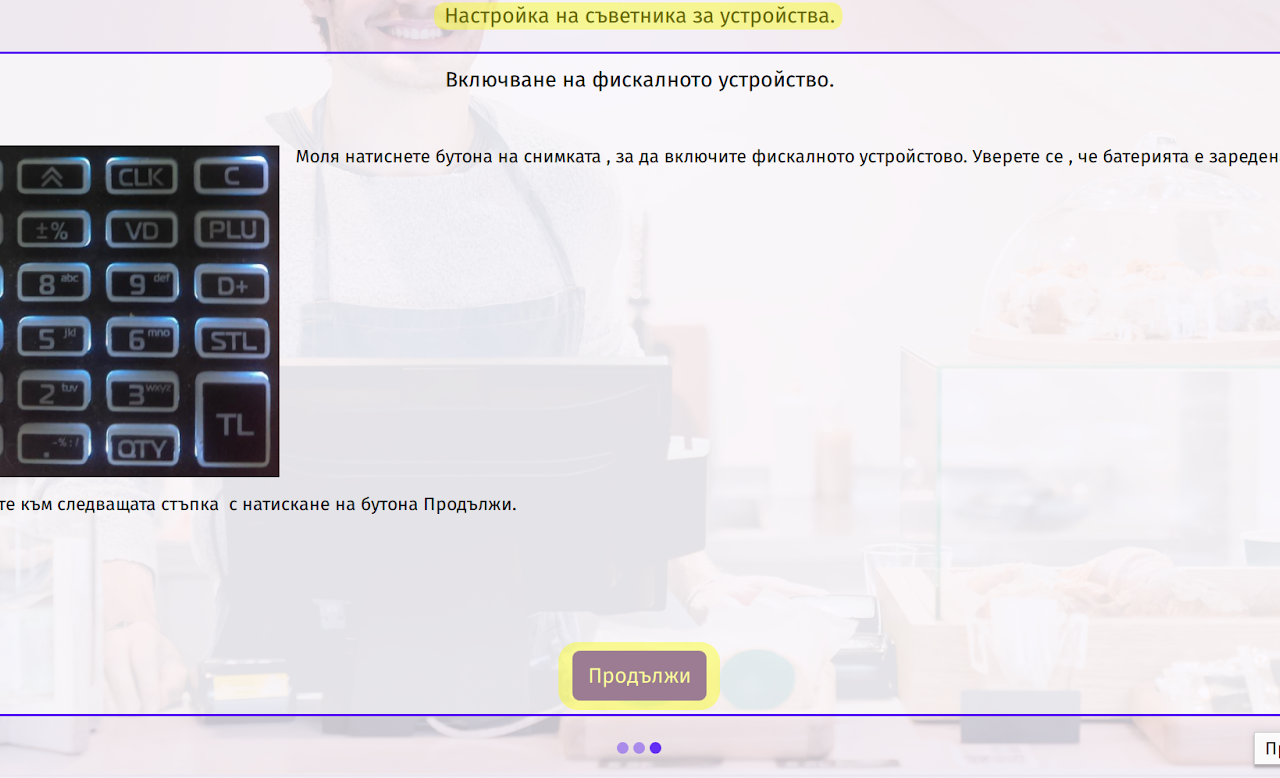
11. Follow the help instructions
In order for the fiscal device to be recognized by the computer, it must be entered in PC mode. When selecting the appropriate device and connection type, follow the instructions to set the cash register in the appropriate mode. Press the "Continue" button to proceed to the next steps.
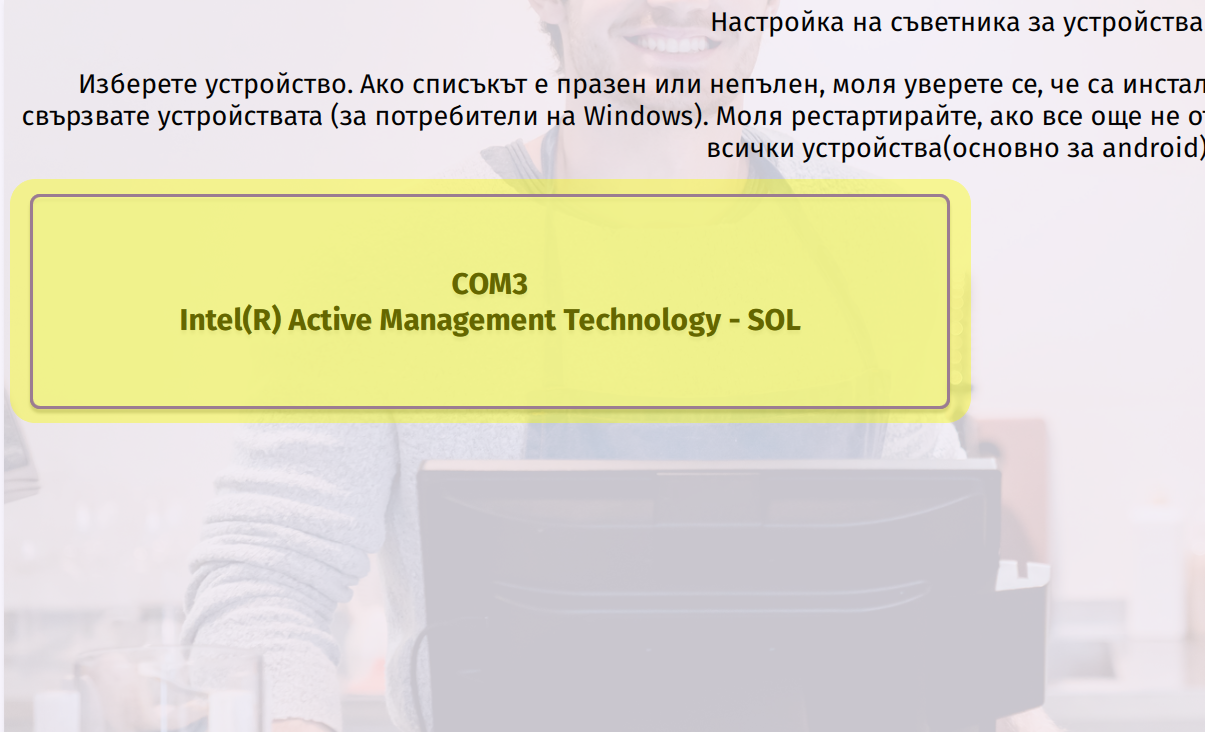
12. Select COM port
Select the port to which the fiscal device is attached.
If the list is empty, there are probably no drivers installed. They can be accessed from the websites of the manufacturers of the respective make and model of the cash register.
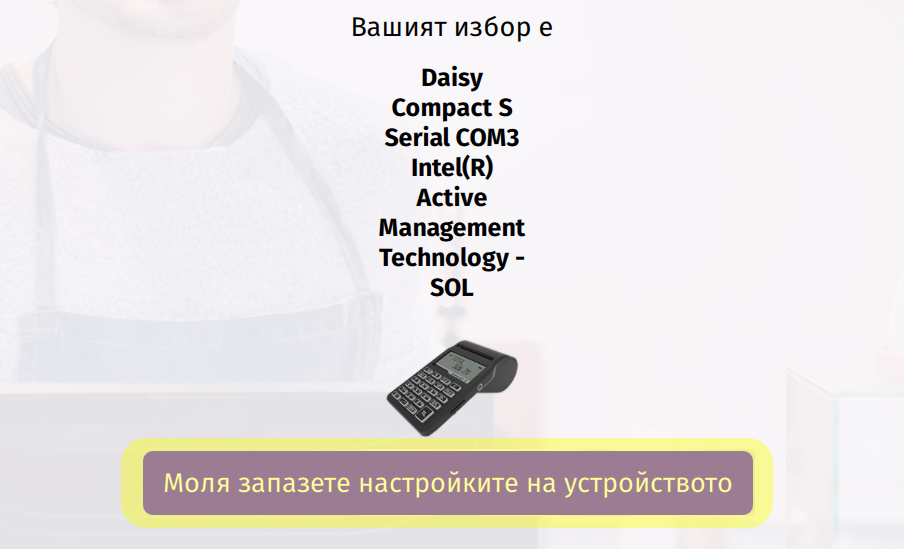
13. Save the settings
With the "Please save device settings" button, you save the configuration made so far.
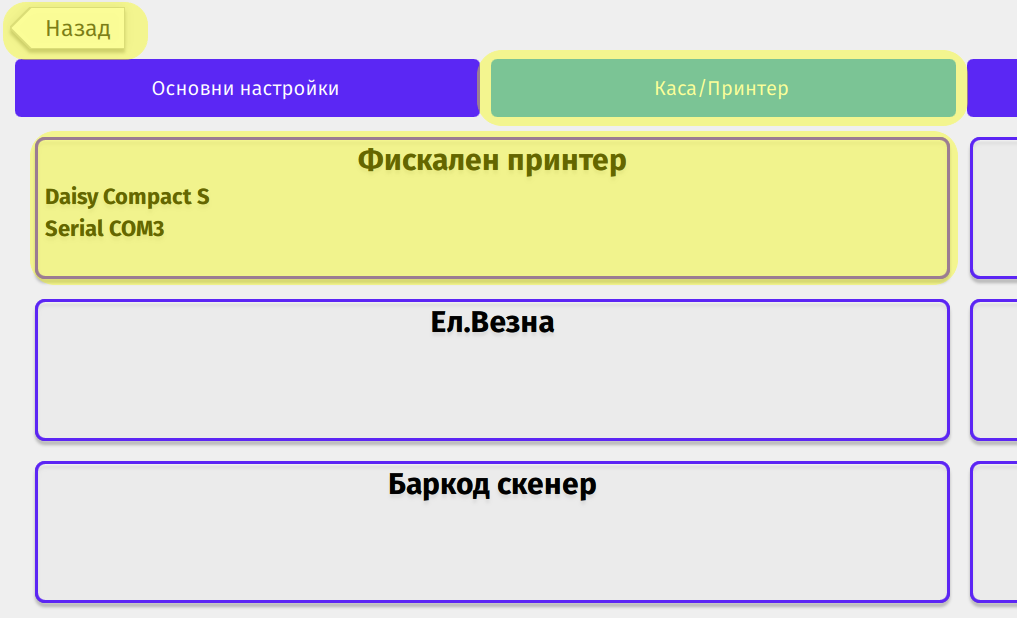
15. List of peripherals
In the settings of "Cashier/Printer" all entered peripheral configurations are visualized.
To access the POS home page with your items and payments, press the "Back" button.
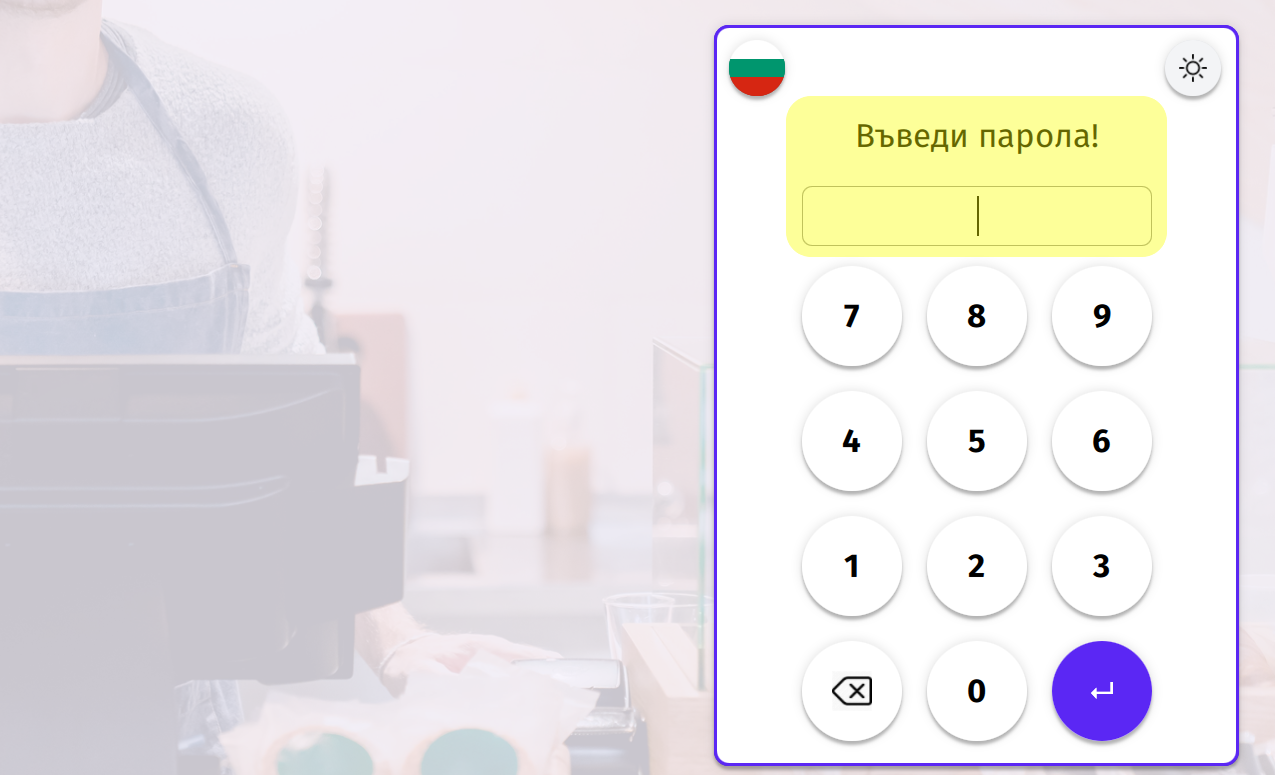
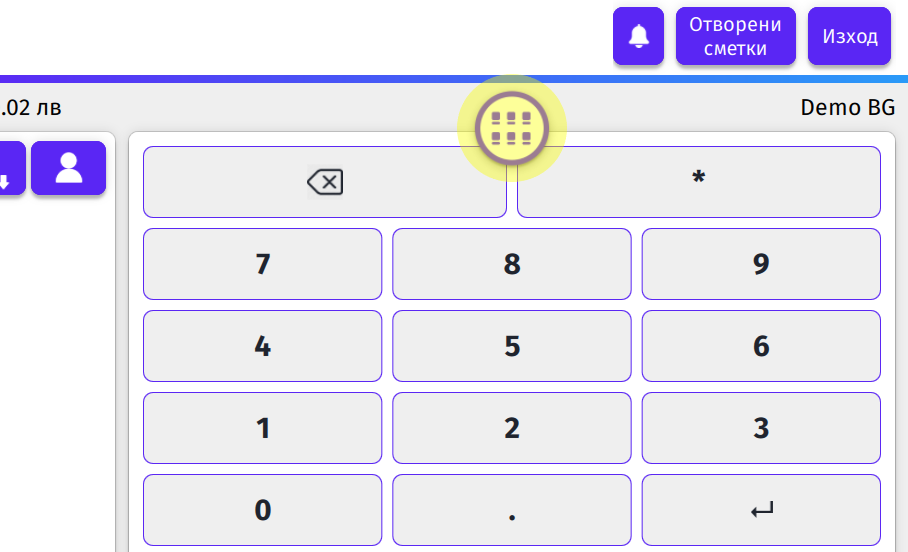
16. Enter PIN
Enter a user's 4-digit PIN from the registration email.
17. Select a menu of items
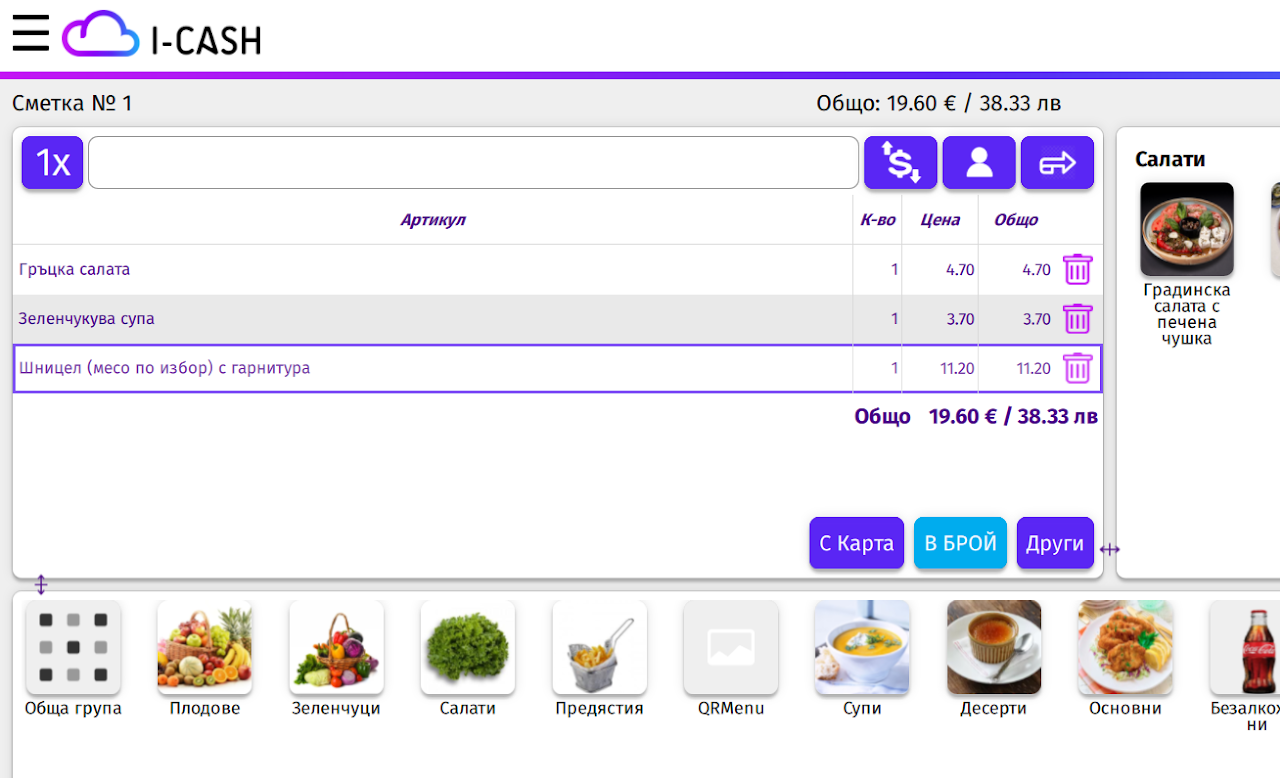
Select an item menu to display the database you previously entered in your Internet account.
18. Sale
You are now ready to make your first sale through I-CASH. You can explore the topic in more detail here: Selling through POS