
Home / User guide / items
Items
Create an item base
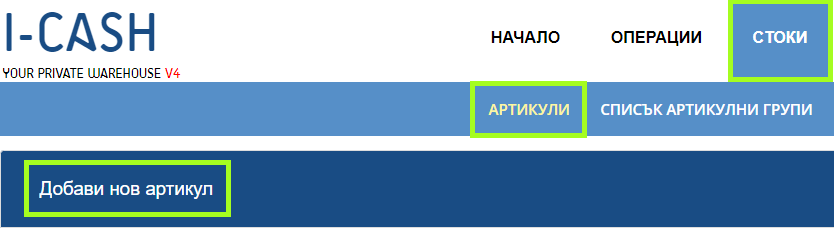
Select "Add New Item"
Through menu "Goods" => "Items" you can access "Add New Item" button.
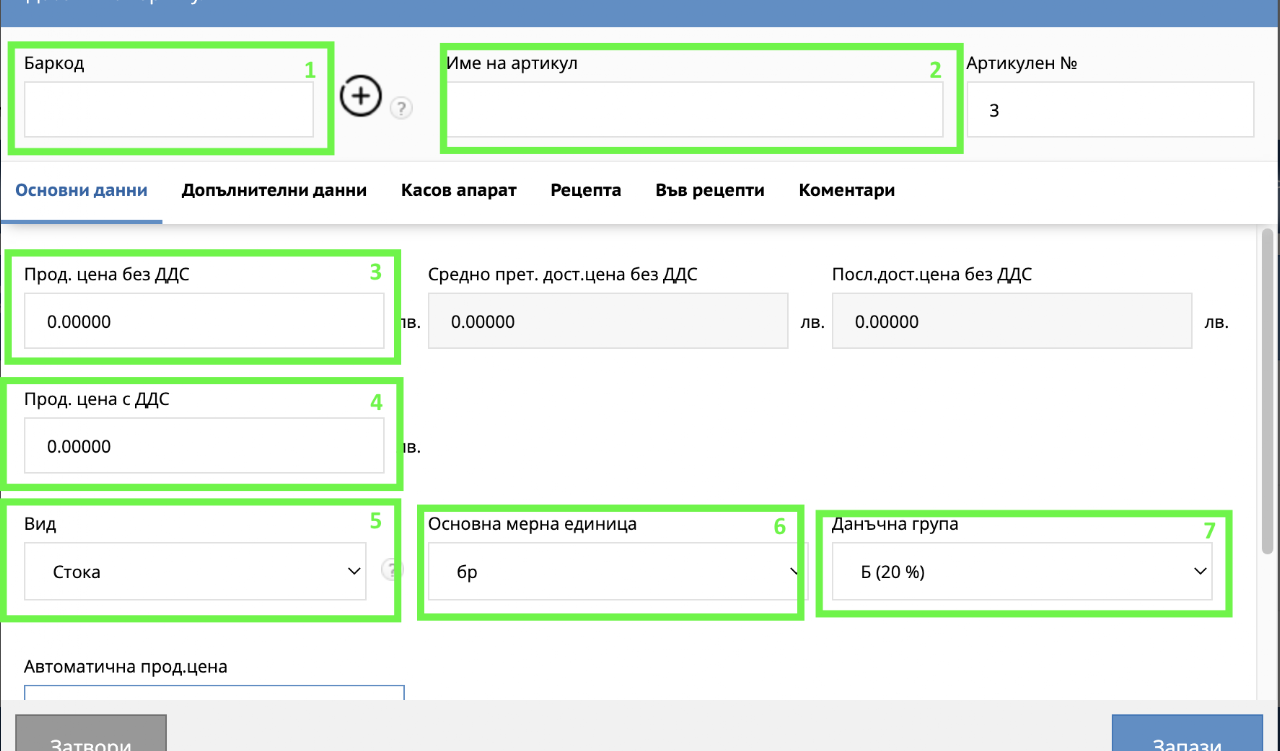
2. Enter the item details
Barcode
For convenience, you can read the barcode number from the item with a barcode scanner. If the item does not have a barcode, you can create your own numbering to make it easier for you during the sale.
Item name
The name of the article can be in Latin or Bulgarian letters. Note that it must comply with Bulgarian legislation.
The sales price does not include VAT
You can enter the price without VAT if that is more convenient for you. If you want to enter the price including VAT, skip this field and go to the next field. The price is automatically recalculated based on the set percentage in the tax group. (item 7)
Price with VAT
A price with VAT will change the price without VAT (item 3). The price is automatically recalculated based on the set percentage in the tax group. (item 7)
Type
Here you have to choose "Good" or "Service". If you select "Service" - the software will not calculate availability.
Basic unit of measurement
The unit of measurement can be according to the units of measurement entered in the system. If a measurement unit is missing, you can request to add one by email info@icash.bg.
Tax group
Tax groups are pre-defined according to tax legislation.
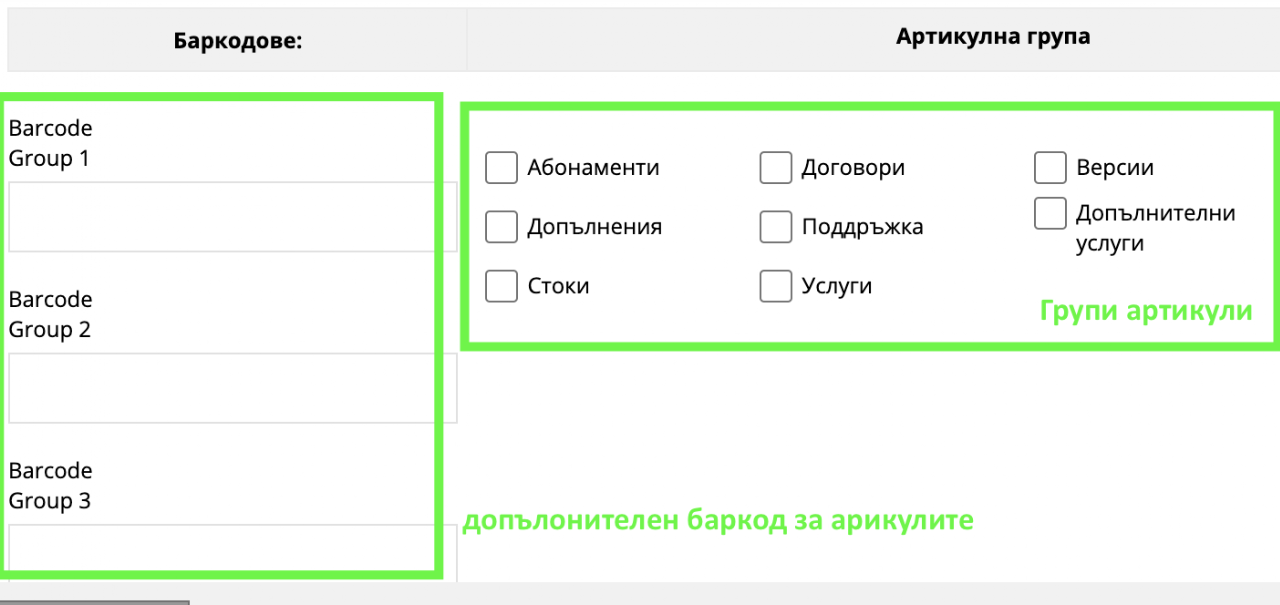
Additional barcode
The system allows to enter an additional barcode for the items. If you need them, please contact the support department at info@icash.bg.
Item groups
If you have created item groups, they will be visualized and you will be able to choose which groups an item belongs to.
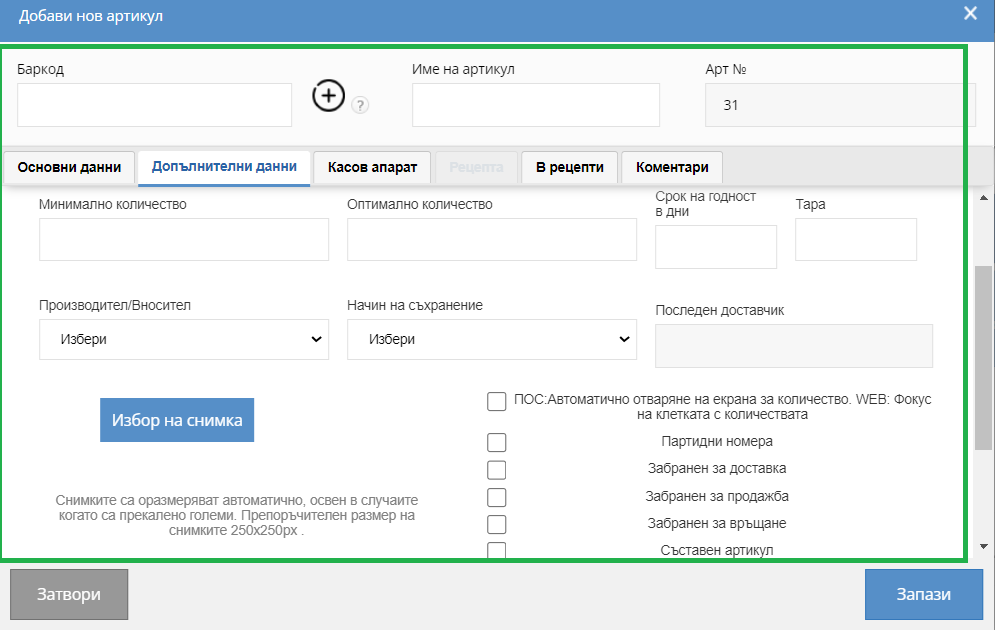
3. Additional data
In additional data you have the following fields:
– Minimum quantity (reflected in the system when the minimum quantity of the specified item is reached)
Manufacturer
Method of storage
You can attach a photo that is visualized in the POS
Checkers:
Batches and expiration date
*if you work on a Start package, you will be able to enter batches and expiration dates through a new delivery,
which will be reflected in Inbound Control Log – reports – by items – inbound log. Control.
*if you work on a Pro package, you will enter batches and terms of the items in delivery, by which you will monitor the availability in your warehouse.
-Forbidden for delivery
-Forbidden to sell
-No returns allowed
You also have the option to attach a photo to the item.
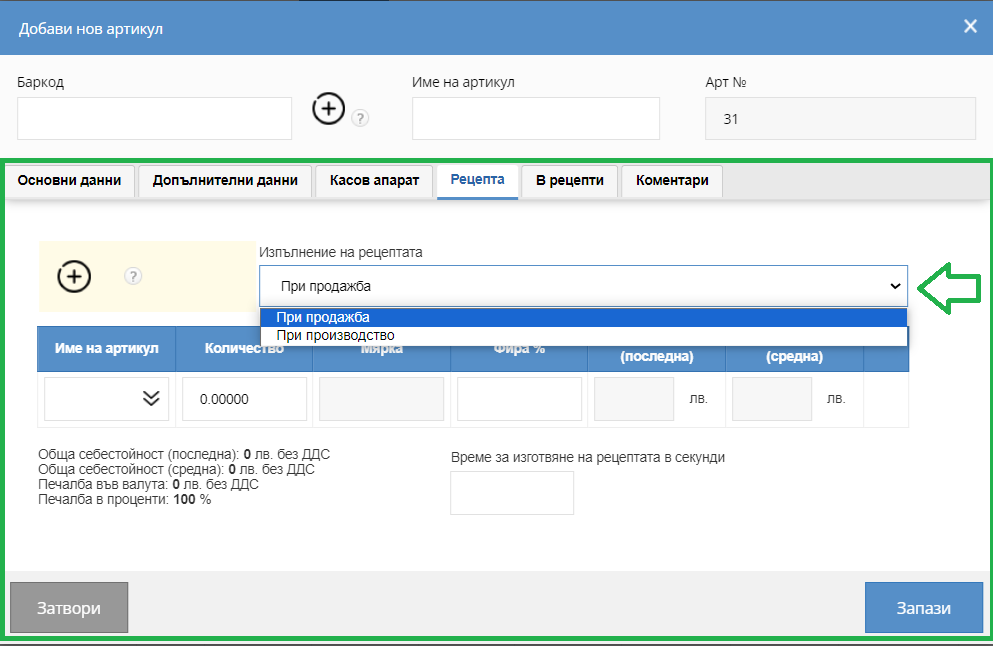
4. Recipes
In the recipes menu, a recipe or production is created,
The recipe is used for an item to which you have added component items, from which the system, when selling the specified recipe, will remove quantities from the component item warehouse.
Production is only used in the PRO package and it is intended to create production in a larger quantity, which when creating a production item, you will need to enter the ingredients that will be needed to produce it.
After creating a production item you need to create your production through Operations -> Production, from where you will also be able to enter the batch of the item during creation.